The row detail panel: fields, linked records, provenance, and activity
Open one row in a side panel to edit every field, see what links to it, learn which run created it, and review the automations and conversations that touched it.
The grid is good for scanning many rows; the row detail panel is for working with one. Open a row and a side panel slides in from the right with everything about that row: every field (editable), what links to it, which agent run created it, and what has happened to it since. The grid stays interactive underneath, with no backdrop, so the panel is a focused workspace rather than a modal that blocks everything.
Opening and moving between rows
Open a row from the grid (or a kanban card) to bring up the panel. Its header shows the row's title, taken from the row's first text field. Move between rows without closing the panel using the up and down arrows in the header, or the keyboard: arrow keys step to the next and previous row, and Escape closes the panel. Because the panel stays mounted as you move, navigating is instant.
You can also arrive at a specific row by link: a URL with a row parameter opens straight into that row's panel once the table loads, which is how a chip elsewhere in the app ("open this linked row") lands you on exactly the right record. If that row no longer exists, the panel tells you plainly rather than opening an empty shell.
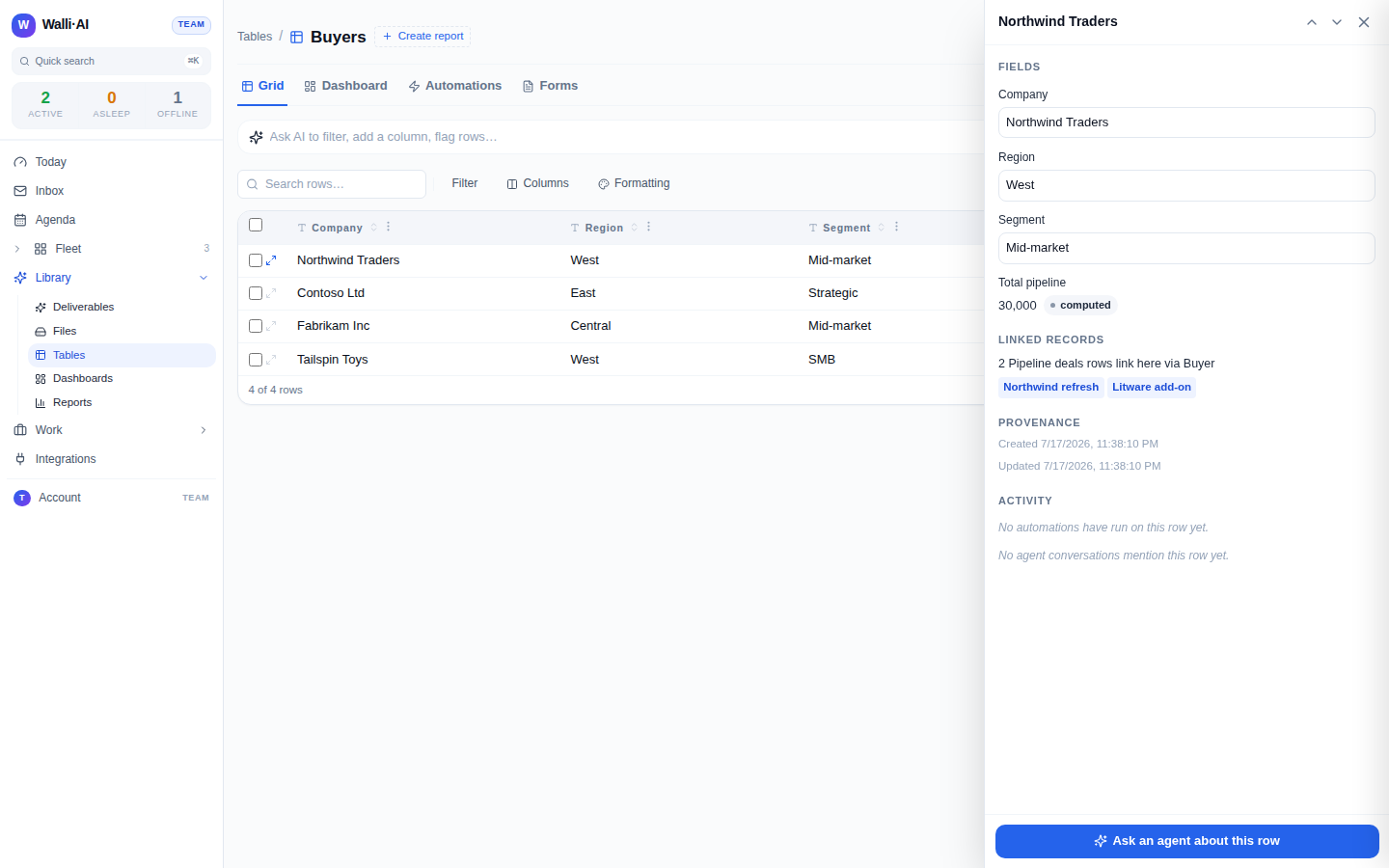
Fields
The Fields section lists every column in display order (hidden columns last, marked as hidden) and renders each value with the same per-type editor the grid uses, so editing here behaves exactly like editing a cell. A text field is a text box, a select is a dropdown of its options, a date is a date picker, and a bool is a toggle. Editing a field writes the same validated way every table write does, so a value that does not fit is coerced or quarantined, not silently accepted.
Some field types are special:
- Computed fields (lookup, rollup, formula) are shown read-only with a "computed" tag, because their value is derived from other data and cannot be edited directly here, just as in the grid.
- A link field shows the linked row as a chip, with a picker to search the target table and change the link, and an "open" link to jump to the linked row's own panel.
- A file field shows the row's attachments as chips, with an editor to add or remove files.
- A quarantined value (one that failed validation on a previous write) is shown highlighted with the reason, so you can see the original input and fix it, rather than it being hidden.
Linked records: what points at this row
The Linked records section is the reverse of a link column. A link column on the row shows what the row points to (that lives in Fields); this section shows what points at the row. For every table and column anywhere in your workspace that links to this row, it lists a line like "3 Deals rows link here via Buyer", with clickable sample chips that open those rows. This is how you answer "which deals belong to this buyer" from the buyer's side, and it is gathered live across the workspace's link columns, so it is always current. If nothing links to the row yet, it says so honestly.
Provenance: where the row came from
The Provenance section records the row's origin. If an agent run created the row, there is a link straight to that run, so you can see the work that produced the record. It also shows when the row was created and last updated. Provenance is what lets a table of agent-produced rows stay accountable: every such row can be traced back to the run that wrote it.
Activity: what has happened to the row
The Activity section is the row's history of attention. It shows two things: automations that ran on this row (each linking to its run, with its status and time) and agent conversations that mention the row (a snippet and a link to the run where it came up). If no automation has run on the row and no conversation mentions it, each says so plainly. Activity is a best-effort scan, so if that lookup ever fails, the panel says it could not load the activity rather than showing an empty list that would falsely imply "nothing happened". That distinction (honest error versus real emptiness) is deliberate throughout the panel: an empty section means empty, not "we could not check".
Ask an agent about this row
At the bottom of the panel is Ask an agent about this row. It prefills the table's AI command bar with a reference to this specific row (its title and id) so you can hand the exact record to an agent without copying anything, for example "draft a follow-up email about this deal" or "what changed on this row this week". It turns a read-only record into a launch point for action, which is the intent everywhere in the product: information surfaces should also be places you act from. See Letting an agent enter and query data.
Why the panel matters
A single row is where a table meets the real world: this deal, this contact, this applicant. The panel gathers the four things you need about it (its current values, its relationships, its origin, and its history) into one place you can edit from and act from, without losing your place in the grid. It is the counterpart to the grid's breadth: the grid to find the row, the panel to work it.