"Log every support request into your CRM automatically"
When a support request comes in on your chat channel, an agent reads it and logs it as a structured row in your CRM table, automatically, so nothing falls through the cracks.
Support requests arrive faster than anyone logs them: a question in a Discord channel, a "can you help with" in Slack, a message that gets answered and then forgotten before it ever makes it into a system. This recipe closes that gap. When a request comes in on your support channel, an agent reads it, pulls out who asked and what they need, and writes a structured row into your CRM table, automatically. Nothing depends on someone remembering to log it after the fact, so your record of who needs what stays complete on its own.
Who this is for
Support leads, community managers, and small teams who take requests in a chat channel but want them tracked like a real queue. If your "system" is scrolling back through messages to remember what is still open, or requests get answered in the moment and never recorded, this gives you a clean, structured log without changing where your customers reach you. It fits a support channel, a community help forum, or a shared inbox.
What you'll set up
A CRM table to hold the requests, an inbound chat channel where requests arrive, and an agent that turns each incoming message into a row. The agent watches the channel, and when a new request comes in it reads the message, extracts the fields you care about, requester, summary, category, urgency, and inserts a row into your table. Your CRM fills itself as requests come in, in the structure you chose.
Build it
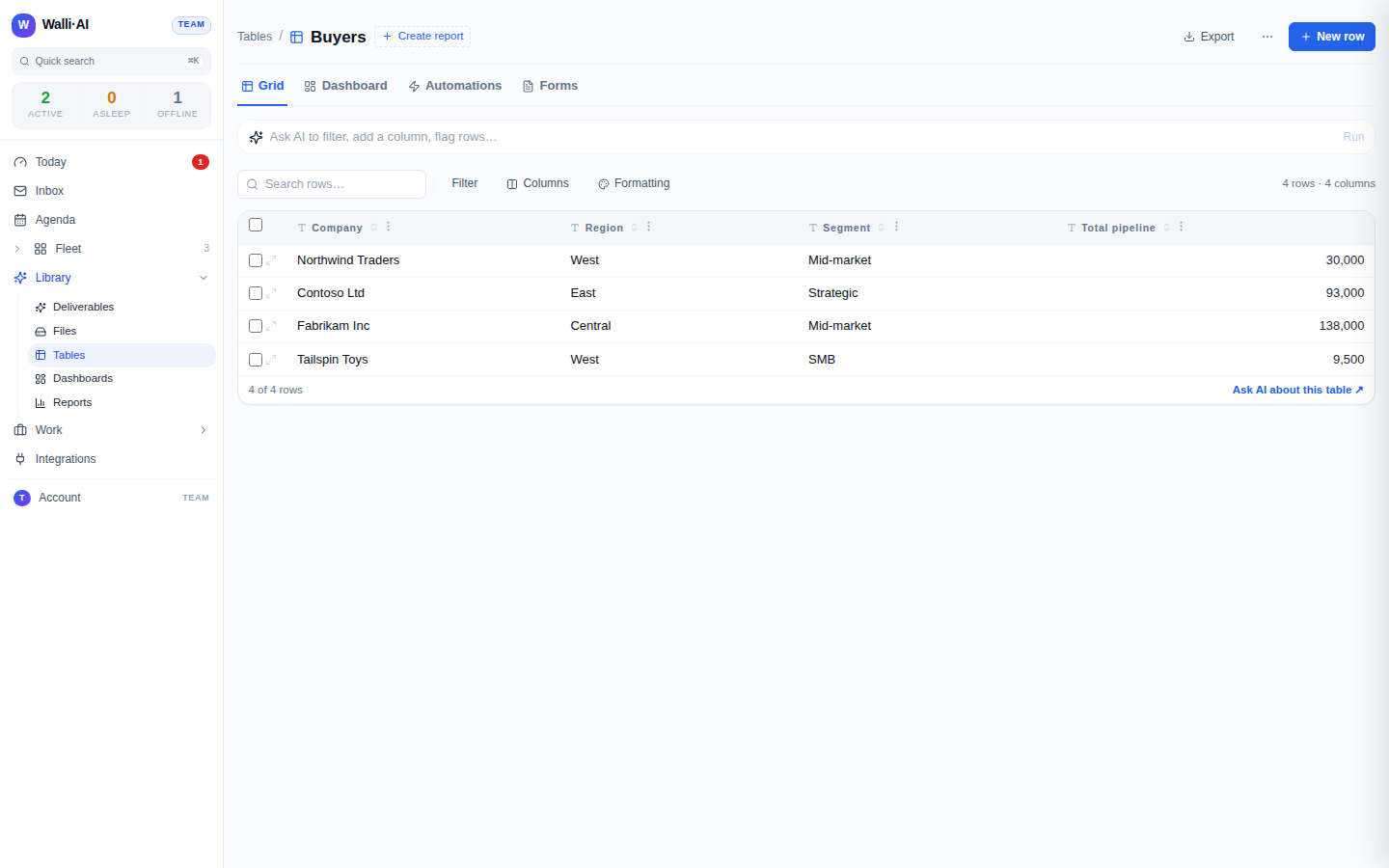
- Build the table that will hold requests, with the columns you want to track: requester, request summary, category, status, urgency, and a timestamp. This is your support log.
- Create an agent for the job, for example one named
Ticket Logger, and tell it exactly how to turn a message into a row: which columns to fill, how to categorize, how to judge urgency, and to leave a field blank rather than guessing when a message does not say. Tell it to record the request faithfully, not to answer it here. - Connect a chat channel where support requests arrive: Slack, Discord, or Telegram as a first-class inbound channel. Point your
Ticket Loggeragent at that channel. Inbound messages on a chat channel are triaged in real time, so a genuine request reaches the agent as it arrives, while obvious spam and social chatter are filtered out before they ever become a row. - Tell the agent what to do with each request: for example "When a support request comes in, read it, and insert a row into the support table with the requester, a one-line summary, a category, an urgency, and status New. Do not guess fields the message does not contain."
- Send a test request into the channel and watch the row appear in the table, then adjust the agent's categorization rules until the rows read the way you want.
What you get
A support log that fills itself. Every genuine request that lands in your channel becomes a structured row: who asked, what they need, how urgent, and its status, in the shape you defined. Because the channel is triaged before a row is written, the log captures real requests and not the noise around them. You get a queue you can sort, filter, and report on, built from the messages your customers were already sending, with no one retyping anything into a system after the fact.
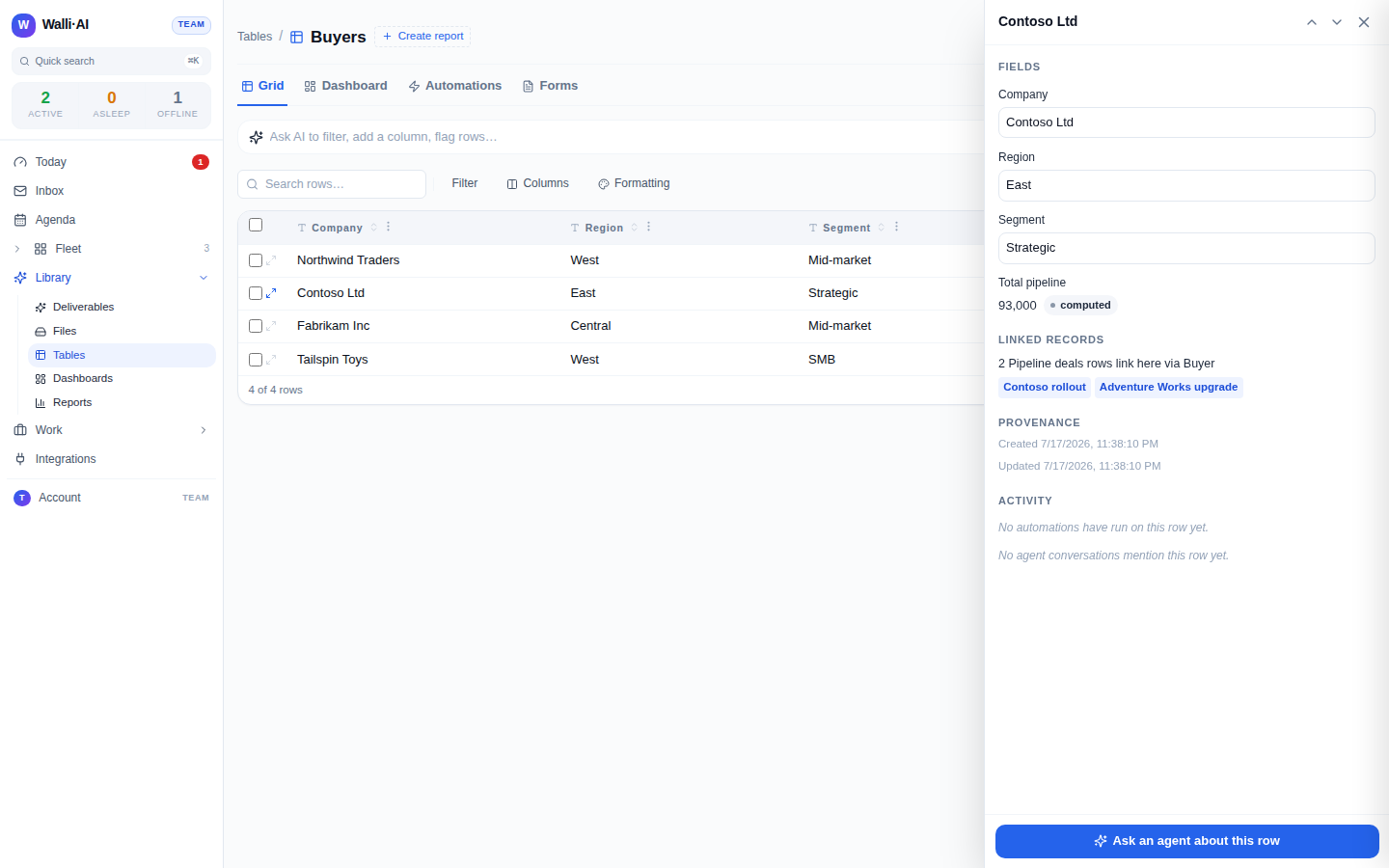
The agent records rather than invents. It fills the fields the message supports and leaves the rest blank, so your log stays trustworthy: a row reflects what the requester actually said. Real-time triage applies to chat channels; email is read on a schedule or on request rather than the instant it arrives, so an email-fed queue logs on the cadence you set instead of message-by-message.
Make it yours
- Log from email instead. Point the agent at a support inbox with email connected and put it on a schedule, so emailed requests are read on a regular sweep and logged as rows.
- Enrich as it logs. Have the agent look up the requester or tag the request against a known account while it writes the row, so the log arrives already enriched. See enrich every new row automatically for that pattern.
- Route the urgent ones. Have the agent post a heads-up to a chat channel when it logs something it judged high urgency, so the queue and the alert happen together.
- Trigger follow-up automations. Add a table automation on the support table so a newly logged row can kick off a downstream agent, for example one that drafts an acknowledgement for you to review.
What it costs
This recipe is one agent that runs briefly each time a request comes in: read a message, write a row. That is small, bounded work per request. Run it on Walli-AI's managed Spark models and the work is metered against your plan's included AI budget, which you can watch fill in real time; run it on your own provider key and it bills to your provider instead. The volume of incoming requests is what drives cost, and the channel's triage keeps noise from turning into billable runs. For how metering works and which plan fits, see what it costs and choosing a plan.