Importing and exporting table data (CSV)
Load data from a CSV to create or grow a table, understand the import summary, export a table back out, and know how row limits behave.
CSV is the fastest way to get data into and out of a table. You can import a CSV to create a brand-new table, import into an existing table to append rows, and export any table back to a file. This article covers each path, the summary an import gives you, and how per-table row limits behave.
Import a CSV as a new table
From the Tables index, click Import CSV and choose a file. Walli-AI reads the first row as headers and creates one column per header, inferring each column's type from a sample of its values (a column of numbers becomes number, a column of dates becomes date, and so on). Then it loads every data row in a single batched pass. You can set the new table's name in the dialog; it defaults to the file name.
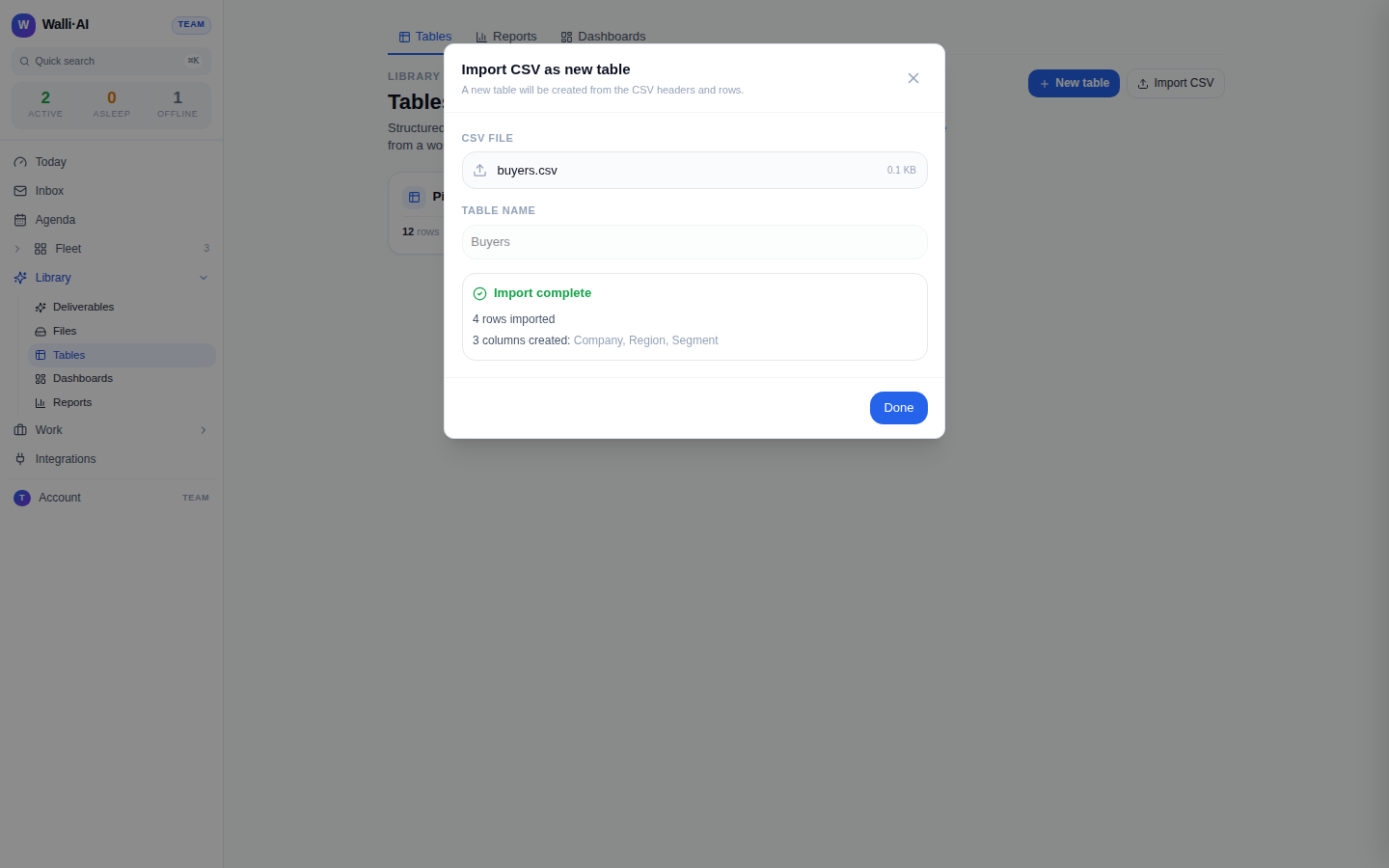
When the import finishes, the dialog shows a summary: how many rows were imported, which columns were created, how many cells were quarantined, and how many rows were skipped. That summary is the honest record of what happened, so you are never guessing whether a messy file landed cleanly.
Import into an existing table
Open a table and use Import CSV from the overflow menu to append rows. Here the columns already exist, so headers are matched to your columns by name (the match is forgiving about spacing and case, so a header does not have to be typed identically). Values that fit their column's type are stored; a header that matches no column is simply ignored, so the append does not invent new columns on its own. Rows are validated the same way every write is, which brings us to how imperfect data is handled. An import that would run into your row limit is checked before it writes, so it is refused up front rather than loading half the file and stopping.
How messy data is handled
An import never aborts on a bad cell. Three things can happen to a value:
- Coerced. A value that is close to its column's type is converted (for example, a number typed with stray formatting), and the conversion is counted so you know it happened.
- Quarantined. A value that does not fit its column's type at all is set aside on the row and flagged for review rather than being written as if it were valid. The import summary counts quarantined cells, and the row detail panel shows them so you can fix them.
- Skipped. Entirely blank or malformed rows (a line of commas, an empty line) are skipped and counted, so they do not clutter the table.
The parser handles standard CSV correctly: quoted fields that contain commas or newlines, escaped quotes, and both Windows and Unix line endings, without any third-party dependency. On the way back out, exports are hardened against spreadsheet formula injection: a value that begins with a formula trigger character is quoted and escaped so a spreadsheet treats it as text, not as an executable formula.
Export a table
The Export button on a table downloads its current contents as a CSV file named after the table. Agents can export tables too, and can produce either CSV or JSON. Export walks the whole table (not just the page on screen), so what you get is the complete data, with each column rendered under its display name.
For polished, computed output (totals, groupings, charts, and formats like PDF or spreadsheet) you usually want a Report over the table rather than a raw export, because a report's figures are computed by a deterministic engine and can be scheduled and shared. See Reports.
Row limits
Each table has a maximum number of rows, and the limit depends on your plan. When an insert or an import would push a table past its limit, the write is refused with a clear message telling you the table is at its cap and inviting you to upgrade or delete rows, rather than partially loading the file. You can see the row limit for each plan on the billing page.
There is also a practical ceiling on how many rows a single import loads synchronously; very large files are best split into a few imports, and for bulk agent writes the CSV import path is the intended route rather than one enormous tool call. Storage used by your tables (rows and their size) is metered and counts toward your plan's storage allowance, which is also shown on the billing page.
When to import versus ask an agent
Import a CSV when you already have the data in a file: it is the quickest way to stand up or grow a table, and the type inference does the schema work for you. Ask an agent when the data needs to be gathered, cleaned, or produced first, for example "pull the open deals from the CRM and add them to this table". The agent writes rows through the same validated path an import uses, so coercion and quarantine behave identically. Either way, the table ends up with typed columns and an honest record of what was loaded. See Letting an agent enter and query data.
After an import
Once rows are in, everything else in this cluster applies: group and filter them in views, connect them to other tables with links and rollups, react to new rows with automations, or open a single row in the detail panel. An import is just the front door; the table is a live surface from there.