Table automations: run an agent when rows change or on a schedule
Wire a table to an agent so inserting, updating, or deleting a row, or a scheduled scan of matching rows, runs a workflow or sends the agent a message.
An automation makes a table do something. Instead of watching a table and reacting by hand, you point an agent at it: when a row changes, or on a schedule, the agent runs. Automations live on a table's Automations tab, and each one binds a trigger (what happens on the table) to an action (what an agent does about it).
Two kinds of trigger
Open New automation and the builder offers two trigger types.
When a row changes fires the moment rows are inserted, updated, or deleted. You choose which of those three events to listen for (any combination), and you can narrow it with conditions: a group of column tests, joined by AND or OR, so the automation only fires for rows that match, for example only deals whose value is over a threshold. You can also add transitions, which fire only when a column changes to a particular value (optionally from a specific previous value), for example only when Stage becomes "Closed Won". Because a condition evaluates the row's data after the change, it can never match a delete (a deleted row has no data left), and the builder warns you if you combine conditions with a delete-only trigger so you do not create an automation that can never fire.
On a schedule scans the table on a cron cadence and acts on the rows that match a required condition. This is for "every morning, act on the rows that are still open" rather than reacting to a single edit. A scheduled automation has a re-fire mode: notify once when a row first matches (each matching row triggers the agent one time, and will not nag again while it keeps matching) or digest (every run acts on all matching rows). You set the cadence with a cron expression or a preset like "every morning" or "every Monday", in your workspace timezone.
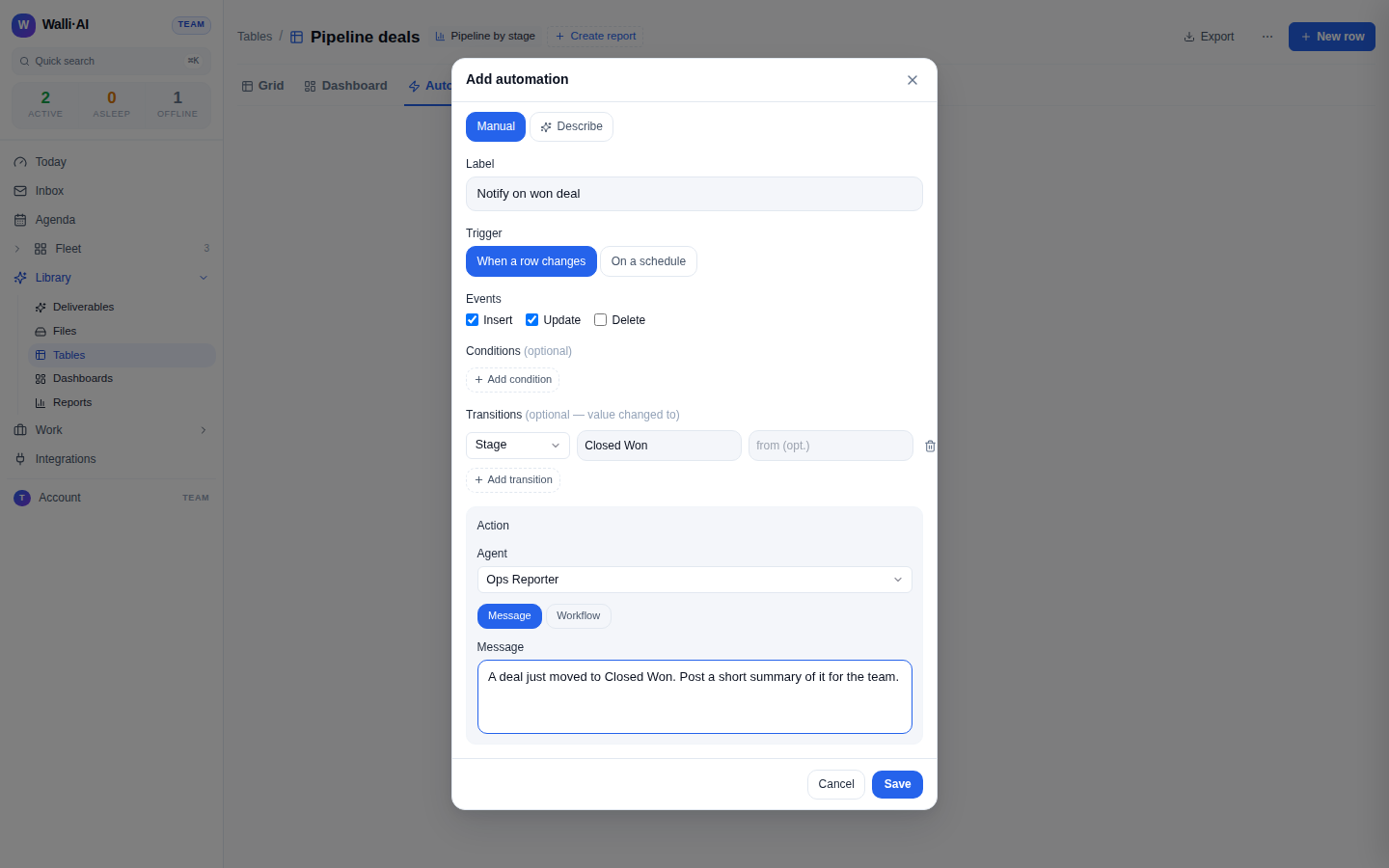
The action: message or workflow
Every automation runs an agent, and you pick what that agent does:
- Message sends the agent a one-off prompt, the same as typing it into that agent's chat, but triggered by the table.
- Workflow runs one of that agent's saved workflows.
The agent must be one that exists in your workspace, and it is required: the builder will not save an automation without an agent, because a trigger with no one to run it would simply self-destruct on its first fire. You give each automation a label so it is identifiable in the list and in run history.
Build it manually or describe it
The builder has two tabs. Manual exposes every control directly: events, conditions, transitions, cadence, mode, agent, and action. Describe lets you type what you want in plain English ("when a deal moves to Closed Won, have the ops agent post a summary") and Walli-AI translates it into a draft automation, then drops you back into the Manual tab so you can review every field before saving. Nothing is created until you save.
Where a kanban drag and a CSV import fit in
An automation on a row-change trigger fires for every path that writes a row, not just the grid. Dragging a card between kanban lanes writes the group-by cell, so a lane move into "Closed Won" triggers a Stage-transition automation exactly as an inline edit would. A CSV import that appends rows fires the insert automation once for the batch (coalesced into a single run rather than one per row). An agent that writes to the table through its tools fires them too. That is the point: the automation reacts to the data changing, however it changed.
Where the results land
The action is an ordinary agent run. A workflow automation produces a deliverable that shows up in your Library and its run appears in run history. A message automation runs the prompt against the agent and its output lands in that agent's chat and run history. Either way the run is a normal, inspectable run, with its outcome, its cost, and any approvals it needs, so an automation is never a black box.
Managing automations
The Automations tab lists each automation with its trigger type (a badge for "On change" with the insert/update/delete events, or "Scheduled" with the cadence and mode), its status, and its action summary. From the list you can edit an automation, delete it, or resume one that was paused. Editing reopens the same builder with every field populated, so you can adjust the events, conditions, cadence, agent, or action of an existing automation without recreating it, and a tab badge on the table workspace shows how many automations a table has at a glance.
Automations are rate-limited per trigger so a burst of row changes cannot stampede an agent. If an automation hits its hourly cap it is paused with a "Paused, rate limit" badge and a Resume button, rather than dropping runs silently. Chained writes are bounded too: when an automation's own run writes back to a table and trips another automation, the chain is capped at a fixed depth so automations cannot loop forever.
A safety note for agents
When an agent reads a table that has automations, and it writes to that table through its tools, Walli-AI appends a preview of which automations are armed to fire as a result, so the agent (and you) can see the cascade before it happens. Combined with the per-trigger rate cap and the chain-depth bound, this keeps table automations predictable even when several of them touch the same data.