Browsing run history in the Runs explorer
See every run across your fleet, filter by agent and status, and open any run for its deliverable.
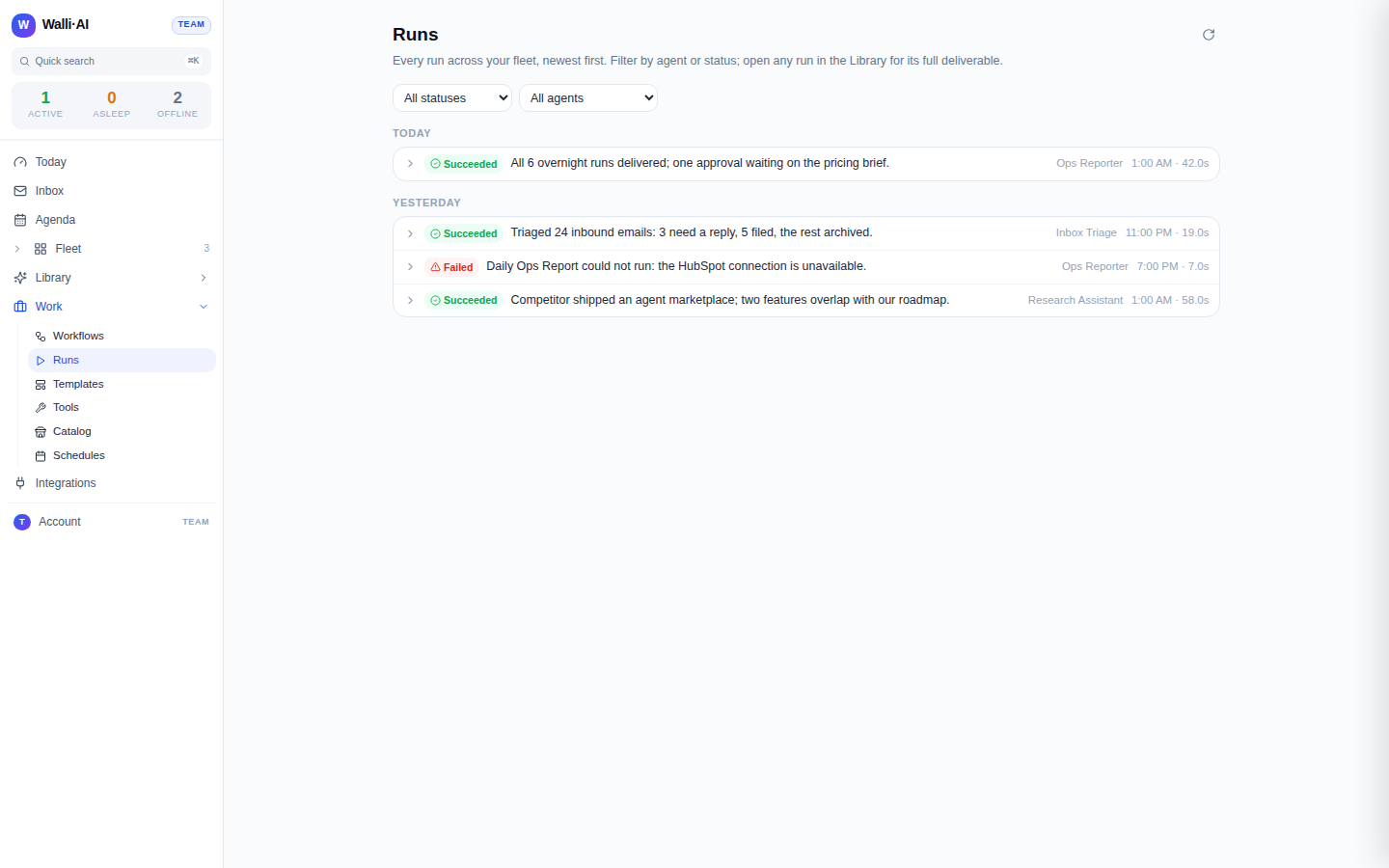
The Runs explorer is the fleet-wide record of every time an agent ran a workflow, message, or ad-hoc task. It lists runs newest first, grouped by day, and lets you filter by agent and status, expand a run to see what happened, and jump to its full deliverable in the Library. This article covers the filters, the statuses you will see, the drilldown, and where a run's output actually lives.
What you can do
- See every run across all your agents, newest first.
- Filter the list by status and by agent.
- Expand any run to read its headline, next action, and (for failures) the error.
- Open a run in the Library for its full deliverable.
Read the explorer
- Go to Work -> Runs (
/runs). The page is titled Runs with the subtitle "Every run across your fleet, newest first. Filter by agent or status; open any run in the Library for its full deliverable." - Runs are grouped into dated sections labeled Today, Yesterday, or a weekday and date. Within each section, one row per run shows a status pill, the run's headline or workflow name, the agent that ran it, and the time and duration.
- Use Load older runs at the bottom to page further back in history.
Filter the list
Two dropdowns sit above the list:
- Status filters to a single outcome: All statuses, Succeeded, Failed, Needs approval, Approved, Rejected, or Running.
- Agent filters to one agent, or All agents.
There is no separate workflow or date filter here: the day grouping handles chronology, and the two dropdowns cover the questions you usually ask ("what failed?" or "what did this agent do?"). If nothing matches, the explorer says so and points you to clear the filters or to Schedules to set work in motion.
Understand the statuses
The status pill uses a consistent color and icon per outcome:
- Succeeded and Approved are green: the run finished, and an approved run also cleared its review gate.
- Needs approval is amber: the run produced a deliverable that is waiting on a human to approve before it is delivered.
- Running is in progress.
- Rejected is red: a reviewer declined the deliverable.
- Failed is red: the run errored out. See Recovering from a failed run for what to do next.
Drill into a run
Click a run to expand it in place. The expanded row shows:
- The headline, the one-line decision-shaped summary from the run.
- A Next: {action} line with the suggested follow-up.
- For a failed run, the raw error message in a highlighted box so you can see exactly what went wrong.
- Its provenance (the workflow or schedule that produced it) and an Open in Library link.
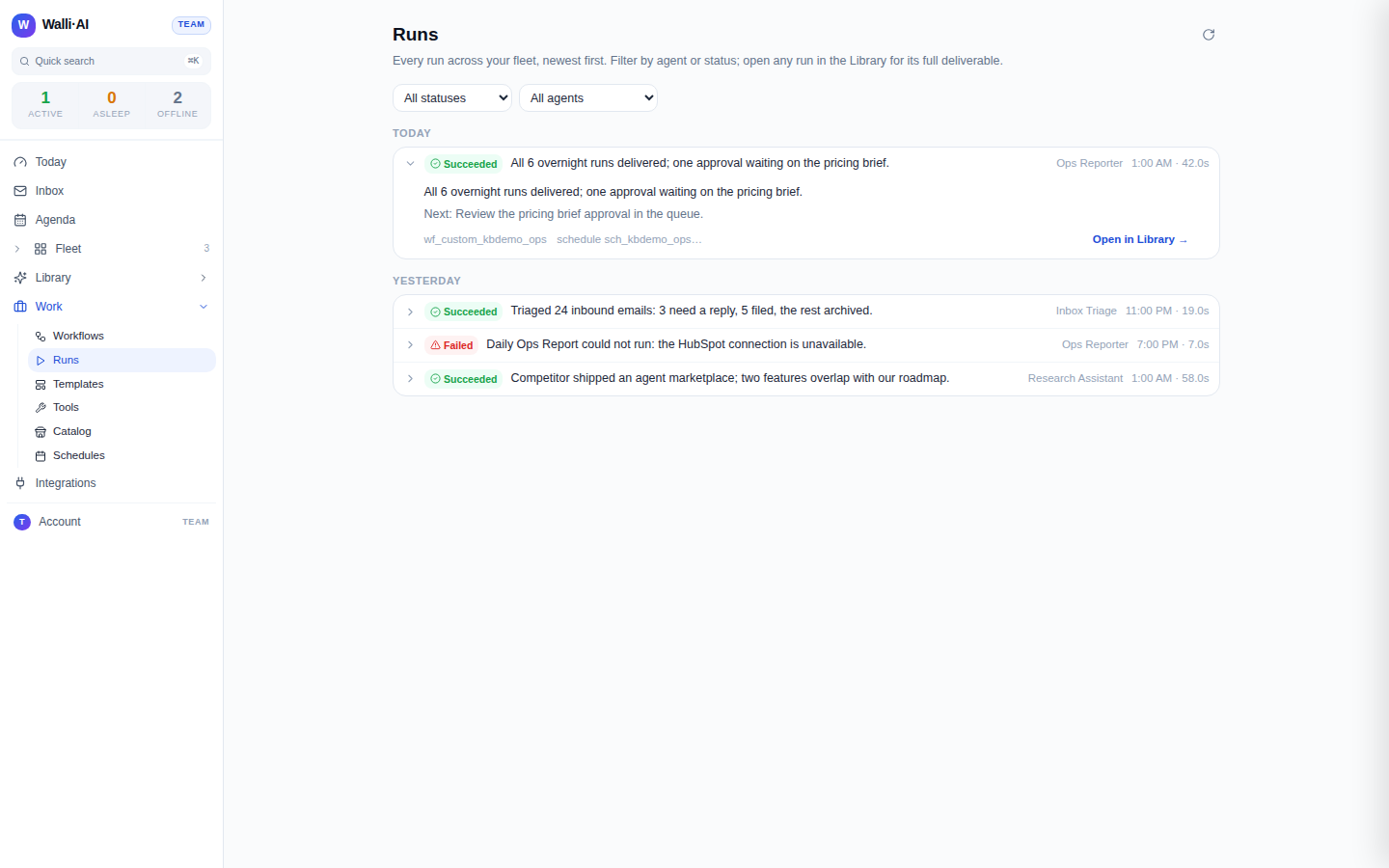
The explorer intentionally keeps the inline view compact: it shows outcome, timing, and the error, but not the full deliverable, token counts, or cost. Those belong to the deliverable surface described next.
Where the full deliverable lives
A run's complete output opens in the Library. Open in Library (and the deep link at /runs/{runId}) both take you to the Library slide-over at /library?runId=..., where you see the rendered deliverable, any files the run saved, and its self-critique grades. This keeps the explorer fast to scan while the Library holds the full detail. See Deliverables for how that view works and how deliverables are organized.
Runs are retained for roughly 90 days. Older runs age out of the explorer, though the deliverables they produced remain browsable in the Library.
Runs waiting on approval
A run whose workflow requires human review does not fail and does not deliver on its own: it lands as Needs approval and waits. Filtering the explorer to Needs approval shows everything currently held for a decision, so you can find and clear approvals in one place. Once a reviewer signs off, the run flips to Approved and its deliverable is sent; if it is declined, it becomes Rejected. This is why approval-gated workflows are the right choice for anything that emails a customer or posts to a channel: nothing leaves your workspace until a person says so. See Creating or editing a workflow for how to turn that gate on.
How runs get created
Every entry in the explorer comes from one of a few places, so the explorer is effectively the audit trail of your automations:
- A schedule firing on its cadence or an inbound trigger.
- A one-off Test or Run now on a workflow.
- An ad-hoc task an agent performed during a conversation.
- A step of a chat pipeline an agent ran on your behalf.
Because the list spans the whole fleet, it is the fastest way to answer "did last night's work run?" or "why did this agent's job not deliver?" without opening each agent one by one.
Tips
- Filter to Failed first thing to triage anything that broke overnight, then open each one to read the error.
- Use the Agent filter to audit a single agent's recent activity when you are tuning its schedules.
- Duration is shown per run; a run that is much slower than its peers is worth opening to see what it did.
- For the full deliverable, files, and quality grades, always follow Open in Library rather than reading the compact inline view.