Breaking a request into a multi-step pipeline
Have an agent split one request into ordered steps you can run, edit, or skip, right inside chat.
A pipeline is a way to have an agent break one request into a sequence of ordered steps, then run them one at a time with each step's output feeding the next. It lives inside agent chat: you ask for something involved, the agent plans it into steps, and you run, edit, or skip each step from an inline card. This is the right tool when a single message is really several tasks in a row. This article covers where pipelines live, how to plan and run one, and how they differ from a saved workflow.
What you can do
- Turn one multi-part request into an ordered, numbered plan of steps.
- Run steps one at a time or all at once, with each step building on the last.
- Edit a step's instruction, skip a step, or retry one that failed.
- See each step's output land back in the conversation as it completes.
Where pipelines live
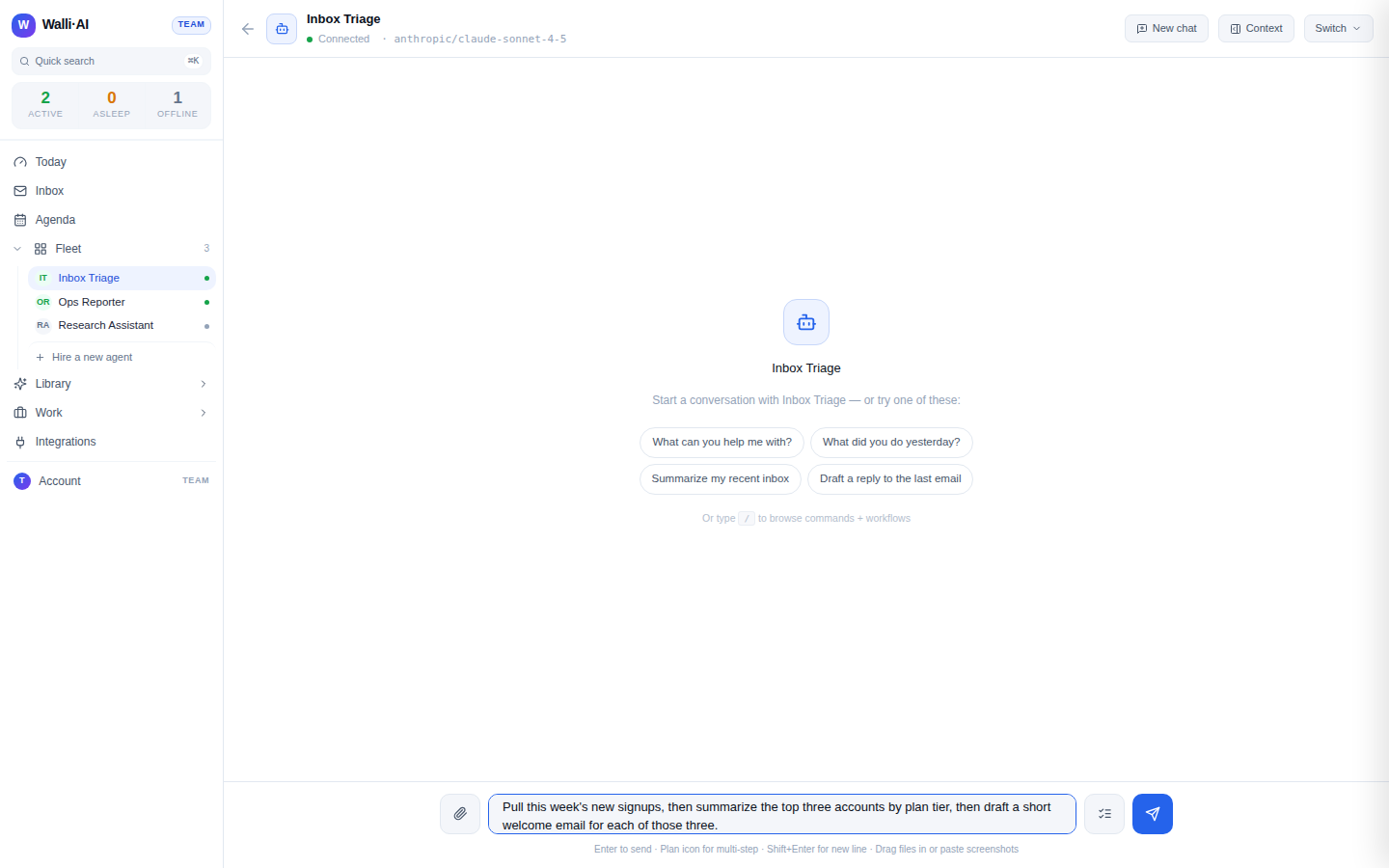
Pipelines are not a separate page and there is no pipelines route in the sidebar. They happen inside an agent conversation at /chat. In the chat composer, next to the blue Send button, is a secondary button with a checklist icon whose tooltip reads "Plan it - let your agent break this into steps before running." That Plan it control is how you start a pipeline.
Plan a pipeline
- Open an agent's chat (
/chat) and type a request that has several parts, for example "pull this week's new signups, summarize the top three by plan, and draft a welcome note for each." - Instead of Send, click Plan it. The agent's planner reads your message and decides whether it is genuinely multi-step.
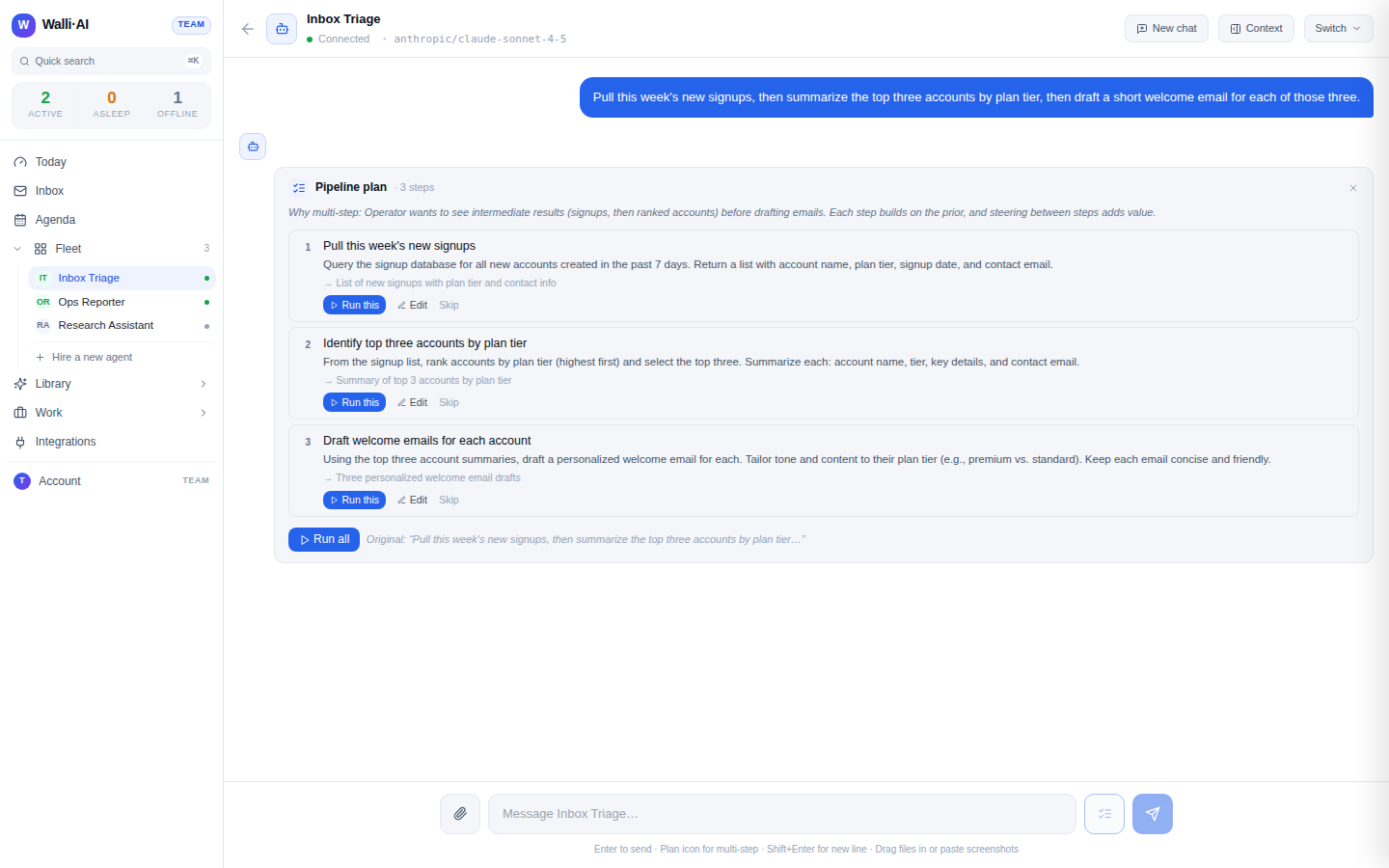
- If the request is really a single task, the agent says so and invites you to send it normally instead. If it is multi-step, an inline Pipeline plan card appears in the thread.
The plan card lists the steps in order. Each step has a title, an editable directive (the instruction for that step), and a short description of the deliverable it should produce, shown as a -> {deliverable} line. When the planner has a reason for splitting the work, it shows a Why multi-step note at the top.
Run, edit, and skip steps
You stay in control of every step.
- Run this runs a single pending step. Its output is threaded back into the conversation as a normal assistant message tagged with the step number.
- Edit opens the step's directive so you can reword it before running, then Save or Cancel.
- Skip drops a step you do not want.
- Run all runs the remaining steps in order from top to bottom. Each step receives the prior steps' outputs as context, so later steps build on earlier ones. If a step fails, it shows the error with Retry and Skip options and the run stops there until you decide.
Steps move through the states pending, running, done, skipped, and error. A finished step shows a preview of its output; when every step is done the card shows Pipeline complete and a Clear button to remove it from the thread.
A pipeline is executed sequentially, threading each step's result forward, which is what makes the later steps aware of the earlier ones. That is different from firing several unrelated tasks at once.
Pipelines versus workflows
Pipelines and workflows both run multi-part work, but they are built for different jobs:
- A pipeline is ad hoc and lives in the conversation. The agent plans it from one message, you run it once, and it is not saved or scheduled. It is ideal for a one-time, involved request where you want to see and steer each step.
- A workflow is a saved, reusable template with a fixed prompt and output shape. It can be tested, scheduled, chained to other workflows, and its runs are recorded in Runs and the Library.
If you find yourself planning the same pipeline repeatedly, that is a signal to capture it as a workflow (or a chain of workflows) so you can schedule it and reuse it, rather than re-planning it each time.
A note on code steps
Pipeline steps are natural-language directives the agent carries out; there is no visual builder for wiring together blocks of custom code. If a step needs to run your own Python or Node.js, that capability lives in custom tools, which an agent can invoke during any run. See Tools and the Catalog for how to write a custom tool and assign it to an agent, and the agent can then call it as part of a pipeline step.
Tips
- Reach for Plan it when a message contains the words "and then," "after that," or a list of distinct outputs; reach for Send when it is one ask.
- Review the planned steps before running: edit a directive to add a constraint, or skip a step you do not need, before you click Run all.
- Run steps one at a time the first time through so you can verify each output before the next step builds on it.
- When a pipeline becomes a habit, turn it into a saved workflow so you can schedule and reuse it instead of re-planning.