Starting from a workflow template
Browse the curated template gallery, activate a ready-to-run workflow, and customize your own editable copy.
Templates are curated, ready-to-run workflows you can adopt instead of writing one from scratch. Picking a template drops a known-good prompt and output shape into the workflow editor as an editable copy in your own fleet, so you can tweak it and schedule it in minutes. This article covers browsing the gallery, the personalized For You recommendations, and what happens when you customize a template.
What you can do
- Browse a searchable, tag-filtered gallery of built-in workflows.
- Get per-agent recommendations that account for the integrations an agent already has.
- Preview a template's sample output before committing.
- Activate a ready-to-run template in one click, or open an editable copy to customize.
Browse the gallery
- Go to Work -> Templates (
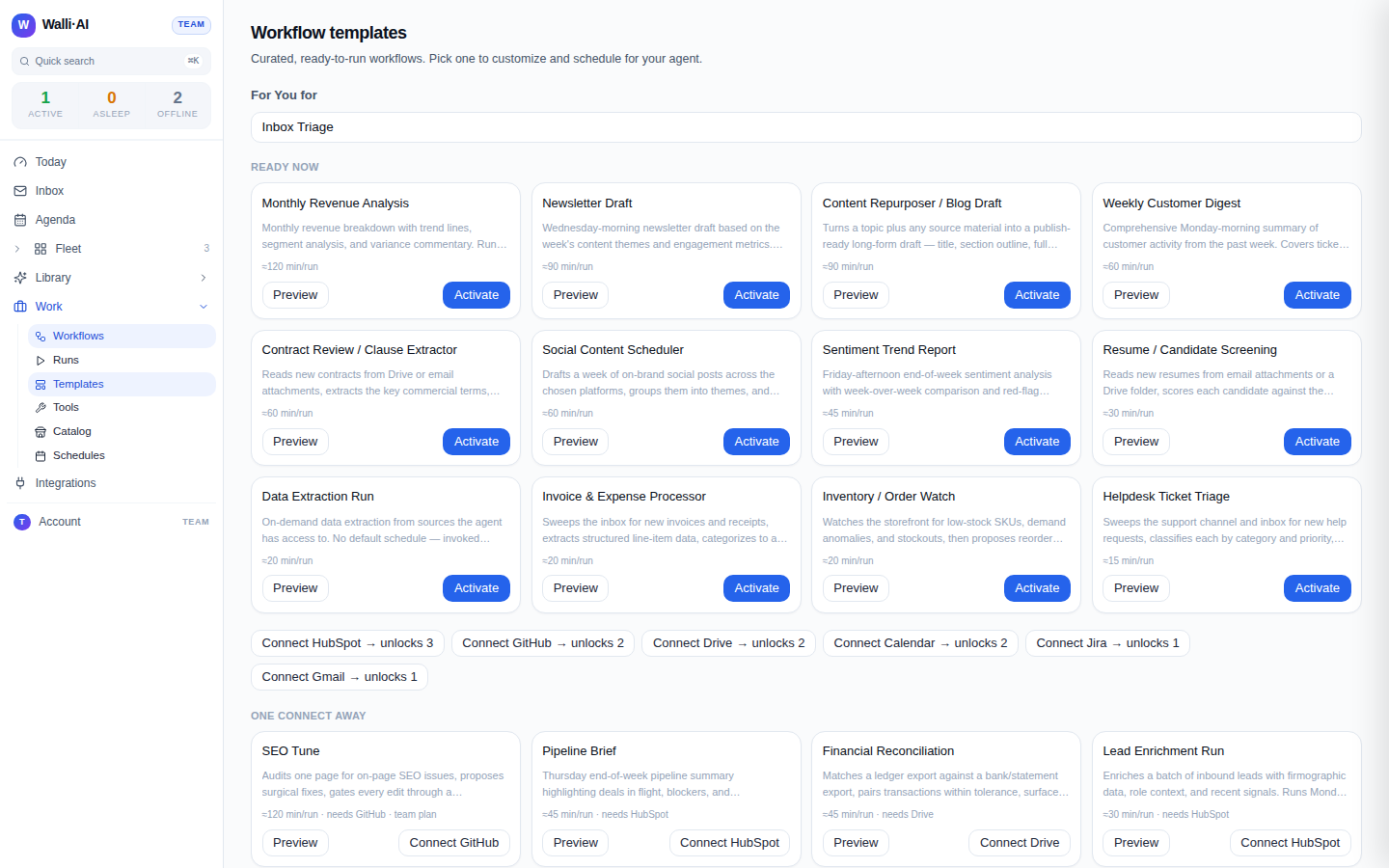
/workflows/templates), or click Browse templates from the Workflows list. The page is titled Workflow templates with the subtitle "Curated, ready-to-run workflows. Pick one to customize and schedule for your agent." - Scroll to Browse all to see the full grid. Use the search box to match on name or description, and click the tag chips (there is an All chip plus one per tag) to narrow by topic. The tags are derived from the templates themselves, so the set reflects what is actually available.
- Each card shows the template name, its description, a snippet of the sample output, up to three tags, and small meta chips: uses {n} mcp when the template needs a connected integration, and approval when it gates runs on human review.
Only built-in workflows that are rich enough to be useful appear here: a template must have both a prompt and a sample deliverable, so every card can show you what you are getting.
Use For You recommendations
At the top of the page, the For You rail tailors suggestions to a specific agent. Pick the agent from its dropdown and the rail reads that agent's occupation and how many integrations it has connected, then sorts templates into three groups:
- Ready now. Everything the agent can already run. The Activate button schedules the template for that agent in one click.
- One connect away. Templates that need an integration the agent does not have yet. The button reads Connect {integration} and sends you to set that up.
- Upgrade to unlock. Templates gated by plan. The button links to Billing.
Each recommendation also has a Preview button so you can read the sample output first. Activate either schedules the workflow directly, or, when the template needs a little configuration, opens the editor pre-seeded so you can finish the setup.
Activate may tell you a template is already scheduled on the chosen agent, or skip it for a stated reason. That is expected: the rail avoids creating duplicate schedules for the same agent.
Customize a template
Choosing a template never edits the built-in original. It creates a new, fully editable workflow that belongs to your fleet.
- From a Browse all card, click Use this template. This opens the workflow editor at
/workflows/newpre-seeded from the template. - The seeded draft carries over the template's description, tags, prompt, output format, fields, approval setting, and suggested schedule. The name is prefixed with Copy of so you can tell it apart, and the copy starts active.
- Edit anything you like in the normal editor (the fields are described in Creating or editing a workflow), then click Create to save it as your own custom workflow.
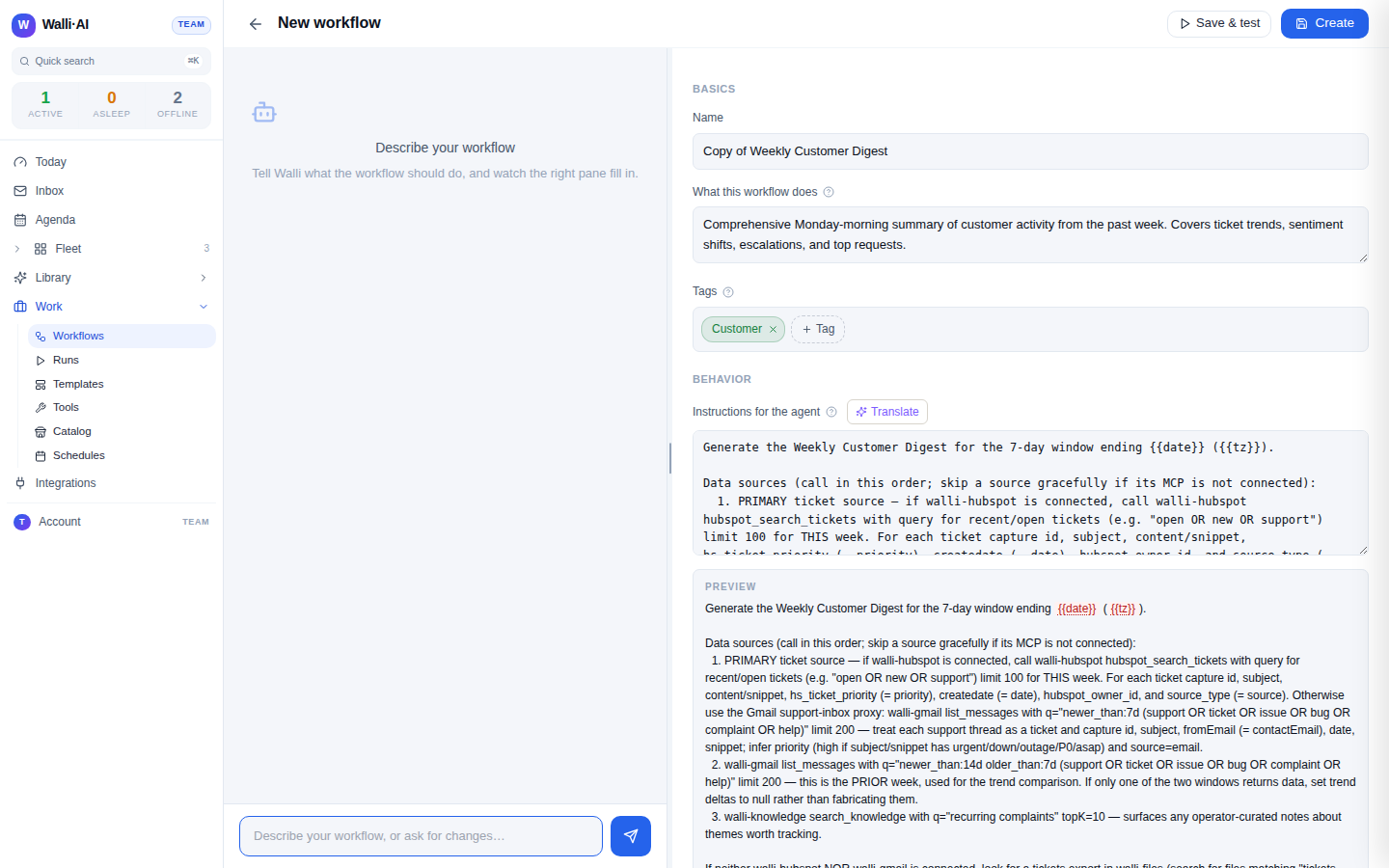
Because the copy is a normal custom workflow, everything else works the same afterward: you can test it, attach it to a schedule, expose it as a tool for other agents, or tune its prompt over time. The built-in template stays untouched and available for anyone else on your team to start from.
Starting from a template is usually faster than writing a workflow from a blank editor, because the hardest parts are already done for you: the prompt is written and tested, the output shape is defined, the fields are declared, and any approval gate is set the way that template expects. Your job shrinks to changing the parts that are specific to you, the customer names, the tone, the exact sections you want in the output, rather than designing the whole thing. It is also a good way to learn the editor: opening a well-built template and reading its prompt and fields shows you how an effective workflow is put together before you build one of your own from scratch.
Jumpstart inside a blank workflow
If you begin a brand-new workflow from scratch, the editor also offers a one-time Start from a template panel before you have typed anything. It shows the same curated templates as clickable cards with a tag filter and a Start blank button if you would rather not use one. Clicking a card seeds the form in place, exactly like the gallery does, and the panel then stays dismissed on future visits so it never gets in your way once you know what you want.
Tips
- Filter by tag first, then search: the tag chips reflect the real template set, so they are a faster way to find the right starting point than guessing keywords.
- Use Preview before Activate so you know the shape of the deliverable an agent will produce.
- A template that shows uses {n} mcp needs a connected integration on the target agent; connect it first, or the For You rail will route you through the connect step.
- After customizing, rename the Copy of workflow to something meaningful so it reads clearly on the Workflows list and in schedules.