Creating or editing a workflow
A reusable task template: a saved prompt plus the shape of its output, that any agent can run on demand, on a schedule, or as a tool.
A workflow is a reusable task template: a saved instruction (the prompt the agent follows) plus the shape of the output it should produce. Once a workflow exists, any agent in your fleet can run it on demand, you can attach it to a schedule so it runs on a cadence, and other agents can call it as a tool. This article covers building one from scratch, the fields in the editor, how to test a run, and how to manage workflows from the list.
What you can do
- Create a workflow with a name, description, prompt template, and a chosen output format.
- Declare typed fields: inputs you supply each run, and output sections the deliverable should contain.
- Require human approval before a run is delivered, and expose a workflow so other agents can call it.
- Test a workflow against any agent without leaving the editor.
- Search, filter, pause, edit, and delete workflows from the list, and jump to their outputs.
Create a workflow
- Go to Work -> Workflows (
/workflows) and click New workflow (/workflows/new). You can also start from a ready-made template: see Workflow templates. - The builder is a split screen. On the left is a conversational pane where you describe what the workflow should do to Walli-AI in plain language; it streams edits straight into the form on the right. You can ignore the chat entirely and fill the form by hand, or mix the two. On a narrow screen the two halves collapse into Chat and Workflow tabs.
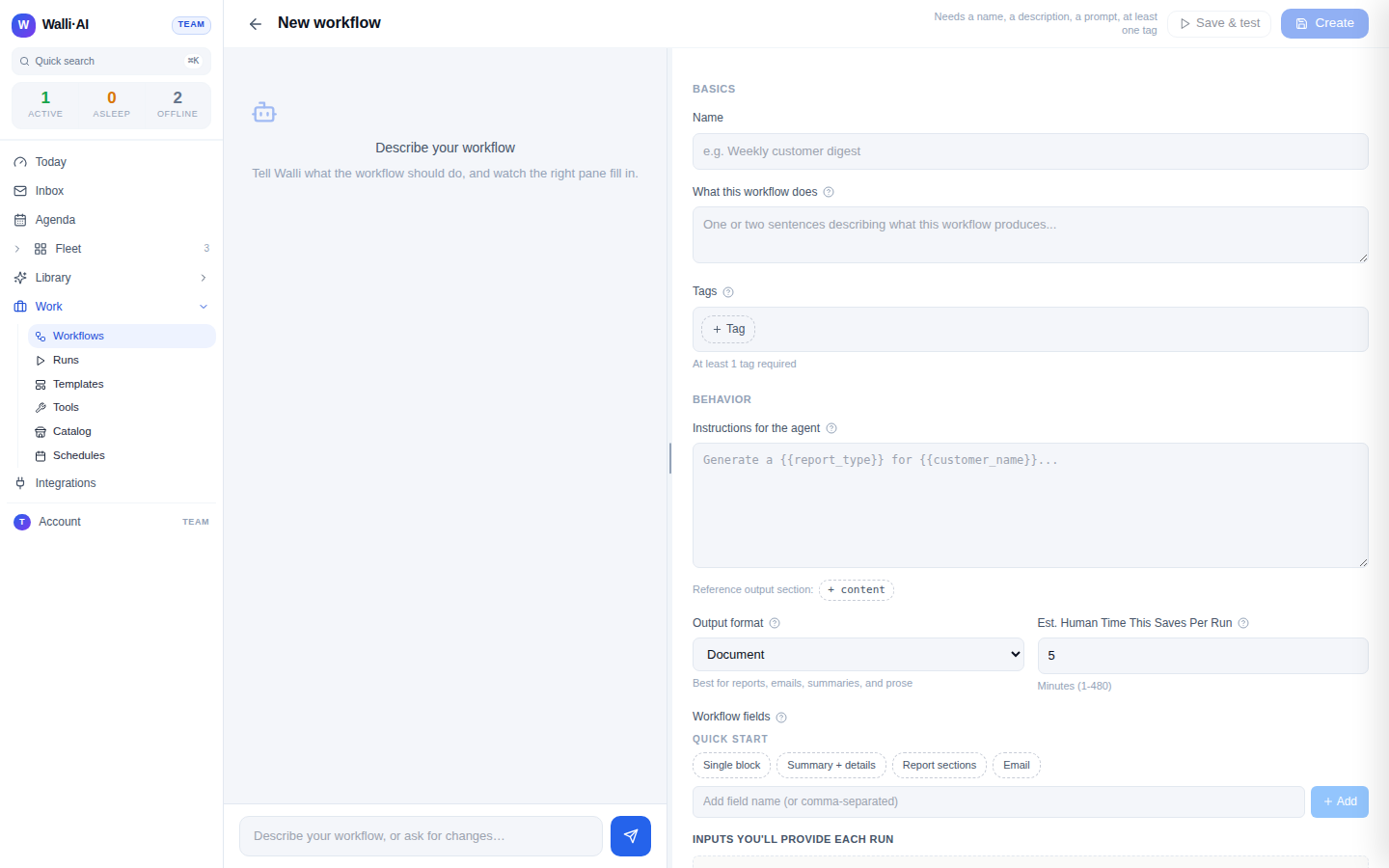
- Fill in the Basics. Give the workflow a Name, write What this workflow does (a one or two sentence description shown on the card and in template browse), and add at least one Tag (tags are required to save and power filtering later).
- Define the Behavior. Instructions for the agent is the prompt template the agent follows on every run; it uses
{{variable}}syntax for values you fill in per run. When the prompt is more than a few characters a Translate button appears that rewrites plain English into template syntax for you. Pick an Output format, set Est. Human Time This Saves Per Run in minutes (this feeds your productivity stats), and declare Workflow fields split into Inputs you'll provide each run and Sections to include in the output. - The Output format picker offers six shapes: Document (markdown, the default, best for reports and emails), Web page (HTML), Plain text, Structured data (JSON, preferred for agent-to-agent handoff), Spreadsheet (CSV), and Actions (a list of things the agent should do rather than prose).
- Set the Options. Turn on Approval required before delivery to pause each run for human review before it is sent to email or a channel. Turn on Let other agents in your fleet use this to make the workflow callable as a tool by your other agents. Optionally pick a Suggested schedule cadence, which becomes the default when someone schedules this workflow.
- Click Create. Save stays disabled until you have a name, a description, a prompt, at least one field, and at least one tag; the hint under the button names whatever is still missing.
Built-in (global) workflows cannot be edited. Opening the edit route on one sends you back to the list. To adapt a built-in workflow, start from it as a template, which creates an editable copy in your own fleet.
Run or test a workflow
You do not have to schedule a workflow to see it work. Every workflow can be run once, immediately, against an agent of your choice.
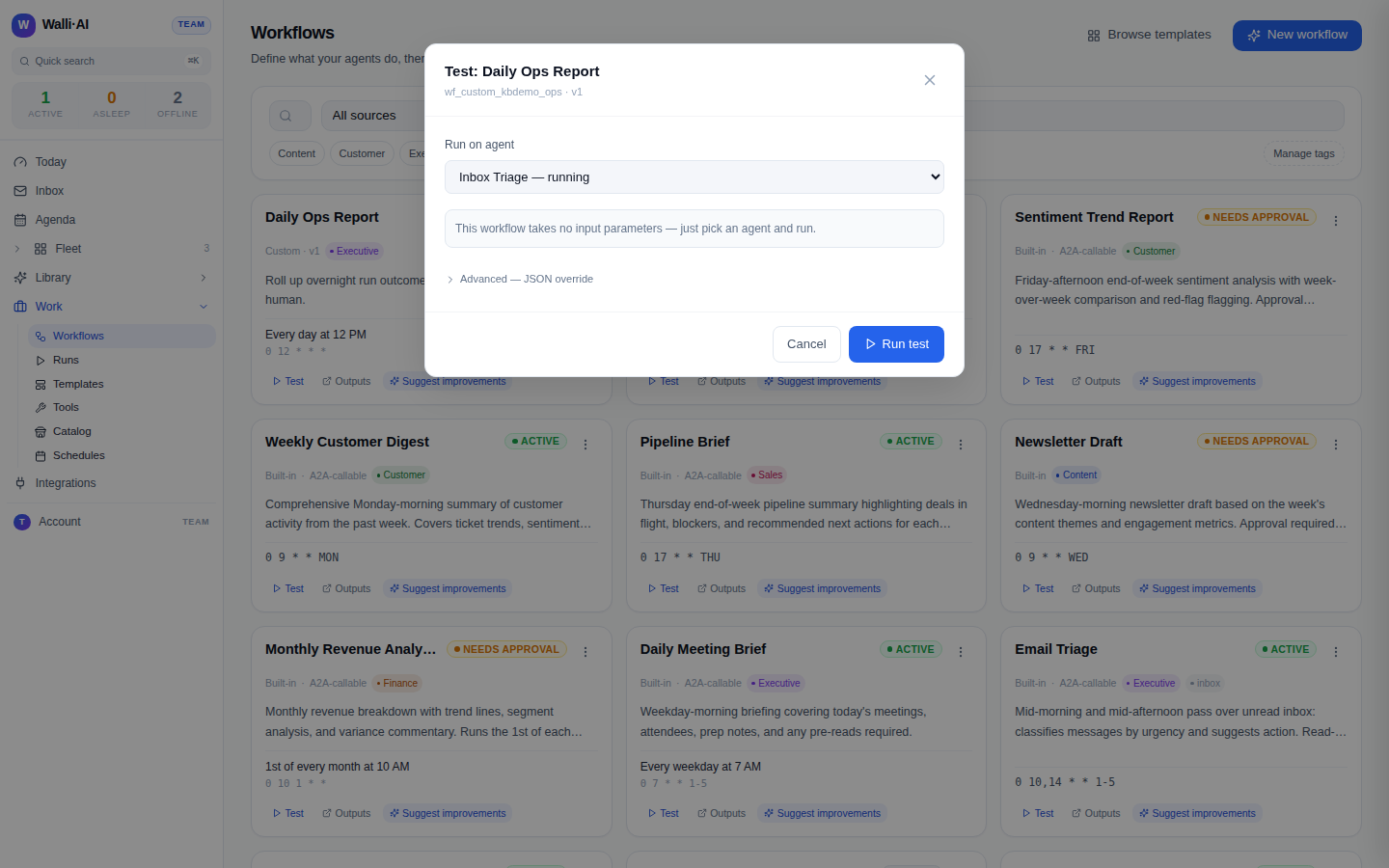
- From a card, or from the editor's Save & test button, open the test dialog.
- Choose Run on agent, fill any inputs the prompt declares (pre-filled from the workflow's defaults where available), and click Run test.
- The run appears in Runs with its status, and any deliverable it produced lands under Library -> Deliverables (see Deliverables).
Each run produces a result with a headline, a suggested next action, and the deliverable itself, plus a self-critique score you can see on the workflow's detail page alongside success rate, average duration, and estimated cost across recent runs.
Manage workflows from the list
The Workflows list is where you find, filter, and maintain everything you have built.
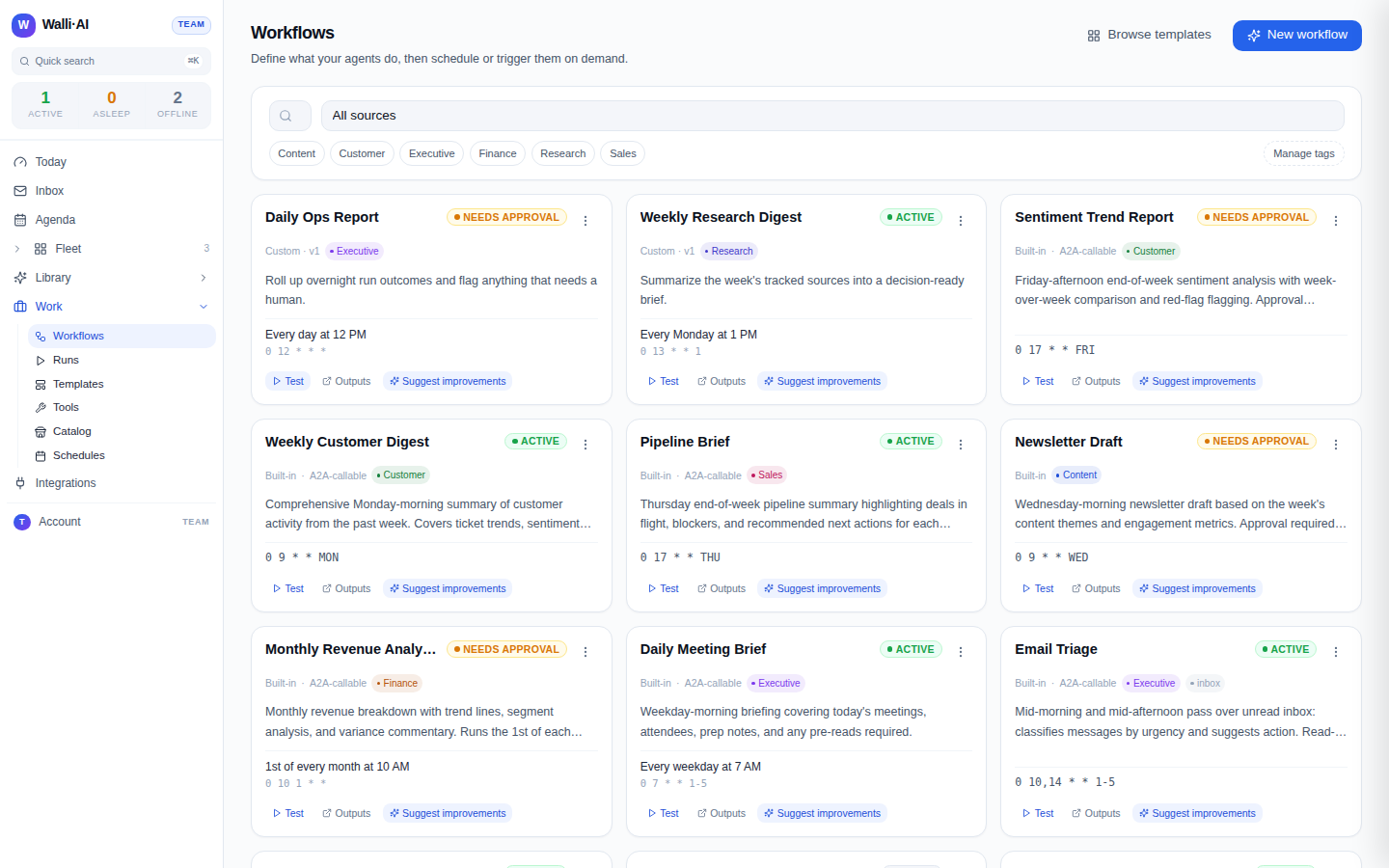
- Use the search box and the source filter (All sources, Built-in only, Custom only) plus tag chips to narrow the list.
- Each card shows a single status pill: Paused if disabled, Needs approval if it gates on review, Active if it carries a schedule, or Manual otherwise. Cards also mark A2A-callable workflows and show the schedule in plain English.
- The card overflow menu (the three-dot control) holds Schedule for agent..., Delivery channels..., Test, Pause or Resume, Edit, and Delete. Schedule for agent... opens the schedule dialog prefilled with this workflow, which is how you attach it to an agent and a cadence.
- Each card also carries inline Test, Outputs (jumps to this workflow's deliverables), and Suggest improvements, which reads the prompt, the output shape, and the last several runs' critique grades and proposes one to three targeted tweaks.
Deleting a workflow is permanent and requires typing DELETE to confirm. Any schedule still pointing at it will fail, so repoint or remove those schedules first.
Tips
- Keep prompts specific and lean on
{{variables}}for the parts that change run to run; you fill those in at run time or on the schedule. - Choose Structured data (JSON) when the output feeds another workflow or agent, and Document when a person will read it.
- Turn on Approval required for anything that sends outbound email or posts to a channel, so a human signs off first.
- To make a workflow fire automatically, attach it to a schedule or a trigger rather than running it by hand each time.