Managing agents (sleeping, pausing, and deleting)
Understand sleeping agents, how they auto-wake, how to pause scheduled activity, and how to delete one from the Fleet.
The Fleet page (/agents) is mission control for the agents you have created (it is labelled "Your Fleet"). Each agent shows as a card with its status, model, and quick actions, and the header summarises how many agents you have deployed and how many are active versus sleeping. This page explains what each status means, how sleeping and auto-waking work, where to change what an agent does, how to pause its scheduled activity, and how to delete one you no longer need.
What you can do
- See every agent's live status (active, sleeping, or needs configuration).
- Understand how an agent sleeps when idle and wakes itself automatically.
- Open chat, files, or the full configure screens for any agent.
- Set up an agent that was created but never finished configuration.
- Pause an agent's scheduled work, or delete an agent you no longer need.
Read agent status
The Fleet header shows a running tally ("N agents deployed, M active, K sleeping"). On each card, a status badge tells you where the agent stands:
- Sleeping. An idle agent (roughly 15 minutes without work) shows as sleeping. This is normal and costs nothing. It wakes automatically the next time you message it or a schedule fires, so you do not need to "start" it.
- Active. Currently working or recently active.
- Needs configuration. The agent shell was created but the setup wizard was never finished. Its card shows a Setup needed badge and a Set up action that reopens the wizard.
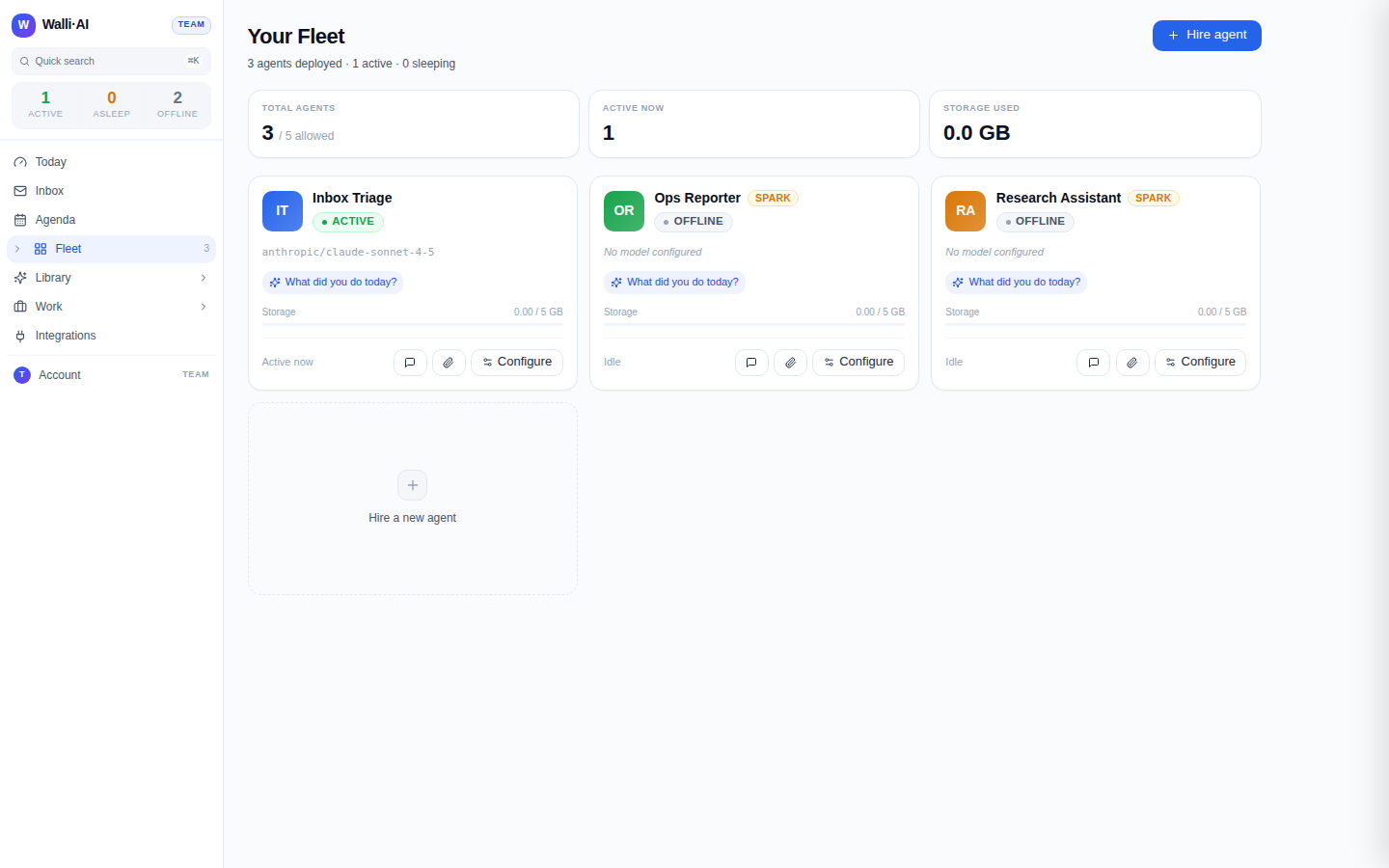
Each card also shows the agent's model, a What did you do today? shortcut that opens the agent with that question pre-asked, and a small storage readout. The three tiles above the grid summarise the whole Fleet at a glance: total agents against your plan limit, how many are active now, and total storage used.
Sleeping is a healthy resting state, not an error. Managed (Spark) agents run on serverless Bedrock AgentCore, so an idle agent uses no compute until it is next invoked.
Sleeping and auto-wake
Agents run on serverless infrastructure (Bedrock AgentCore starts a session on demand), so there is no container to boot and no manual power switch to flip. An agent that has gone roughly 15 minutes without work simply sleeps, which costs nothing, and it wakes itself the moment there is something to do:
- You message it. Opening chat and sending a message starts a fresh session.
- A schedule fires. When one of the agent's schedules comes due, the scheduler wakes the agent and runs the job.
- An inbound arrives. A message on a connected channel (email, Slack, Discord, and so on) routes to the agent and wakes it.
Because waking is automatic, the card carries no manual start or stop control: the quick actions instead take you into the agent.
- Chat. Opens the agent's conversation at
/chat/{id}. - Files. Jumps to the agent's files (
/files?agent={id}). - Configure. Opens the full configure screens (
/agents/{id}/configure) where you change identity, model, skills, knowledge, channels, and integrations.
An agent that has not finished setup shows Set up in place of these actions, which resumes the creation wizard.

Change what an agent does
To change an agent's behavior, open it and use its configure screens rather than deleting and recreating. From there you can:
- Rename it or reshape its personality under Identity & role (see Agent identity, personality, and the Compute Governor).
- Swap its model or provider under AI provider (see Changing an agent's AI model or provider).
- Change its occupation under Use case, or add capabilities under Skills (see Agent skills).
- Give it reference material under Knowledge (see Giving an agent knowledge).
Pause scheduled activity
Sleeping is automatic, but if you want an agent to stop doing recurring work without deleting it, pause its schedules. On the Schedules page each schedule carries an inline pause/resume toggle, and a paused schedule stops firing until you resume it. When several schedules are cluttering things up you can multi-select and pause (or resume) them in one action. Pausing is the right lever when an agent is noisy or you simply want to hold its recurring work for a while: the agent, its memory, skills, and history all stay intact, and resuming picks up exactly where you left off. Unlike deleting, pausing is fully reversible.
Delete an agent
- On the agent's card, open the Delete agent action.
- The confirmation dialog asks you to type
DELETEand waits out a short cooldown before the red Delete agent button is enabled. This is a deliberate speed bump because deletion is permanent and cannot be flown through with a stray Enter keypress. - Type
DELETEand confirm.
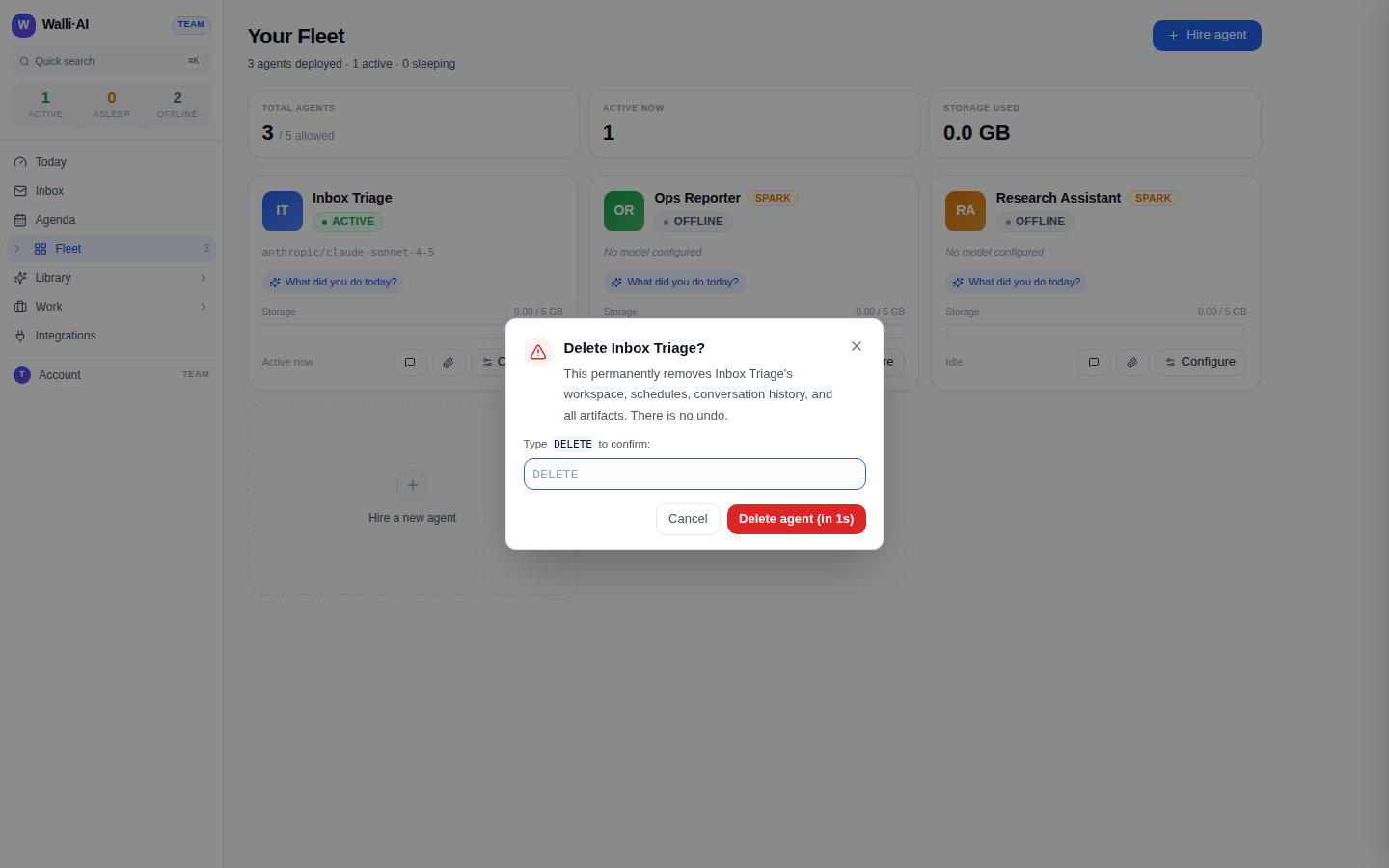
Deleting an agent is permanent and cannot be undone. It removes the agent's workspace, schedules, conversation history, and all artifacts. If you only want to pause work, let the agent sleep or pause its schedules instead of deleting it.
When an agent is not responding
If an agent is not doing what you expect:
- Check its status on the Fleet page. A needs configuration agent has not finished setup, so use Set up to complete the wizard. A sleeping agent is healthy and will wake on its next message, schedule, or inbound, so sleeping is never itself the problem.
- For a failed run, open the run details or the agent's recent activity to see what happened.
- If the agent's recurring work has gone quiet, check the Schedules page in case one of its schedules was paused.
- Deleting an agent frees a slot against your plan's agent limits, which matters if Hire agent is blocked (see Plans, billing, and Spark vs BYOK agents).
Tips
- Prefer configuring over recreating: you keep the agent's memory, skills, and history.
- Sleeping agents still run their schedules; the schedule wakes them when it fires, so you rarely need to touch an agent between jobs.
- To hold an agent's recurring work without losing it, pause its schedules rather than deleting the agent.
- A coordinator agent manages triage across your other agents; see The Coordinator for how it fits into the Fleet.