Recovering from a failed run
What a failed run shows, how Walli-AI diagnoses it, how to retry, and how schedules auto-pause and get tuned.
Runs fail sometimes: an integration disconnects, a prompt asks for a shape the agent cannot produce, or a service times out. Walli-AI is built to make failures legible and recoverable rather than silent. This article covers what a failed run shows, how the platform diagnoses it in plain language, how to retry, and how repeatedly failing schedules are automatically paused and flagged for tuning so a broken job does not burn cycles.
What you can do
- Read exactly why a run failed, in both raw and plain-English form.
- Retry a failed run, or answer an agent's clarifying questions to resume it.
- Acknowledge a failure to clear it from the open-failures queue.
- See when a schedule was auto-paused after repeated failures, and resume it safely.
- Apply or revert an AI-proposed fix to a workflow's prompt.
Read a failed run
A failed run appears in the Runs explorer with a red Failed pill. Filter the explorer to Failed and expand the run: the raw error message shows in a highlighted box, above the run's headline and provenance, so you can see precisely what the agent hit.
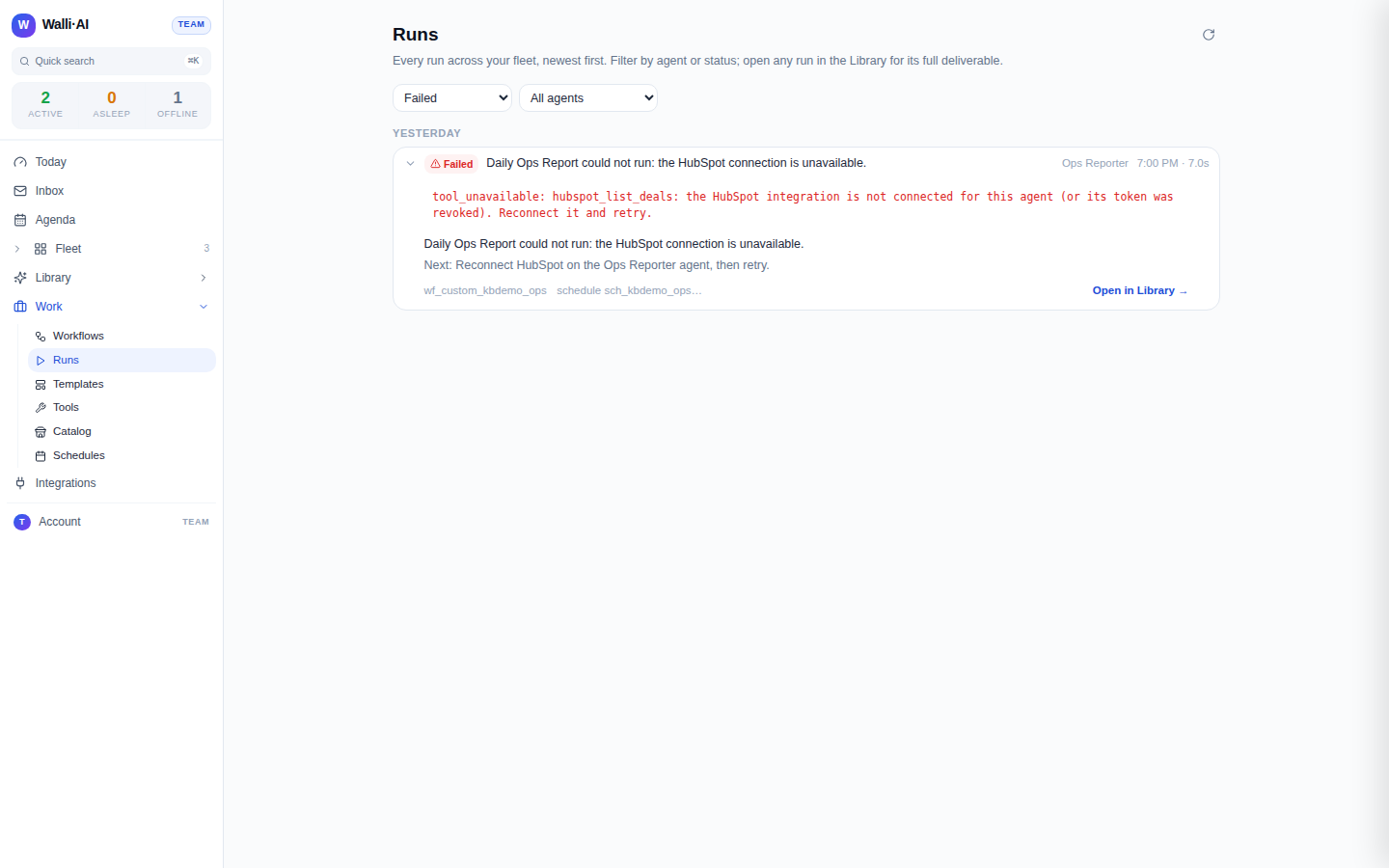
Alongside the raw error, Walli-AI surfaces failures in an Open failures queue that translates each error into plain language. Instead of a bare code, you see a sentence like "The agent's response wasn't in the expected format. Try running again," and a category tag that tells you where the fault lies:
- agent means the agent itself reported a failure (for example a prompt it could not satisfy).
- platform means a dispatcher timeout or crash, not your prompt.
- question means the agent paused to ask you something rather than failing outright.
AI failure diagnosis
When Walli-AI can explain a failure, it attaches a diagnosis to the run: a category badge (such as Integration, Transient, No data, Prompt, Question, or Billing), a short explanation of what happened, and one or more suggested actions wired to the fix. Depending on the diagnosis those actions can:
- Retry the run.
- Take you to the agent's integration settings to reconnect a disconnected service.
- Open the clarifying questions to answer.
- Propose a prompt change to the workflow (shown as a suggestion you review, never applied automatically).
- Send you to Billing when the cause is a quota or billing issue.
- Reveal the raw output for a closer look.
The diagnosis is a starting point, not an automatic action: nothing is changed on your behalf until you choose one of the suggested actions.
Retry, answer, and acknowledge
From the failures queue each run gives you the moves that fit its cause:
- Retry re-runs the workflow. It is available when the error is retryable and the run came from a workflow, and it starts a fresh run you can watch.
- Answer questions opens a dialog to respond to an agent that paused for clarification, which resumes the work.
- Acknowledge marks a failure as reviewed. The run stays in history for audit, but it drops out of the open-failures list so the queue reflects only what still needs attention.
When a schedule auto-pauses
A single failure is noise; a pattern is a problem. Walli-AI tracks each schedule's consecutive failures and acts when a run of failures is unambiguous.
- Once a schedule has three or more failures in a row, it is flagged: the Schedules list shows an {n}x failed badge, the Needs attention panel raises it, and its calendar block turns red.
- When the last several runs all share a clear, high-confidence failure pattern (for example a tool that is consistently unavailable, or output that never validates), the schedule tuner auto-pauses the schedule so it stops burning runs. The workflow's detail page then shows an
Auto-paused by Wallibanner with the reason.
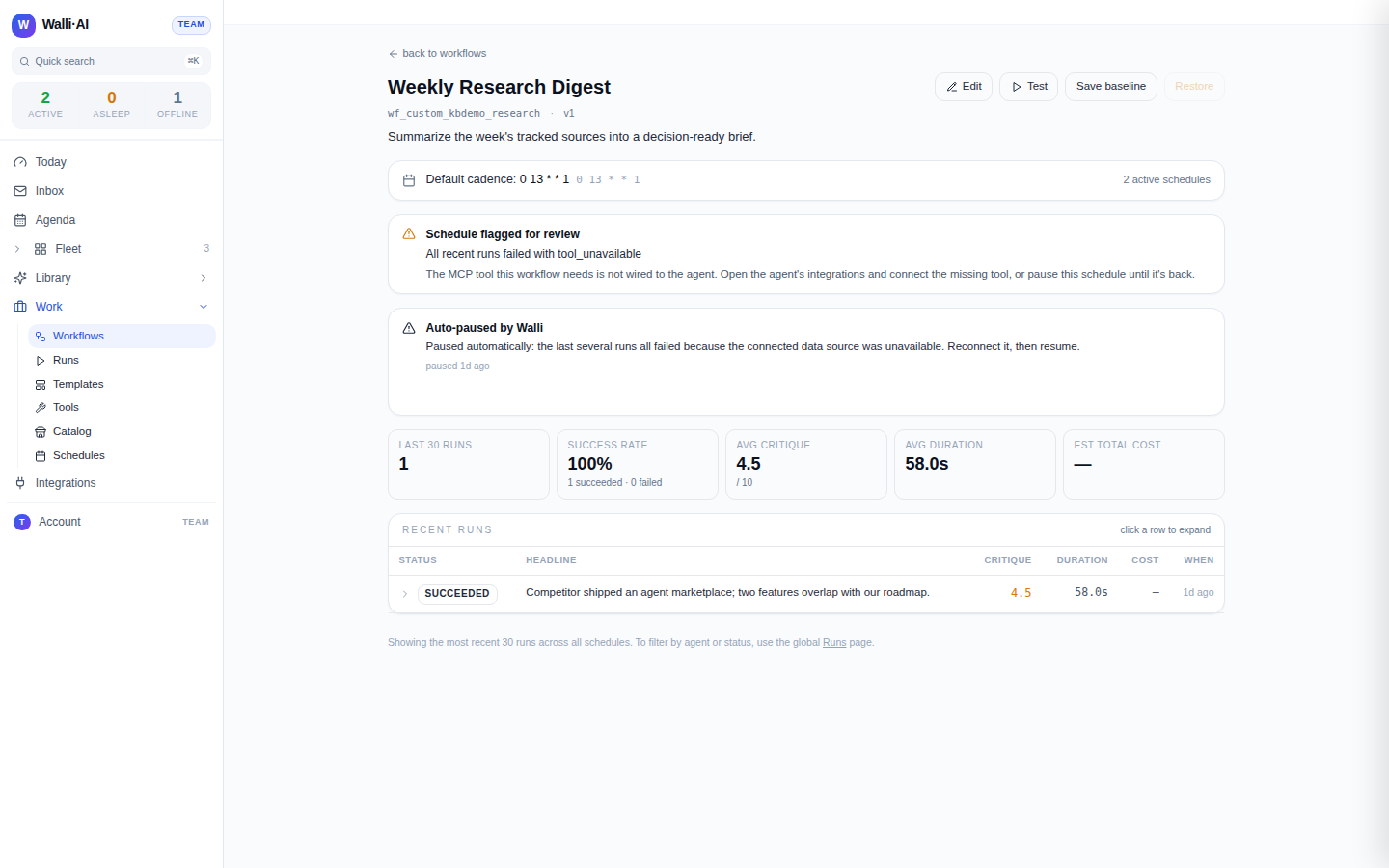
From that banner you can Resume here once you have fixed the underlying cause, or, when the failure was a missing integration and another agent in your fleet already has it, Move to {agent} to move the schedule and its history to an agent that can actually run it. Resuming asks you to confirm, because if the root cause is not fixed the tuner will simply pause the schedule again on its next pass.
Resuming an auto-paused schedule before fixing the cause will not help: the same failure pattern will trip the tuner again. Reconnect the integration, fix the prompt, or move the schedule first, then resume.
Tune proposals
Walli-AI offers two distinct kinds of tuning help, and it is worth knowing which is which.
- A Review flag is set by the daily schedule tuner when a schedule's last several terminal runs all share a failure pattern. It appears as a Review badge on the schedule with a tooltip explaining the pattern, and on the workflow's detail page as a "Schedule flagged for review" note. This flag is informational: you clear it by opening the schedule and fixing the cause (reconnect, edit, or resume), and the tuner clears the flag on its next pass.
- A workflow tune proposal is the interactive one. It surfaces on a Today decision card as a Tune action. A reviewer agent rewrites the workflow's prompt and shows you a before-and-after preview plus an editable version of the proposed instructions. You Apply fix to adopt it, or Revert to standard to go back to the original prompt. The preview is illustrative and nothing changes until you apply it.
Tips
- Triage failures by filtering the Runs explorer to Failed, then work the Open failures queue, which groups and explains them.
- Trust the category tag: a platform failure usually just needs a retry, while an agent or Integration failure needs a fix first.
- Do not resume an auto-paused schedule until the cause is fixed, or it will pause again.
- Treat a persistent Review flag as a prompt to edit the workflow or reconnect its integration, not something to dismiss.