Sharing and exporting reports: formats, scheduled delivery, deleting
Export a report to any of seven file formats, schedule it to deliver on a cadence to email or a channel, add it to a dashboard, and delete it cleanly with its delivery schedules.
Once a report is built, the rest of its life is getting the answer to people: as a file you download, a document that arrives on a schedule, or a tile on a dashboard. This article covers exporting to each format, scheduling recurring delivery to email or a channel, adding a report to a dashboard, and deleting a report along with the delivery schedules bound to it. Every export and delivery runs the same deterministic engine, so a scheduled PDF and a live preview show the same figures.
Export to a file
Open a report and use the Export menu. It offers seven formats:
- CSV for the raw rows, ready for a spreadsheet or another tool.
- XLSX for a real Excel workbook, with the chart rendered in where the report has one.
- DOCX for a Word document, chart included.
- PDF for a formatted, branded document with an optional cover page and the chart drawn in.
- HTML for a self-contained web page.
- Markdown and plain text for lightweight, paste-anywhere output.
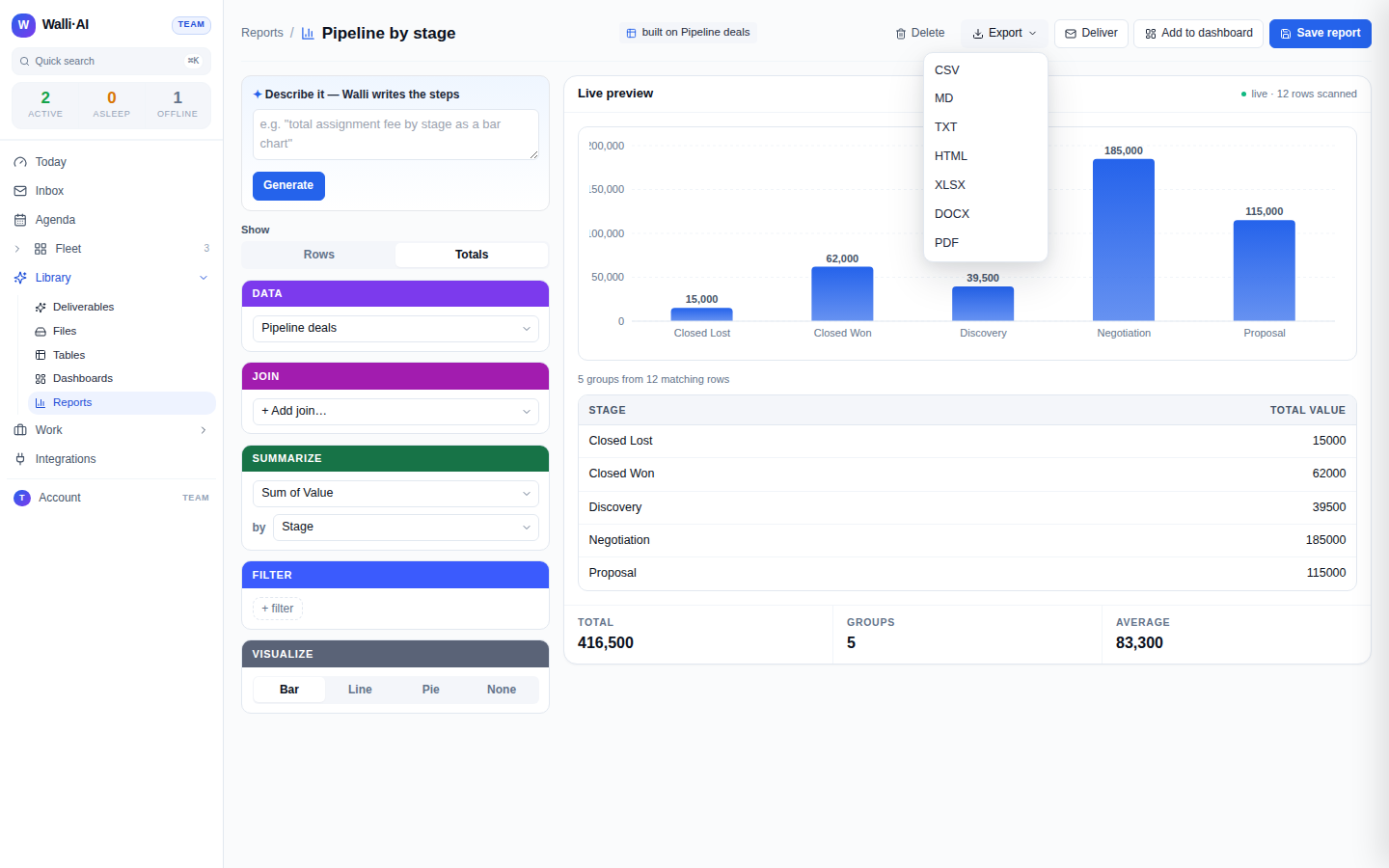
Choosing a format renders the file and downloads it. The binary formats (PDF, XLSX, DOCX) are produced server-side and streamed to your browser; the text formats (CSV, HTML, Markdown, text) download directly. From the Reports index you can also quick-export to CSV without opening the report, which is the fastest path when you just want the rows. If a report is very large, the image-heavy formats can exceed a size guard and ask you to export CSV instead; CSV has no such limit.
Exports carry your workspace branding where the format supports it: the report's title, an optional subtitle and prepared-for line, your accent color, and a filter summary that spells out in plain language which rows were included, so a PDF that lands in someone's inbox explains itself.
Schedule recurring delivery
To have a report arrive on a cadence instead of exporting it by hand, open it and use Deliver. The delivery dialog sets:
- Deliver to. Choose Email, Channel, or both. Email asks for a recipient address; Channel lists your connected channels (add one on Integrations if the list is empty).
- Format. The file format to send: PDF, XLSX, DOCX, HTML, or CSV.
- Cadence. A preset schedule: every weekday morning, weekly on Monday morning, or monthly on the first.
- Owning agent. The agent the delivery runs under, so the run shows up in that agent's history and Library.
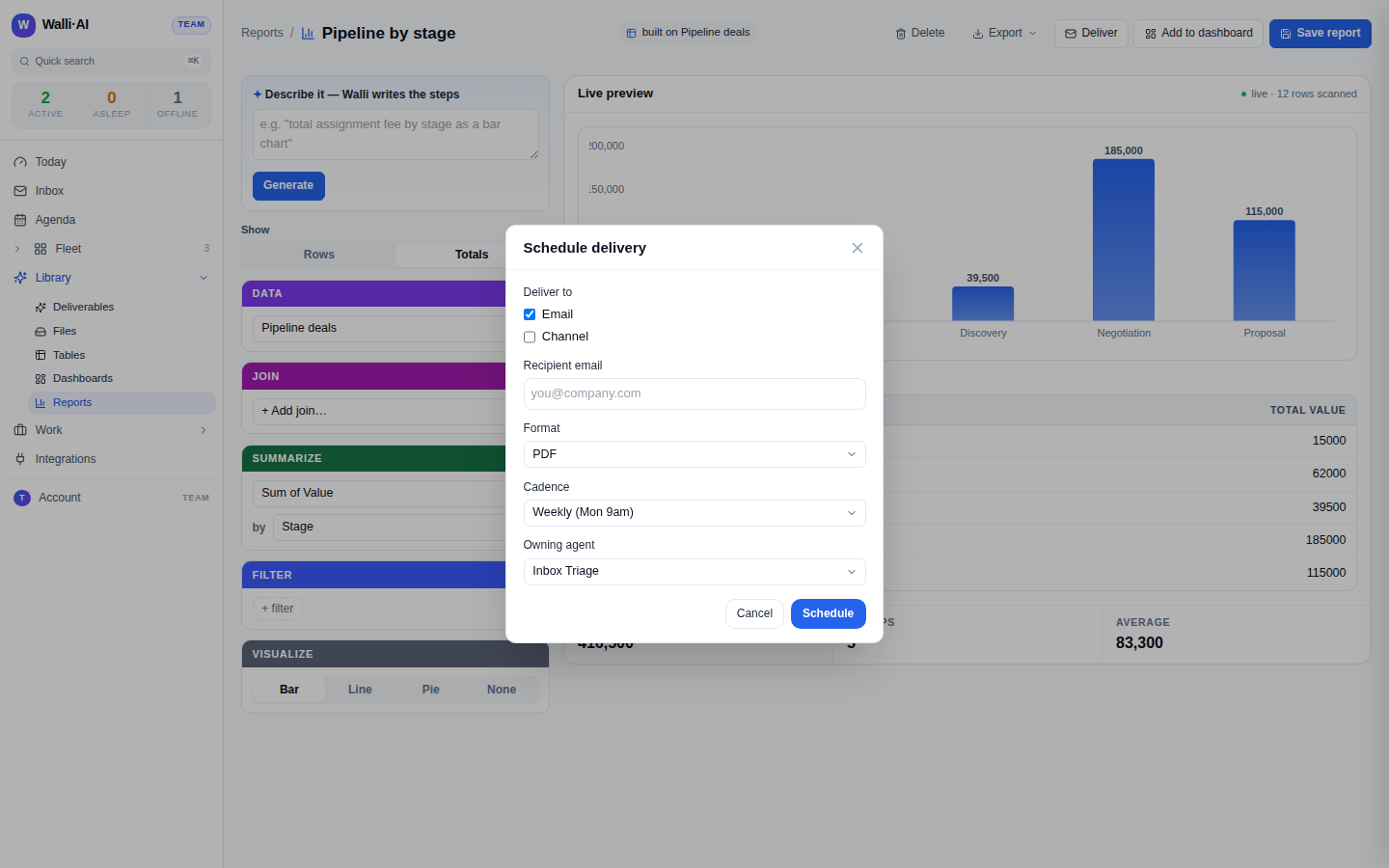
Saving creates a recurring schedule. From then on, at each firing the platform runs the report fresh, renders the chosen format, and sends it to your targets. Because the report is re-run every time, a scheduled delivery always reflects the table's current data, not a snapshot from when you set the schedule up. A channel delivery posts a short message with the row count and a download link; an email delivery sends the file with the same filter summary that a manual export carries. These deliveries appear on the Schedules page like any other scheduled job, where you can pause or edit them.
Add a report to a dashboard
Add to dashboard turns the report into a live widget on a dashboard. Pick a dashboard (or create one) and the report's shape becomes a tile: a summary report with a chart becomes a chart widget, a single-total report becomes a metric, and a row report becomes a table widget. The widget re-runs with the dashboard, so the same question you export weekly can also sit on a board you keep open. This is the bridge between the two surfaces: a report is the document you send, the dashboard tile is the always-on version of it.
Delete a report and its schedule cascade
Deleting a report is deliberate because a report can have deliveries hanging off it. When you delete, the confirm dialog first lists every scheduled delivery bound to this report by name, so you can see exactly what stops. Confirming deletes the report and cascades to those schedules: the backend soft-deletes each bound delivery schedule so it stops firing. You do not have to hunt down and cancel the schedules yourself; deleting the report is enough.
Two things deliberately survive a delete:
- Dashboard widgets built from the report keep working. A widget carries its own copy of the query, so it does not break when the source report is removed.
- Files already exported or delivered are untouched. A PDF that already landed in an inbox, or an export already saved under Files, is a finished artifact and is not recalled.
The delete cannot be undone, so the dialog says so and asks you to confirm. If the schedule lookup happens to fail, the delete still proceeds; the list is a warning to you, not the mechanism that stops the schedules.
Tips
- Send PDF to people and CSV or XLSX to tools: PDF is the readable document, CSV and XLSX are the ones a spreadsheet or another system will actually parse.
- Deliver to a Channel for a team that lives in chat, and to Email for stakeholders who do not; you can pick both at once.
- Because scheduled deliveries re-run the report each time, set the cadence to match how often the underlying data meaningfully changes, not more often.
- Before deleting a report, read the list of bound deliveries in the confirm dialog: it is the clearest picture you get of what a delete will silence.
- Keep the report you deliver and a matching dashboard tile in sync by using Add to dashboard rather than rebuilding the same query twice.