Chatting with an agent
How chat works: replies, deliverables, files, attachments, and slash commands.
Chat is where you talk to an agent live, ask it to do something now, review what it produced, and hand it files. It is not a throwaway chat window: replies can carry deliverables you open and download, the agent shows what memory and context it pulled in, and a / command bar gives you quick access to built-in commands, skills, and workflows. This guide covers the anatomy of a chat thread at /chat/<id> and how to get the most out of it.
What you can do
- Send a message and get a streamed reply, with the agent showing which tools it is using as it works.
- Open, preview, and download deliverables the agent produces (reports, data, drafts, code).
- Attach files by button, drag-and-drop, or paste, and have the agent read them.
- Type
/to browse built-in commands, the agent's skills, and its workflows. - Ask the agent to break a request into steps with Plan it before it runs.
The chat thread
Open an agent from the Fleet page or the sidebar to land in its chat. The header shows the agent's name, a Connected status dot, and the model it is running (for example anthropic/claude-haiku-5-5). If you have more than one agent, a Switch dropdown lets you jump between them without leaving chat.
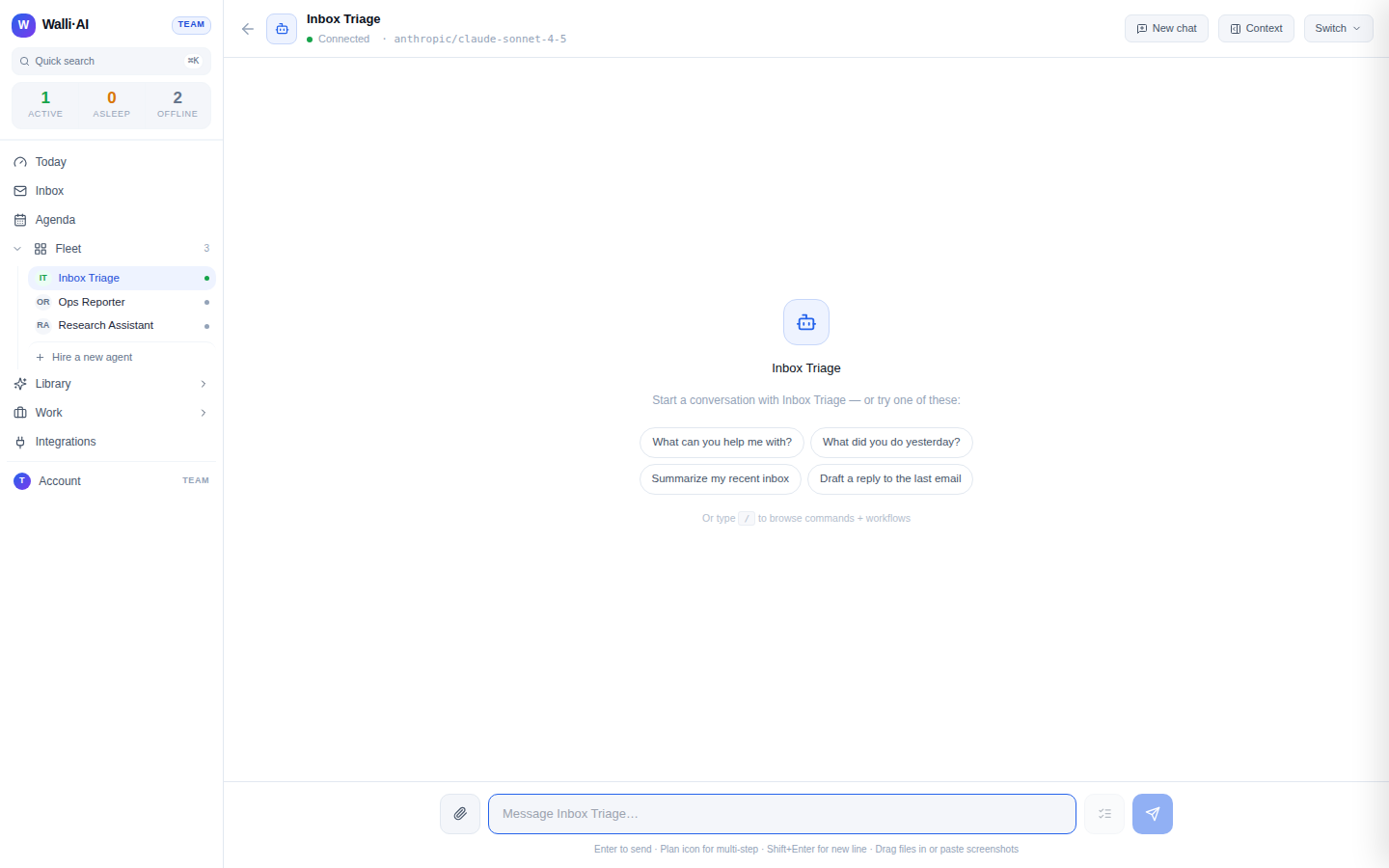
A fresh thread shows starter prompts such as "What can you help me with?" and "Summarize my recent inbox," plus a hint to type / to browse commands. Type in the composer at the bottom and press Enter to send; Shift+Enter adds a new line. The composer footer spells this out: "Enter to send, Plan icon for multi-step, Shift+Enter for new line, Drag files in or paste screenshots."
While the agent works, its reply streams in live. You will see a thinking indicator, and when it calls a tool a chip appears reading "Using
There is no stop button mid-reply. If you want a different approach, wait for the reply to finish and send a follow-up. Your draft is saved per agent, so you will not lose a half-typed message if you navigate away.
Deliverables in chat
When an agent produces something substantial, it renders as a clickable card under the reply rather than a wall of text. Cards are typed with an icon (report, data, code, or draft) and a subtitle like "REPORT, 640 words, click to open." Clicking one opens a preview pane on the right with the rendered output.
The preview pane has a header badge for the format (WEBPAGE, PDF, IMAGE, SPREADSHEET, JSON, MARKDOWN, or TEXT), the filename, and actions to Copy, Download, open full screen, or Close. Text deliverables also offer a Raw tab so you can see the source.
To see every deliverable an agent has produced in one place, open the Context drawer (the button in the header) and switch to the Deliverables tab. It lists successful workflow outputs; each row opens the deliverable in the preview. The same drawer has Files, Runs, and Memory tabs for the agent.
Attaching files
There are three ways to give the agent a file:
- Click the Attach file (paperclip) button and pick one or more files. Supported types include images, PDF, text, Markdown, CSV, JSON, and Office documents.
- Drag files anywhere onto the chat surface. An overlay reads "Drop to attach."
- Paste a screenshot from your clipboard; it is attached as an image.
Attached files show as chips above the composer with a note that they will be available to the agent on send. Spreadsheets are turned into tables the agent can read, and text files are read inline; larger documents have their text extracted server-side. Files the agent creates or you upload also appear in the Files tab of the Context drawer.
The / command bar
Type / at the start of the composer to open the command palette. It groups entries under Built-ins, Skills (this agent's applied skills), and Workflows (the agent's schedulable workflows). Use ↑ ↓ to move, Enter or Tab to select, and Esc to close.
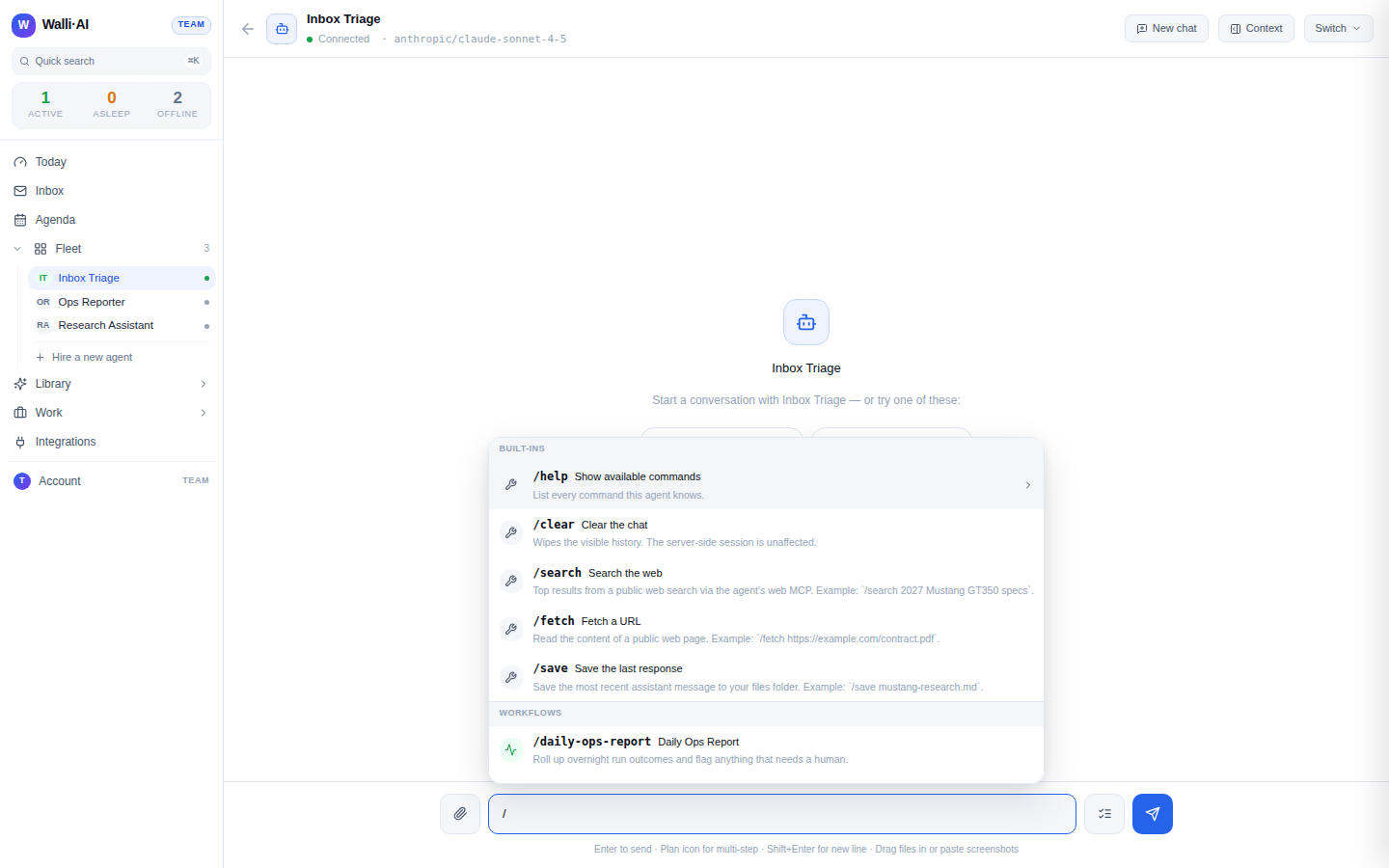
The built-in commands are:
/helpopens a dialog listing every command this agent knows./clearwipes the messages shown here (the agent's server-side session is unaffected)./searchruns a public web search, for example/search 2027 Mustang specs./fetchreads the content of a public web page./savesaves the most recent reply to your files folder, for example/save research.md.
Selecting a workflow drops its prompt into the composer (with placeholders like {{date}} pre-filled) so you can review and edit it before sending. Selecting a skill or a search/fetch/save command inserts the command so you can type its arguments.
Use the Plan it button (the checklist icon) when a request has several steps. The agent breaks it into a plan you can run all at once or step by step, live in the chat, before committing to the work.
Chat versus schedule
Chat is for live, on-demand work: you ask, the agent does it now. Scheduled work is different. It runs on a cadence without you in the loop and lands its output in the Library and on Today. Even when you run a workflow from the / command bar in chat, it executes as a live turn, not a scheduled run. When you want a job to repeat on its own, set it up as a schedule instead. See Scheduling an agent or workflow.
If you ask an agent to build something structural (a new workflow, a multi-tool automation), it may hand the request off to the builder with a "Set it up with Maestro" button rather than trying to improvise it in chat.
Tips
- Watch the chips under a reply. They tell you whether the agent used memory, read a document, or loaded a file, which is your fastest signal that it grounded its answer in your data.
- If a reply is missing context, a "low context" chip flags it. That usually means the agent had nothing tenant-specific to draw on for that turn.
- Use
/saveto keep a good reply as a file, then find it later under Files.