Triggering workflows on events and chains
Choose what fires a workflow: a cron cadence, another workflow finishing, an inbound event, or a manual run.
A workflow does not run on its own; something has to trigger it. When you schedule a workflow you choose one of four trigger types: a time-based cron cadence, a chain that fires after another workflow finishes, an inbound event such as a new email or channel message, or a manual-only run. This article explains where triggers are configured and when each one fires, so you can wire your automations to the right signal.
What you can do
- Fire a workflow on a recurring cron cadence.
- Chain one workflow to run after another finishes with a matching status.
- Start a workflow from an inbound event: a channel message, an email, a Drive doc, a CRM change, or a merged pull request.
- Have one agent invoke another agent in your fleet as part of a schedule.
- Keep a workflow manual so it only runs when you fire it.
Where triggers are configured
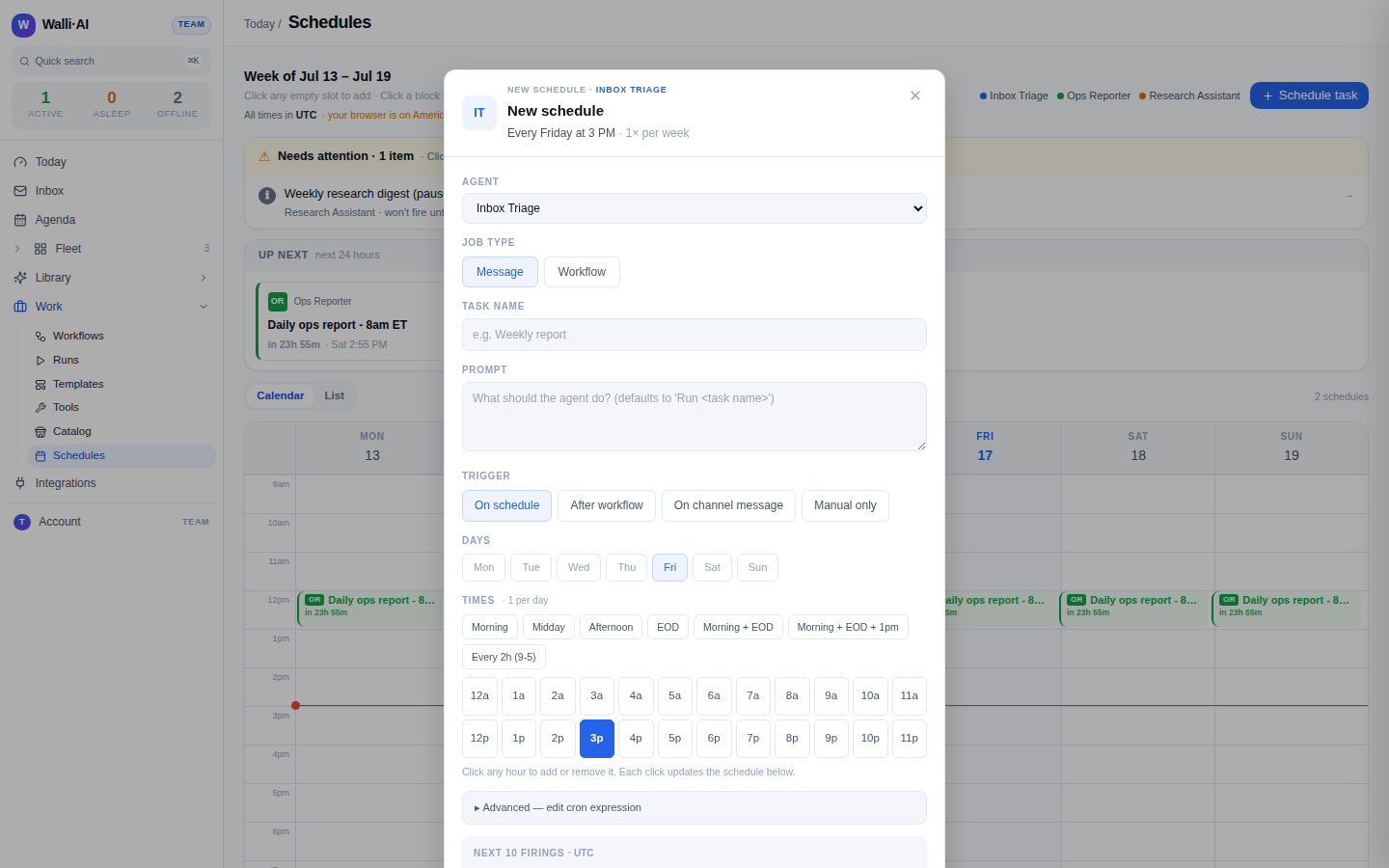
Triggers live on the schedule, not on the workflow. A workflow only carries a suggested cadence and a flag for whether other agents may call it. The actual trigger is chosen in the schedule dialog, which you open from Work -> Schedules (/schedules) with Schedule task, or from a Workflows card menu with Schedule for agent....
The Trigger control is a set of four buttons: On schedule, After workflow, On channel message, and Manual only. You pick the trigger when you create the schedule; it is locked afterward, so to change how something fires you create a new schedule.
Cron: run on a cadence
On schedule is the default and fires on a cron expression you build with the day and time pickers. This is the everyday case (a morning brief, a Friday digest) and it is covered in full in Scheduling an agent or workflow. Cron schedules are the ones that appear as blocks on the calendar and drive the Up next forecast.
After workflow: chain runs together
After workflow fires a workflow when another one finishes. When you pick it, two extra controls appear:
- Trigger when this workflow finishes selects the parent workflow.
- Fire on statuses is a set of toggle chips (Succeeded, Approved, Failed, Rejected). It defaults to succeeded plus approved so deliverables that are still waiting on a review gate do not slip through.
Chains are how you build a multi-workflow sequence, for example "run the analysis, then draft the summary once it succeeds." Chains are depth-limited to three, which stops a chain from looping back on itself. Each run records its chain depth, visible on the run's detail.
Chaining links two saved workflows by their finishing status. If instead you want to break a single request into steps on the fly during a conversation, that is a chat pipeline: see Pipelines.
On channel message: react to inbound events
On channel message fires the workflow when a matching inbound event reaches the agent. Despite the name, the Event picker offers six sources, each with its own filters:
- Channel message runs on inbound Slack, Discord, or Telegram messages to the agent that pass triage. You can filter by Channel type and by a substring the message must contain.
- Email received fires when a new email arrives in the agent's connected Gmail, with From contains and Subject contains filters and an option to fire only when the email has an attachment.
- Drive doc added watches a folder by id, optionally matching on the file name.
- CRM record created and CRM stage changed fire on HubSpot object and deal-stage changes.
- GitHub PR merged fires when a pull request merges in a repository you name as
owner/repo.
Event schedules have no cron cadence and no calendar block. The dispatcher fires them the moment a matching event arrives, after it passes triage and your filters. Inbound channel and email messages are triaged first (spam, social, and low-value messages are short-circuited) so a trigger reacts to real signal rather than noise.
Agent-to-agent: one agent invokes another
Walli-AI has a dedicated primitive for one agent to invoke another. When a schedule's workflow is the Invoke agent primitive, the dialog shows two extra fields:
- Target agent picks another agent in your fleet (an agent cannot invoke itself, and cross-tenant invocation is blocked).
- Target prompt is the instruction handed to that agent when the schedule fires.
This lets a schedule act as a hand-off: one agent kicks off work on another, for example "have the CRM agent pull this week's blockers, then have the comms agent post a summary." Agent-to-agent invocation is strictly within your own tenant.
Separately, a custom workflow's Let other agents in your fleet use this toggle (set in the workflow editor) makes that workflow callable as a tool by your other agents during their own conversations. On the Workflows list such a workflow is marked A2A-callable.
Manual only: fire it yourself
Manual only creates a schedule that never fires on its own. It runs only when you start it from the UI (for example Run now, or a workflow Test) or via the API. Use it for workflows you want ready and configured against a specific agent, but which you would rather trigger by hand.
When each trigger fires
- On schedule fires on its cron cadence.
- After workflow fires when the parent workflow finishes with a selected status, up to a chain depth of three.
- On channel message fires when a matching inbound event arrives and passes triage and filters.
- Invoke agent hands a target prompt to another fleet agent when its schedule comes due.
- Manual only fires only when you run it.
Tips
- Default Fire on statuses to succeeded plus approved so a chained follow-up never runs off an ungated or failed parent.
- Because the trigger type is fixed once a schedule is created, create a fresh schedule rather than trying to convert one trigger into another.
- For inbound triggers, tighten the filters (sender, subject, channel, keyword) so the workflow reacts only to messages that matter.
- Keep sensitive outbound workflows behind approval as well as the right trigger; see Creating or editing a workflow.