Creating or setting up a new agent
Spin up an agent and give it a role, personality, model, skills, and knowledge with the setup wizard.
An agent is a named worker you configure once and then hand ongoing jobs to. Creating one means giving it an identity (a name and personality), a role (the kind of work it does), a model to think with, and optionally the skills and knowledge it needs. Walli-AI walks you through all of that in a short setup wizard, so a new agent is ready to chat within a couple of minutes. This page covers the wizard end to end and where each choice lives afterward.
What you can do
- Create an agent from the Fleet page and name it.
- Describe your role in plain language and let Walli-AI match it to an occupation, or pick one from the Catalog.
- Choose whether the agent runs on Walli-AI Spark (managed) or your own key (BYOK), and pick its model.
- Stage recommended skills and starter workflows for the occupation.
- Add knowledge (documents and links) the agent should ground its answers in.
- Change any of these later from the agent's configure screens, without deleting and recreating.
Create an agent from the Fleet
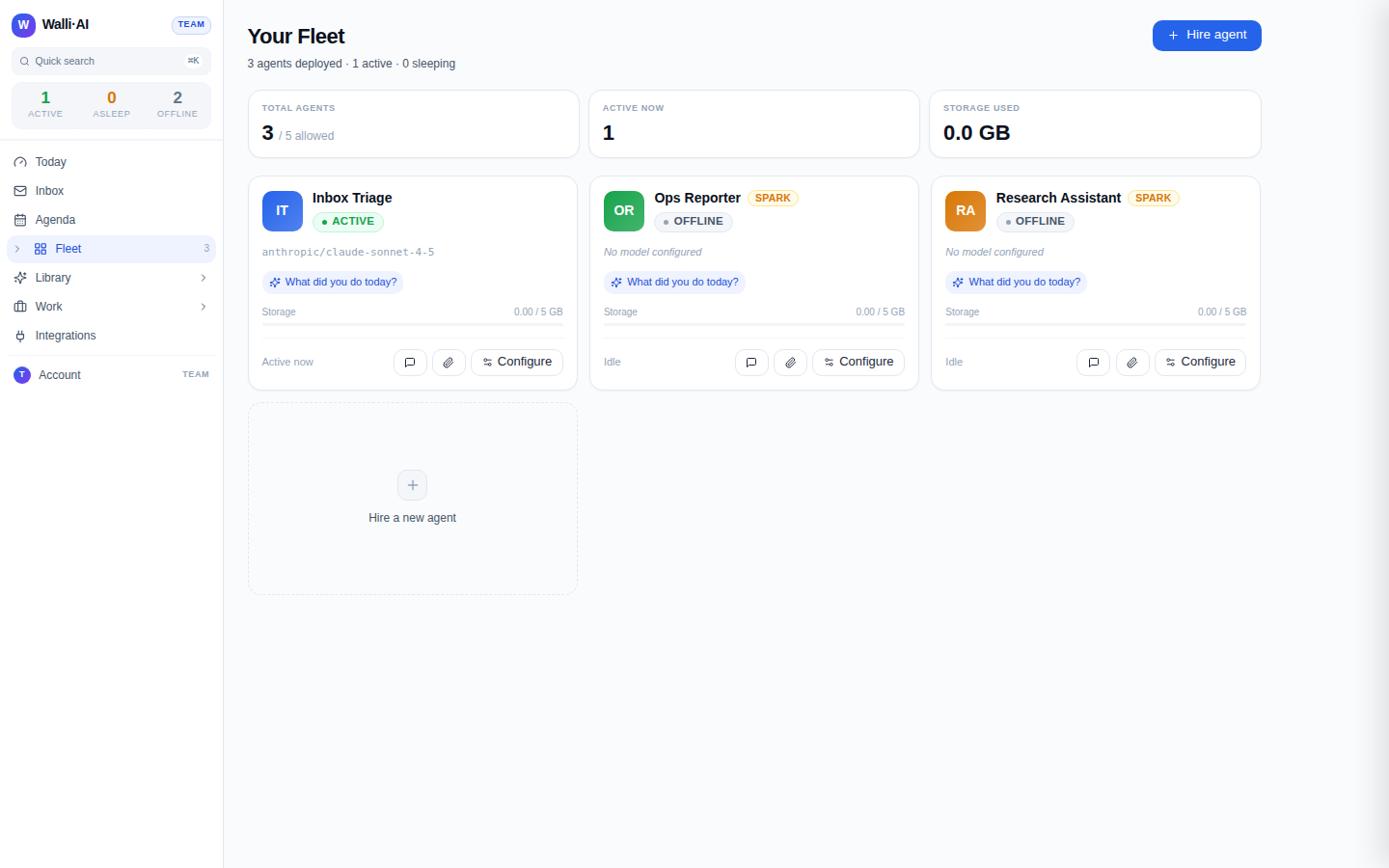
- Go to Fleet (
/agents). This is the home for every agent you own, with a card per agent and a Hire a new agent tile at the end of the grid (there is also a Hire agent button at the top right). - Click Hire agent. Walli-AI provisions a fresh agent shell and opens the setup wizard at
/agents/{id}/setup.
If you would rather describe what you want in a sentence and have it built for you, ask Maestro in chat or browse the Catalog (/catalog) of ready-made personas. Both end at the same place: a configured agent on your Fleet.
Step through the setup wizard
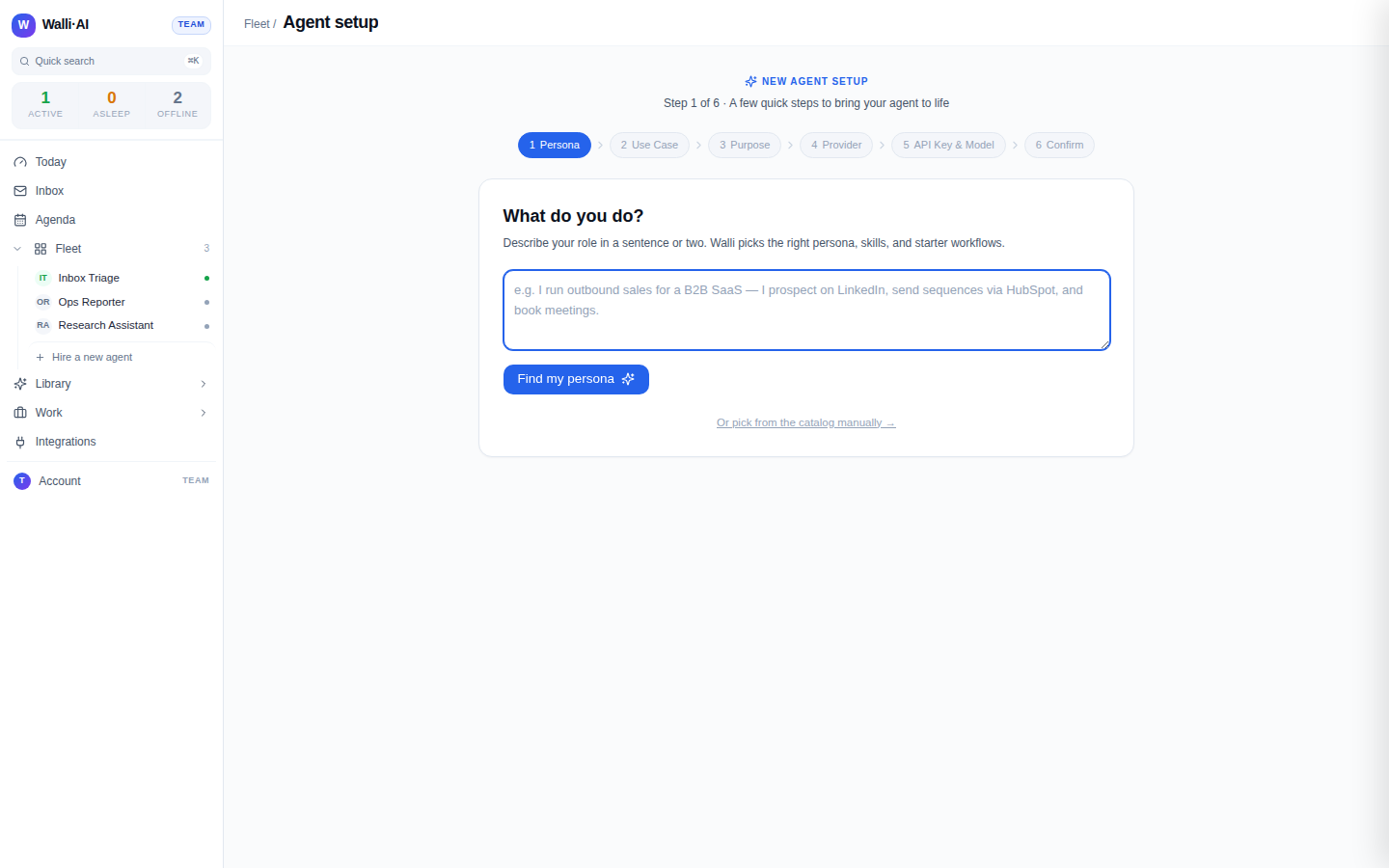
The wizard has six steps shown as pills across the top: Persona, Use Case, Purpose, Provider, API Key & Model, and Confirm. You can move forward and back between them.
- Persona. The step asks "What do you do?": describe your role in a sentence or two and click Find my persona. Walli-AI ranks every occupation by how well it fits what you wrote and suggests the top matches, so you do not have to recognise the right occupation by name. Picking a match also proposes a personable name (agents feel more like teammates when they are not all named after their job title). Prefer to choose yourself? Use Or pick from the catalog manually.
Use Case. Confirm or change the occupation. The catalog is grouped by category; each occupation carries a curated set of recommended skills and, in many cases, starter workflows you can switch on at creation time. The occupation is what shapes the agent's default behavior and its
SOUL.mdpersona file.Purpose. Say what this agent should actually do for you (for example, "manage my inbox and draft replies" or "research topics and summarise findings"). Suggested purposes are offered if you want a starting point.
Provider. Choose the engine. Walli-AI Spark (shown in the picker as
Walli Spark) is the managed option included with every plan: no API key, Walli-AI runs the inference on its Bedrock infrastructure. Or pick a Bring Your Own Key provider (Anthropic, OpenAI, Google, Mistral, Grok/xAI, Groq, or Together AI) to run on your own account.API Key & Model. For Spark, pick a model from the curated catalog (the default is Claude Haiku 5.5; more capable models cost more of your AI Unit budget). For BYOK, paste the provider API key, fetch the models that key unlocks, and select one. See Changing an agent's AI model or provider and Models: Spark catalog vs your own key for detail.
Confirm. Review the summary and finish. The agent lands on your Fleet, ready to chat, with its occupation, model, recommended skills, and any starter workflows applied.
Fill in the rest later
Everything the wizard sets is editable afterward from the agent's configure screens (/agents/{id}/configure). The left rail there covers Identity & role, AI provider, Use case, Skills, Knowledge, Channels, Integrations, and Files, plus Coordinator controls when the agent is a coordinator.
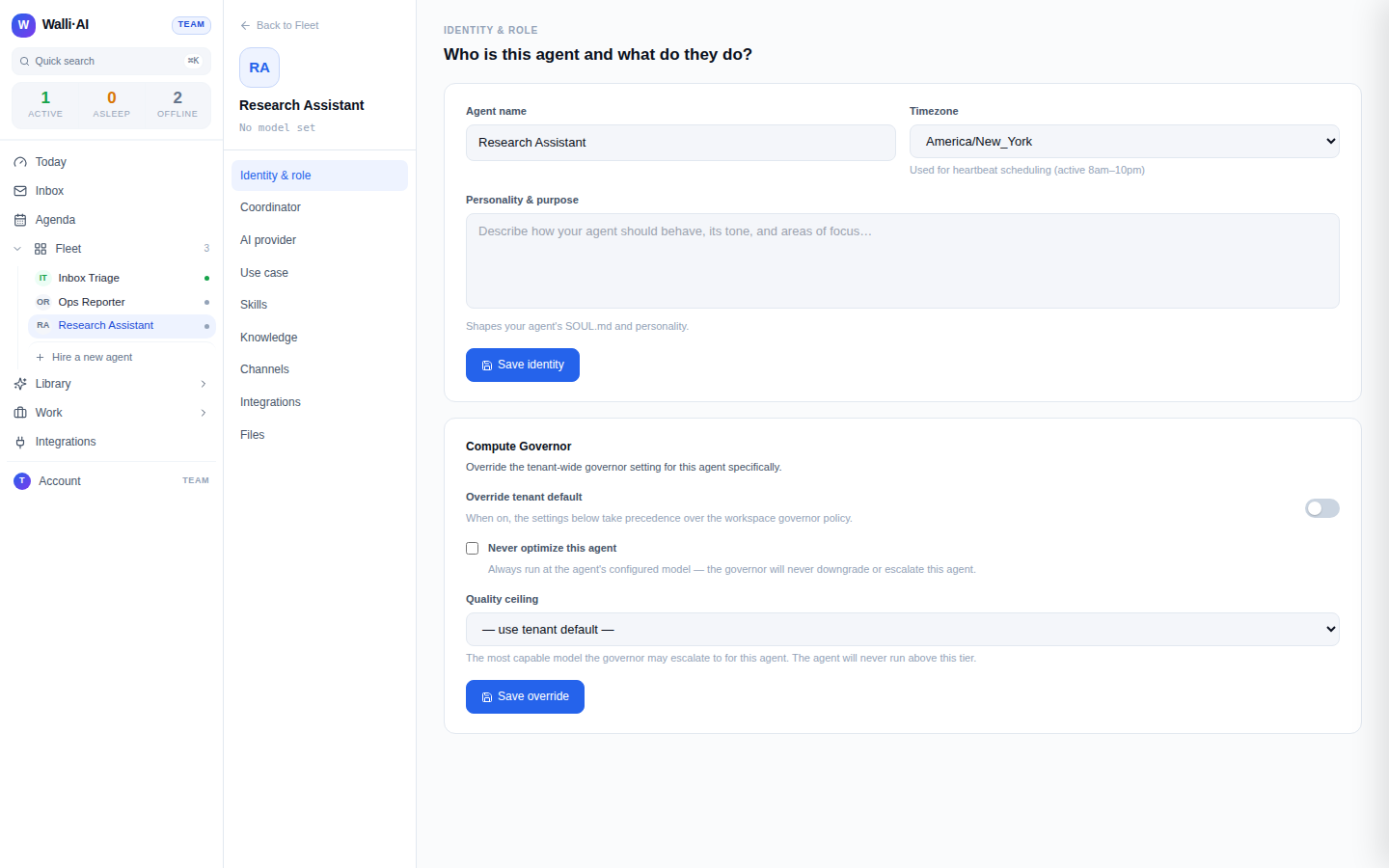
- To refine tone and focus, open Use case, click Edit instructions, and save your changes as a custom use case (see Changing how an agent behaves).
- To add capabilities, open Skills (see Agent skills).
- To give it reference material, open Knowledge (see Giving an agent knowledge).
Tips
- You do not have to get everything right in the wizard. Naming and a rough occupation are enough to start chatting; add skills and knowledge once you see how the agent works.
- The occupation matcher works best when you describe the work (tools, industry, the outcomes you want) rather than a job title alone.
- New agents count against your plan's Spark and BYOK agent limits. If Hire agent is blocked, check your plan under the avatar menu → Billing (see Plans, billing, and Spark vs BYOK agents).
Managed (Spark) agents are serverless. Configuration changes such as the model, skills, channels, and schedules are picked up on the agent's next message automatically, so there is no "restart" to think about.