The Coordinator (cross-agent triage and auto-resolve)
The Coordinator triages signals across your whole Fleet, resolves routine work for you, and reports what it handled on Today.
The Coordinator is the agent that looks across your whole Fleet, decides what needs doing, and either hands work to the right specialist agent or handles routine items itself. It is on by default, so most of the value arrives without configuration: you see what it took care of on the Today page, and you keep controls to rein it in when you want a closer hand on the wheel. This page explains what the Coordinator does, where it shows up, and how to tune its delegation behavior.
What you can do
- Let the Coordinator triage signals across every agent and route work to the right one.
- See a digest of what it handled for you on Today.
- Require manual approval for every delegation with a single kill-switch.
- Cap how many agents it can fan a single plan out to.
- Review a glass-box trace of its recent delegations.
What the Coordinator does
- Cross-agent triage. It reads incoming signals across your Fleet (not just one agent's inbox) and decides which specialist agent should act, so work does not fall between agents.
- Proactive auto-resolve. For routine items it can act on your behalf rather than waiting for you to approve every step, then reports the outcome.
- Undo journal. Because it acts proactively, it keeps an undo journal of what it did, so a proactive action can be reversed if it was not what you wanted.
- Delegation. For bigger jobs it fans a plan out to multiple specialist agents and coordinates their results.
Every agent on your Fleet has coordination enabled by default; one agent acts as the coordinator that speaks for the team.
See it on Today
The Today page (/today) is where the Coordinator reports. The hero band at the top is the Coordinator's narrative: the date, how many agents are reporting, and the headline of what matters right now. Below, a "handled" strip digests the actions it took proactively, and the decision queue surfaces the proposals that still want your call.
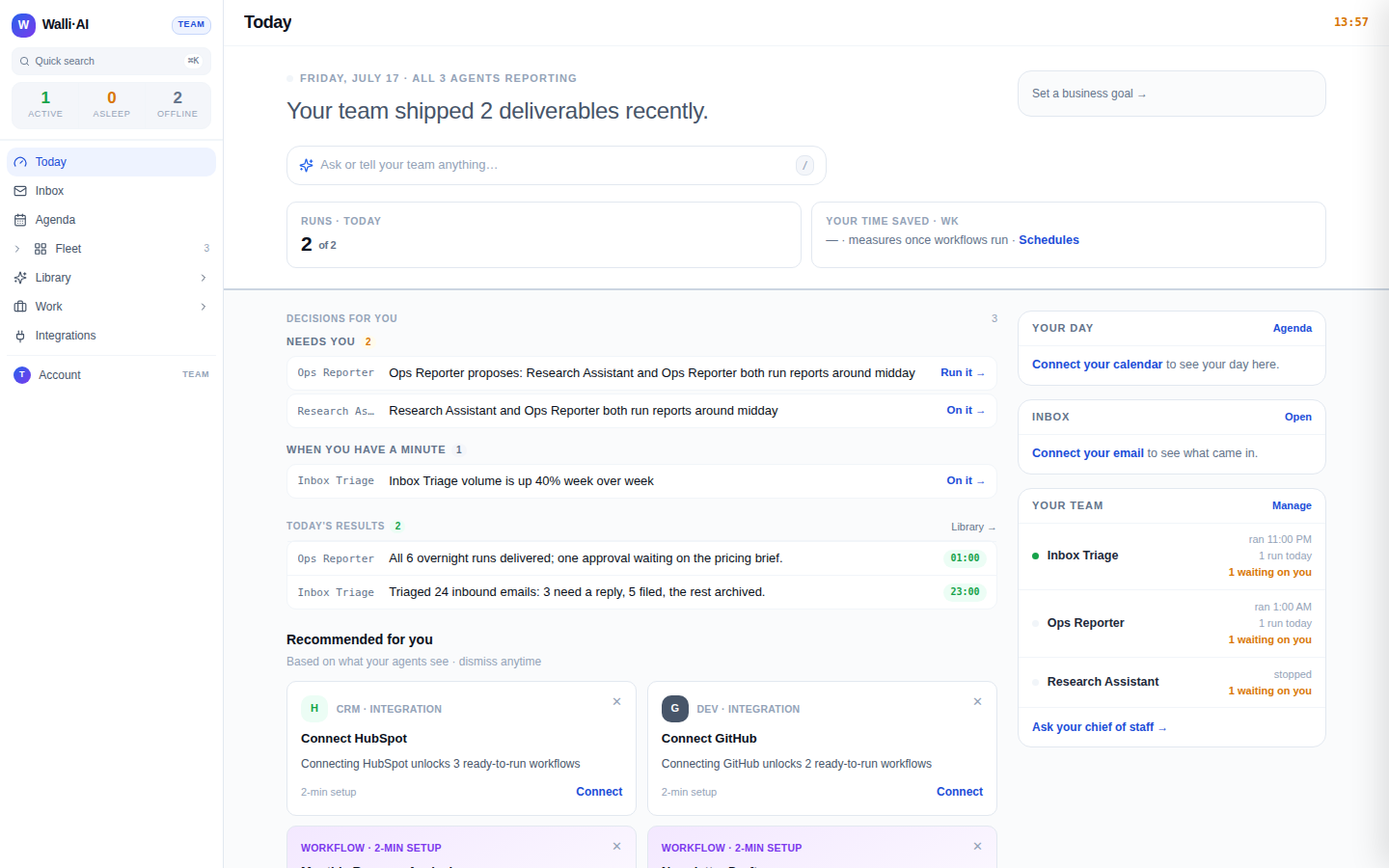
- Handled strip. A running list of what the Coordinator resolved for you. Every row carries a per-row Undo button so you can reverse any single action on the spot, and the strip's Review or undo toggle opens the full list (it is expanded automatically when there are only a handful of items and collapses to a one-line "N handled without you" count above that). Delegation rows also add a View trace link into the Coordinator's config, and anything it could not finish shows an
Ask Wallilink to pick the work up in chat. - Decision cards. When the Coordinator proposes an action that needs your approval, it appears as a decision card you can run or dismiss. Cards are grouped by urgency ("Needs you" versus "When you have a minute"), each naming the agent behind it and the signal it noticed, so you can act on the important ones first and let the rest wait.
Because the Coordinator both proposes and, where allowed, acts, the Today page reads like a status report from a chief of staff: what it already handled, what it wants a decision on, and what your team shipped, all in one place.
Tune delegation
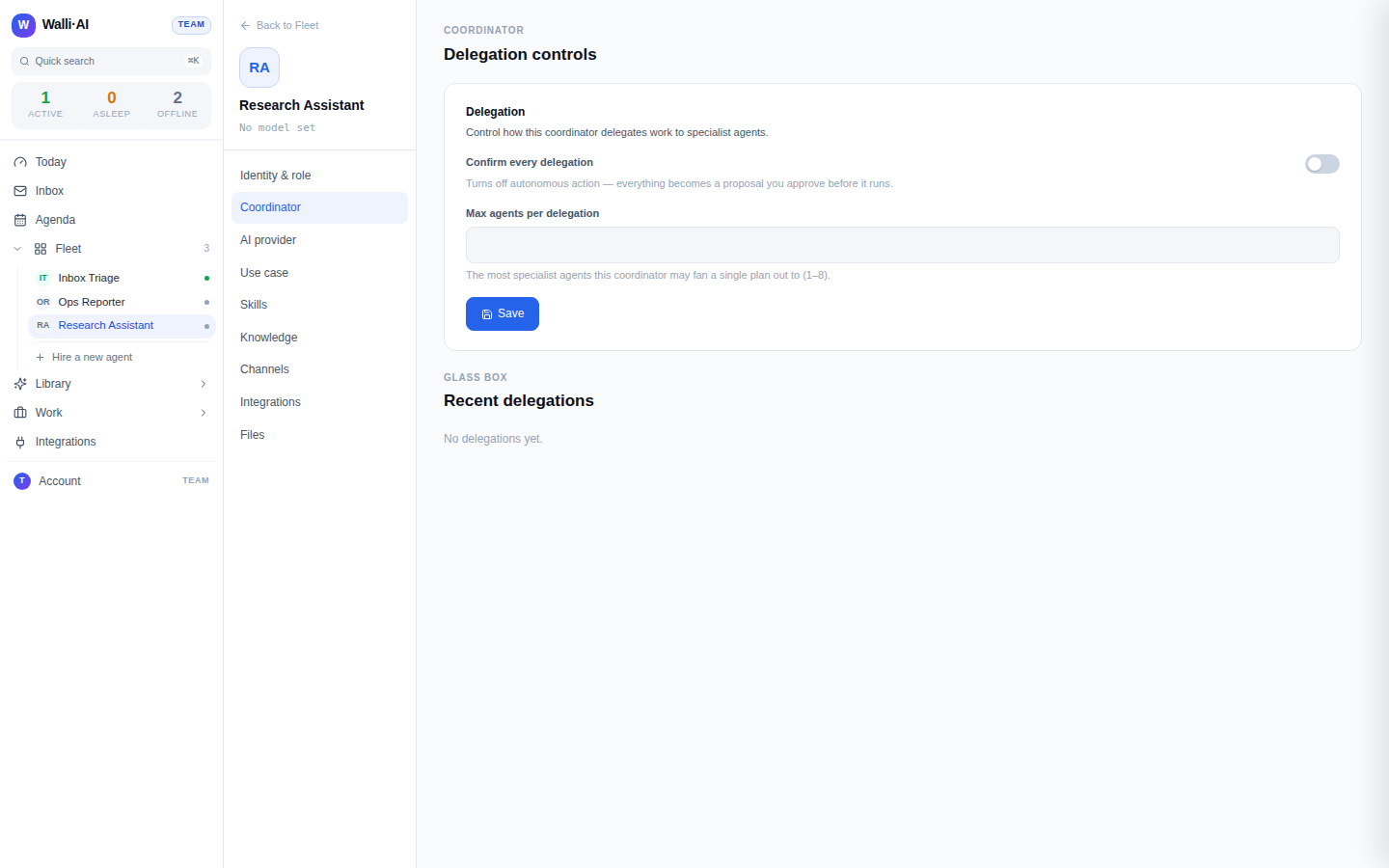
The Coordinator has its own configure screen with delegation controls. It only appears for the coordinator agent.
- Open the coordinator agent and select Coordinator in the configure left rail (
/agents/{id}/configure/coordinator). - Confirm every delegation. Turn this on to switch off autonomous action entirely: every delegation becomes a proposal you approve before it runs. This is the kill-switch when you want to review everything first.
- Max agents per delegation. Set a ceiling (1 to 8) on how many specialist agents the Coordinator may fan a single plan out to. Lower it to keep plans tight; raise it to let bigger jobs parallelise.
- Click Save.
Undo a proactive action
Because the Coordinator acts on its own for routine items, every proactive action is reversible. The fastest path is the handled strip on Today: find the action and click its Undo button, and the Coordinator rolls it back from its undo journal. If a reversal cannot be applied, the row surfaces a clear "Couldn't undo, try again" message rather than failing silently, so you always know whether the undo took. This is the safety net that makes leaving autonomous action switched on comfortable: you are never more than one click from reversing anything it did without you, which is usually a better first move than turning coordination off altogether.
Review the glass box
Below the controls, the Recent delegations glass box shows the Coordinator's actual delegation history: which agents it involved and what it asked them to do. Use it to audit how work is being routed and to sanity-check the fan-out before loosening the controls above.
Start with the defaults. If the Coordinator does something you did not expect, use the undo journal to reverse it, then decide whether to turn on Confirm every delegation or lower the fan-out ceiling rather than switching coordination off.
Tips
- The Coordinator works across your Fleet, so adding well-configured specialist agents makes it more useful, not less: it has more places to route work.
- Delegation stays strictly within your tenant; the Coordinator never routes work outside your workspace.
- If you want a specific agent to always run at full quality regardless of routing, set its quality controls under Identity & role (see Agent identity, personality, and the Compute Governor).