Giving an agent knowledge (documents & links it can use)
Upload documents (retrieved automatically) and templates (filled on demand) so your agents ground their work in your own material.
Agents answer best when they can draw on your own material instead of general knowledge. Walli-AI lets you give them reference content in two forms: Knowledge, which is chunked and embedded so the relevant parts are retrieved automatically when an agent works, and Templates, documents filled with placeholder data on demand. Both stay private to your tenant. This page covers adding, using, and maintaining that content.
What you can do
- Upload documents as Knowledge the agent retrieves automatically.
- Upload Templates the agent fills in on demand.
- Search your knowledge base and see each document's ingestion status.
- Delete a document or re-embed everything after a change.
Knowledge vs Templates
- Knowledge is chunked and embedded for retrieval. Use it for reference material the agent should ground its answers in: product docs, SOPs, playbooks, contracts, research ("here is how underwriting works").
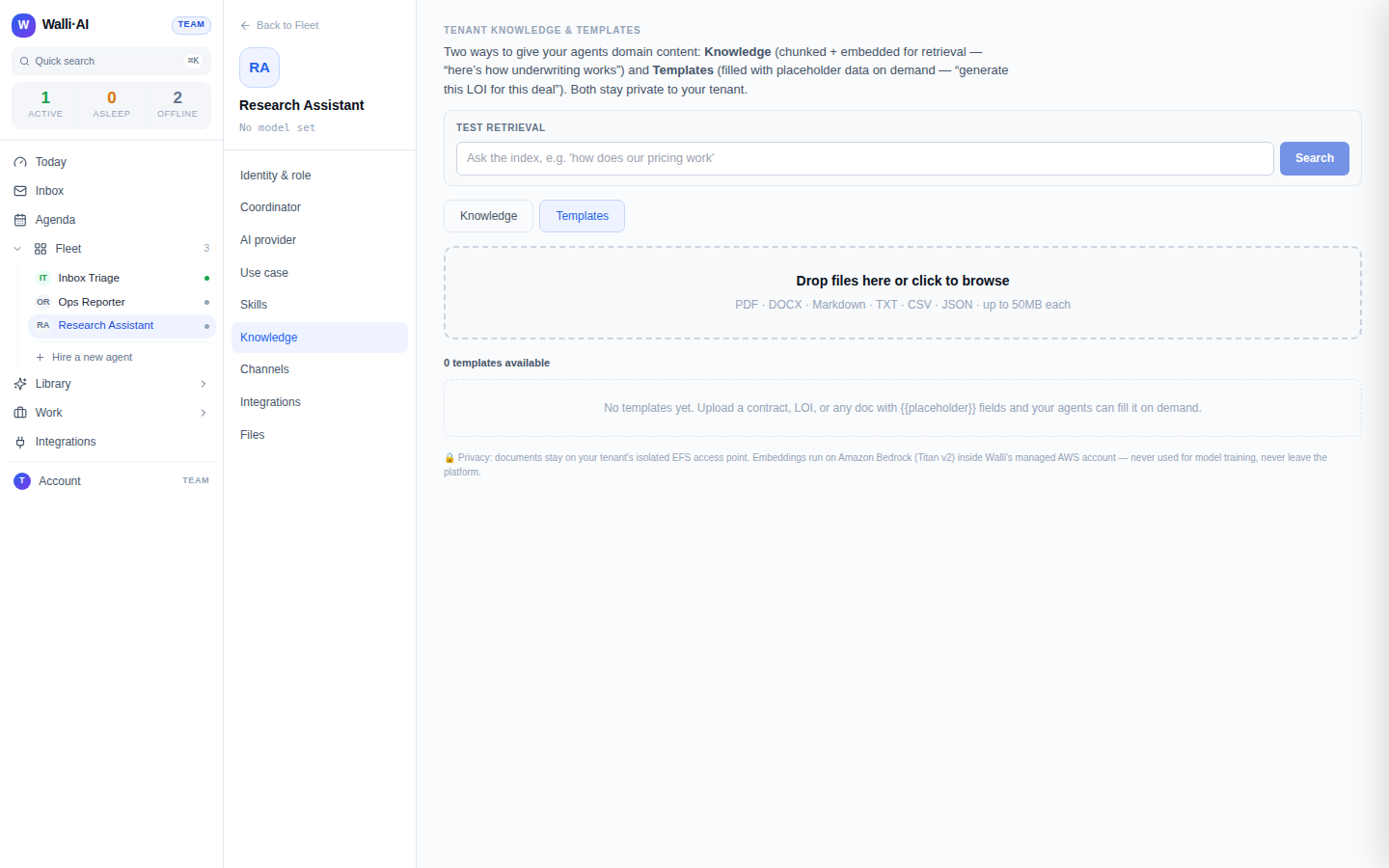
- Templates are documents with placeholders that the agent fills with the right data when asked ("generate this LOI for this deal"). Templates keep their structure and get populated on demand rather than being retrieved as reference text.
You switch between the two with the Knowledge / Templates toggle on the section.
Add knowledge to an agent
- Open the agent and go to its Knowledge configure screen (
/agents/{id}/configure/knowledge). You can also add knowledge during initial setup at the wizard's Knowledge step. - Make sure the Knowledge tab is selected (or Templates for a template).
- Drag files onto the drop zone, or click to browse and select them. The drop zone accepts PDF, DOCX, Markdown, TXT, CSV, and JSON, up to 50 MB each.
- Each document shows an ingestion status as it is processed: pending, ingesting, then ready (or failed with a reason). Once ready, the content is chunked, embedded, and available for retrieval. The section header keeps a running count of how many documents are indexed.
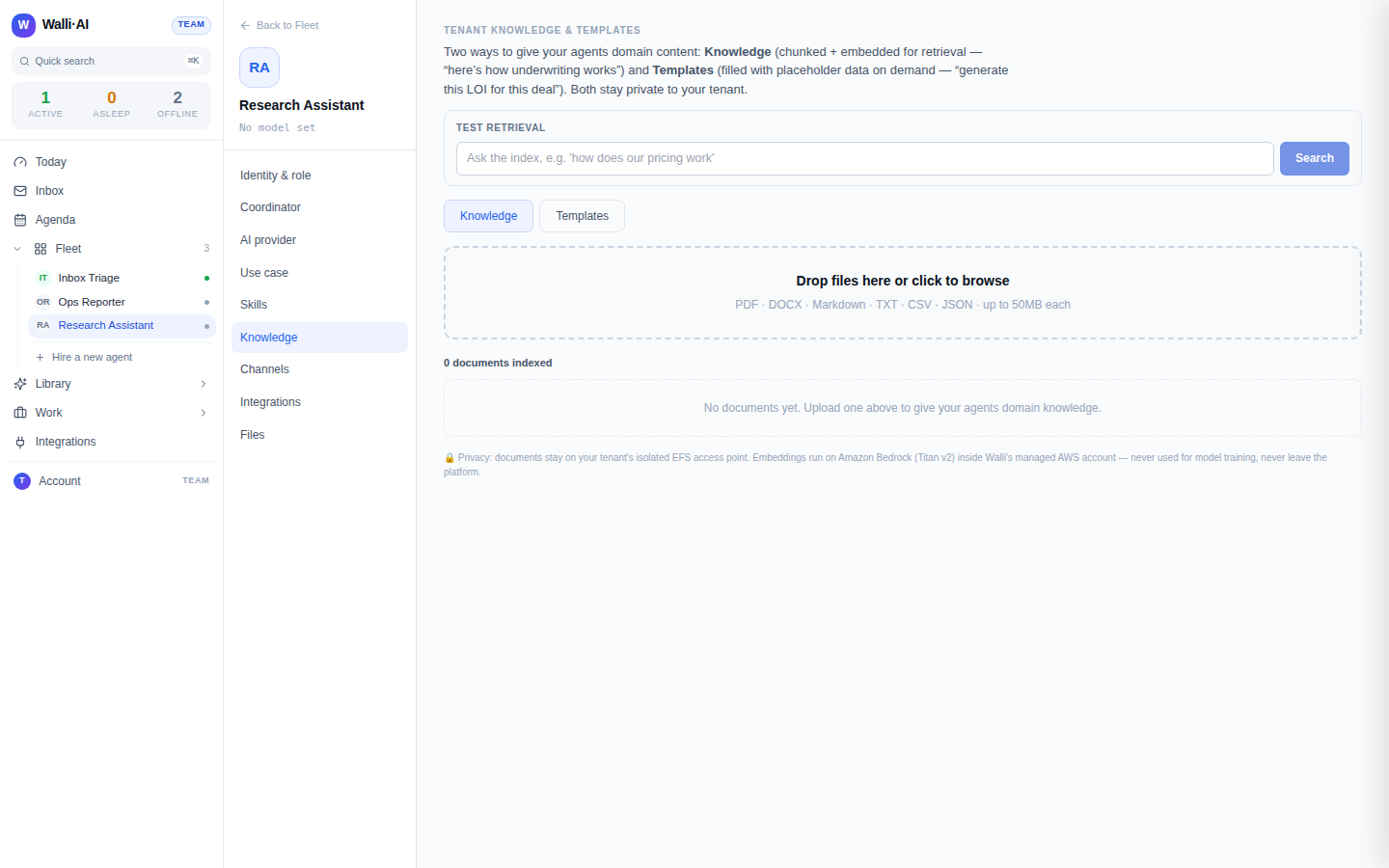
Knowledge is tenant-wide and private. Documents live on your tenant's isolated storage, embeddings run inside Walli-AI's managed AWS account, and your content is never used for model training and never leaves the platform. It is available to your agents and no one else.
What the document list shows
Once a document reaches ready, its row tells you how it was processed. Knowledge documents show a chunk count: the number of embedded passages the file was split into. That count is a quick sanity check that a large document actually ingested, because a multi-page PDF that shows only one or two chunks probably did not extract cleanly and is worth re-uploading as text. Template rows show something different: how many placeholders were detected. Walli-AI scans each template for {{placeholder}} fields, so a letter containing {{client_name}} and {{deal_amount}} reports two placeholders, confirming the agent knows exactly which blanks it is expected to fill when you ask it to generate that document.
How agents use knowledge
You do not have to tell an agent to "go look." When you ask it something, Walli-AI pre-retrieves the most relevant pieces of your uploaded knowledge and hands them to the agent along with your message. The agent can also explicitly search the knowledge base when it needs to dig further. So the workflow is simply: upload the material once, then ask your questions normally.
The Templates tab works the same way for adding content, but the documents there are filled with your data on demand rather than retrieved as reference text.
Maintain your knowledge base
- Test retrieval. Use the search bar at the top of the section ("Test retrieval") to ask the index a question and check what the agent would find.
- Delete. Remove a document you no longer want; agents can no longer retrieve it afterward.
- Re-embed all. If you have changed how documents should be processed, use Re-embed all to re-run ingestion across every document and regenerate embeddings.
If an agent is not using a document you expect, check that the document's status is ready. A failed document shows the reason; fix the file (for example, a corrupt or password-protected PDF) and re-upload it.
Test what an agent will find
The Test retrieval search bar at the top of the section lets you ask the index a question and see the passages the agent would be handed, without opening a chat. It is the fastest way to confirm that a freshly uploaded document is actually being retrieved for the questions you care about, and to spot gaps where you need to add more material.
Tips
- Prefer clean, text-rich source files. Scanned images and locked PDFs are harder to ingest than exported text or well-structured documents.
- Put standing instructions and preferences in Knowledge (or tell the agent directly) rather than relying on conversation memory to retain them: see What an agent remembers.
- Templates pair well with agents that produce the same document repeatedly (offer letters, LOIs, status reports): upload the template once and let the agent fill it per deal.