Inbox: overnight email your agents triaged
A single view of what landed in your connected mailboxes, with agent-drafted replies and one-click archive, delete, and bulk actions.
Inbox (/inbox) is the full-page home for email your agents watch. When you connect a mailbox to an agent, that agent can read what came in over the last 24 hours, prepare draft replies, and let you archive or delete threads without ever leaving Walli-AI. The page merges every connected mailbox into one prioritized list, colors each account so you can tell them apart at a glance, and turns every message into a launch pad: reply, archive, or delete right from the row. This article explains what shows up here versus on Today, how to act on a thread, and how to clear several at once.
What you can do
- See the priority threads from every connected mailbox in one merged list.
- Ask the connecting agent to draft a reply to any thread.
- Archive or delete a single thread, or select several and act in bulk.
- Open any thread straight in Gmail when you want the full context.
- Tell at a glance which mailbox a message belongs to by its color.
What lands in Inbox versus Today
The Today page shows a compact Inbox module in its right rail: the top three overnight threads and a count, meant as a glance. Inbox is the depth. It gives the panel a full-width scroll container, a sticky bulk-action bar, and every thread grouped by mailbox rather than just the top few. Reach it from the sidebar, from the Open link on the Today rail module, or from the breadcrumb Today / Inbox at the top of the page.
- Until you connect a mailbox, the page shows a single Email overnight card that reads "Connect Gmail on any agent to see overnight email summary here," with a Connect Gmail -> link. That is the state on the demo tenant used for these screenshots, because it has no mailbox connected, so the shot below shows the connect prompt rather than a populated inbox.
- Connect a mailbox by opening any agent and connecting Gmail (see Integrations). The agent that holds the OAuth grant becomes the "via" source shown on each thread and the one that drafts replies.
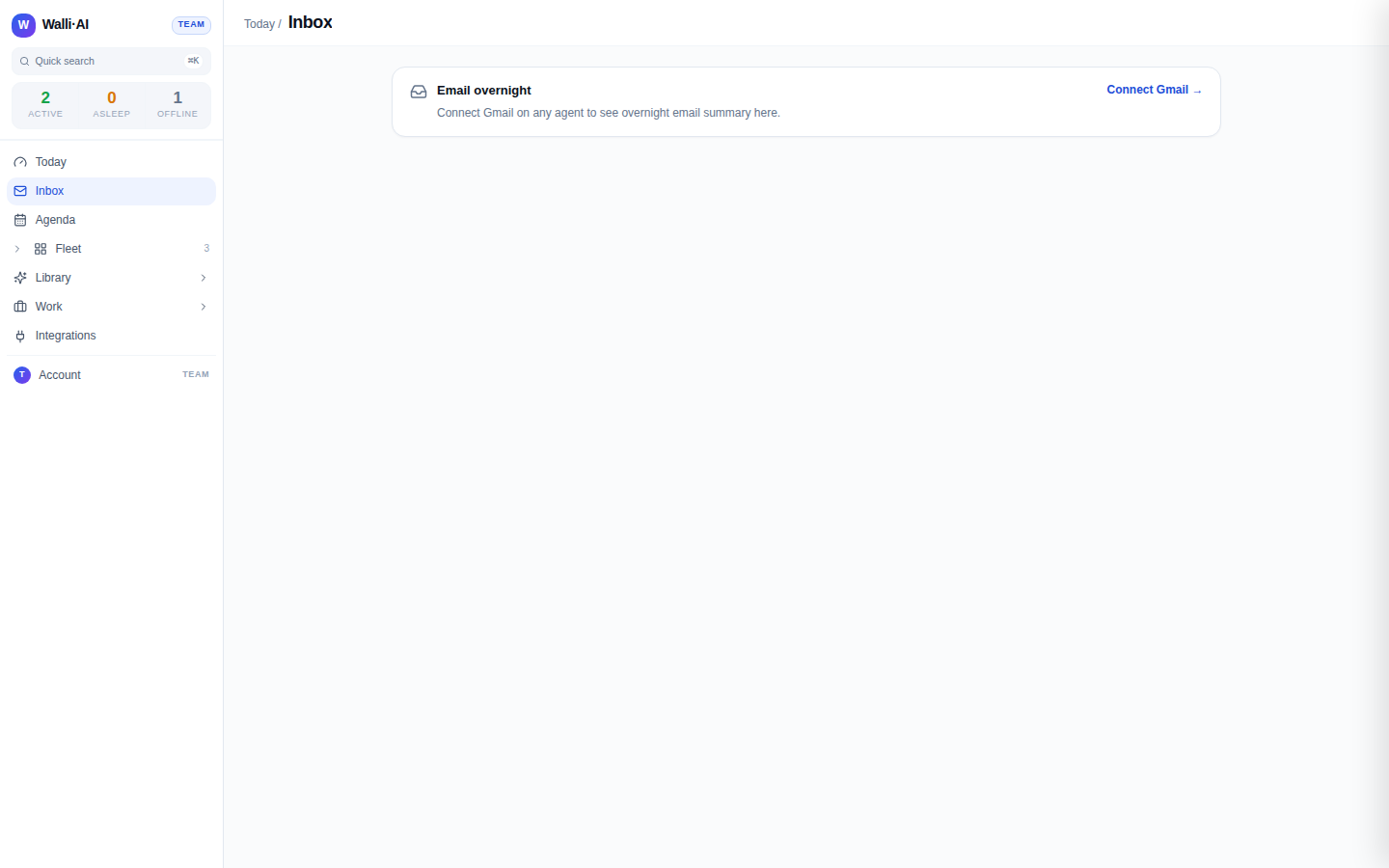
Read a populated inbox
Once at least one mailbox is connected, the panel header shows a running count ("N new . M drafts", and "across K mailboxes" when you have more than one) plus a Refresh control and an Open Gmail link.
- Threads are grouped by mailbox. Each group has a colored left border and a header with the account address and, when known, which agent it comes in "via". Click a mailbox header to collapse or expand that group.
- Inside a group, any threads with a prepared reply are pulled to the top under a Drafts subheading, followed by the rest under Other, so the messages an agent already worked on are easy to find.
- Each row shows the subject (a link that opens the thread in Gmail), the sender, how long ago it arrived, and a two-line preview. A Draft tag marks threads where the agent has already written a reply for your review.
Because the demo tenant has no mailbox connected, these grouped rows cannot be shown in a screenshot here; the behavior above is what renders as soon as a mailbox is wired.
Act on a thread
Every row carries an action bar so a message is never just something to read.
- Ask {agent} to draft runs the connecting agent to write a reply and save it as a Gmail draft; the result note confirms it was saved, and the row refreshes to show the new Draft tag.
- Open in Gmail opens the thread in a new tab when you want to read or send from Gmail directly.
- Archive removes the thread from the inbox view; the row fades to an "Archived" confirmation before it disappears.
- Delete moves the thread to Gmail Trash after a confirmation dialog that reminds you it is recoverable from Trash for 30 days.
Actions are only available on threads whose source agent is known; a thread from an unknown source is shown but its action buttons stay disabled.
Clear several at once
When you want to process a batch, use selection.
- Check the box on any actionable row, or use the checkbox in a mailbox header to select that whole group, or the checkbox in the panel header to select everything selectable.
- A sticky bulk bar appears showing how many are selected, with Delete selected, Archive, and Clear. Bulk delete asks you to confirm before moving the batch to Trash.
- The batch runs in one pass; if any thread fails, the bar reports how many could not be archived or deleted so nothing fails silently. The list refreshes when the batch finishes.
Tips
- Connect the mailbox to the agent you want doing the drafting; that agent's voice and instructions shape the replies it prepares, and it is the one named as the source on each thread.
- Use the Drafts group first: those are the threads an agent already worked, so a quick read-and-send clears them fastest.
- Collapse mailboxes you are not focused on to keep a busy multi-account inbox scannable; the color border still tells you which account is which.
- Deleting sends to Gmail Trash, not a permanent delete, so a mistaken bulk delete is recoverable there for 30 days.