Agenda: today's meetings, with an agent on every one
Today's meetings from every connected calendar in one view, each one a launch pad for prep, an agenda draft, or a polite decline.
Agenda (/agenda) is the full-page view of your day's meetings. When you connect a Google Calendar to an agent, that agent surfaces today's events here, merged across every connected calendar, with the start time, duration, attendees, and location for each one. More than a read-only list, every meeting is a launch pad: the connecting agent can prepare a briefing, draft an agenda and email it to attendees, or write a polite decline, all from the row. This article covers what Agenda shows, how it differs from the Schedules page, and what you can do on each meeting.
What you can do
- See today's meetings from every connected calendar in one merged, time-ordered list.
- Have an agent prepare a 60-second prep brief for any meeting.
- Have an agent draft an agenda and save a Gmail draft to the attendees.
- Have an agent write a polite decline to the organizer.
- Join a video meeting directly, or hide an event from today without emailing anyone.
Agenda versus Schedules
These two pages sound similar and are not the same thing:
- Agenda shows human calendar meetings pulled from Google Calendar: the things you attend. It is read from your connected calendars.
- Schedules (
/schedules) shows the automated runs your agents are queued to perform on a cron cadence: the work your fleet does for you. See Scheduling an agent or workflow.
Put simply, Agenda is your day; Schedules is your agents' day. Reach Agenda from the sidebar, from the Your day module on Today, or from the Agenda link on that module.
Connect a calendar first
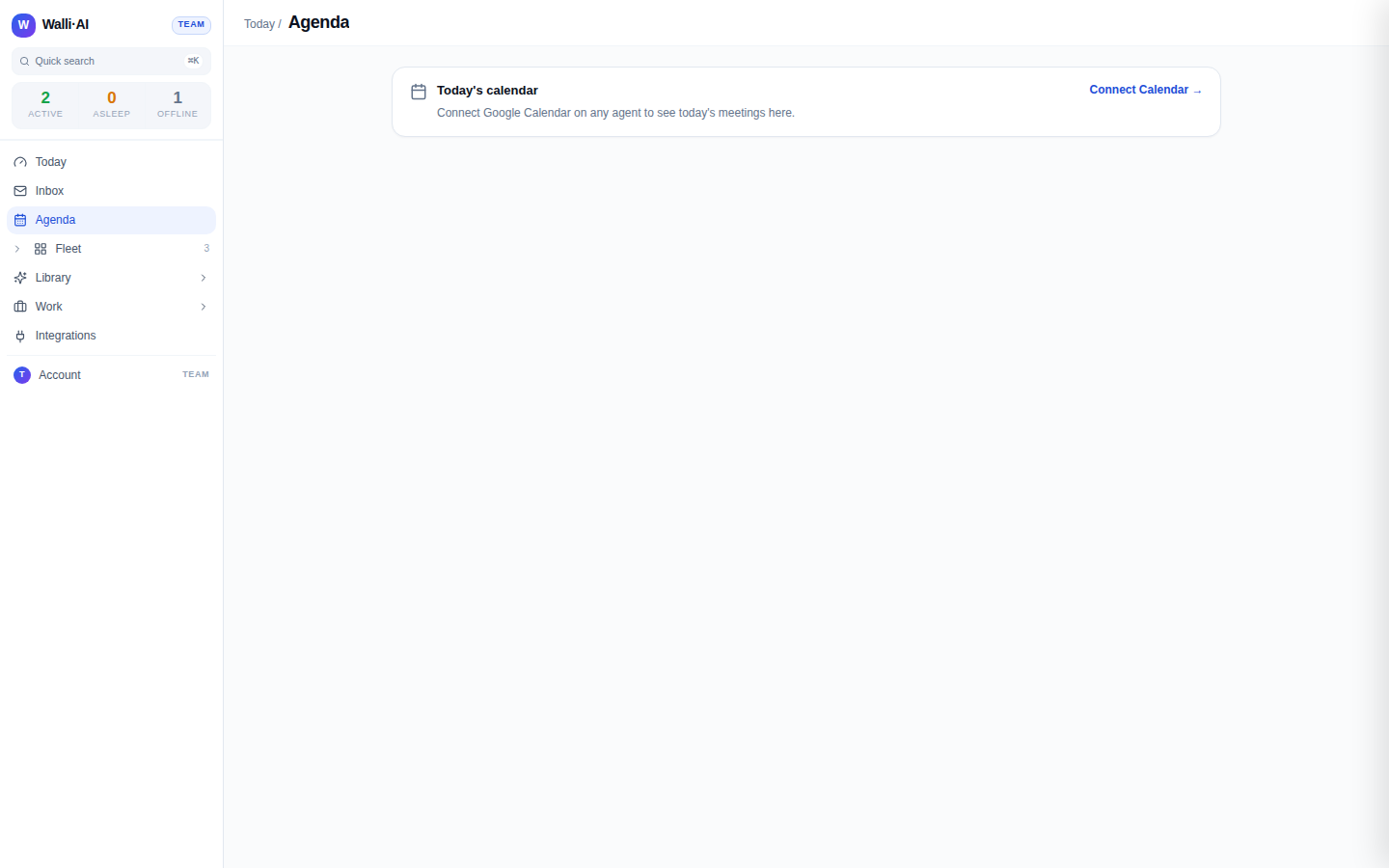
Until a calendar is connected, the page shows a single Today's calendar card that reads "Connect Google Calendar on any agent to see today's meetings here," with a Connect Calendar -> link.
- That connect state is what the demo tenant used for these screenshots shows, because it has no calendar connected. The screenshot below is therefore the honest connect prompt, not a populated agenda.
- Connect a calendar by opening any agent and connecting Google Calendar (see Integrations). The agent that holds the grant becomes the source shown "via" each event and the one that runs the meeting actions.
Read a populated agenda
Once a calendar is connected, the header summarizes the day, for example "5 meetings . 3.5 hr" and, with more than one calendar wired, "across K calendars." A Refresh control and an Open Calendar link sit alongside it.
- Each event row shows the start time and duration on the left, the title, the attendees you are meeting with (up to three, then a "+N" count), and the location when there is one.
- When you have more than one calendar connected, each row is tagged with the calendar it came "via" so a merged day stays legible, and a footer notes that the view is merged across your accounts.
- Any event with a video link shows a Join button that opens the meeting in a new tab.
Because the demo tenant has no calendar connected, these populated rows cannot be shown in a screenshot here; the behavior above is what renders as soon as a calendar is wired.
When two agents connect the same calendar, or when you connect several calendars, Agenda merges them into one time-ordered day and de-duplicates repeated events, so a standup that shows on two calendars is not listed twice. Attendees who have declined an event are dropped from the "with" line so you see who is actually coming. If a calendar cannot be reached, a small warning names which one failed rather than silently hiding its events.
Turn a meeting into work
Every event row carries an action bar, routed through the agent whose calendar surfaced the event.
- Prep me has the agent compile a 60-second dossier, pulling recent emails from attendees, prior decisions, and workspace context, and returns a short skim brief. You can add a specific focus before it runs.
- Draft agenda has the agent compose a tight agenda and save it as a Gmail draft addressed to the attendees, so you can review and send. It is disabled for events with no attendees to send to.
- Decline has the agent draft a polite decline email to the organizer for your review.
- Dismiss hides the event from today's view without emailing anyone; it stays on your Google Calendar untouched.
Each action reports back inline: a running state while the agent works, then a confirmation note when the draft or brief is ready.
Tips
- Connect the calendar to the agent you want handling meeting prep and agendas; that agent's context and voice shape the briefs and drafts it produces.
- Use Prep me on your first meeting of the day for a fast, sourced skim before you walk in, rather than reconstructing context yourself.
- Draft agenda saves to Gmail as a draft, so nothing is sent until you review and hit send; the same is true of Decline.
- Dismiss only clears an event from this view; if you want it off your calendar entirely, do that in Google Calendar via the Open Calendar link.