Your daily brief (Today)
A chief-of-staff style home screen: a headline of what matters, a queue of decisions that need you, what your agents delivered, and what they handled on their own.
Today (/today) is your home base: a daily, chief-of-staff style summary of what your fleet did, what it needs from you, and what is coming next. Instead of opening each agent one by one, you open one page that leads with a plain-language headline, ranks the handful of decisions that actually need a human, shows the deliverables that landed, and lists the routine work agents cleared on their own. This article walks the page top to bottom so you know what every zone is telling you and what you can do from each one.
What you can do
- Read a one-line headline of what matters right now, with a suggested next action.
- Ask or instruct your team from the command bar without leaving the page.
- Approve, reject, snooze, or dismiss the decisions your agents are waiting on.
- Open the deliverables produced today and jump to the full run.
- Review and undo anything an agent handled automatically.
- Glance at your day, your inbox, and your team status in the right rail.
Read your headline and command bar
The top band is the briefing. The coordinator speaks first.
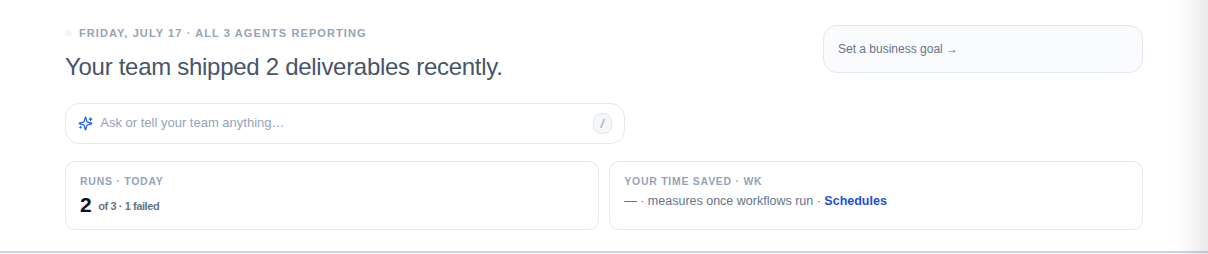
- The eyebrow line shows the date, how many agents are reporting (for example all 3 agents reporting), and a small colored dot that reflects the fleet mood: amber when something needs you, neutral when the team is simply busy.
- The large sentence beneath it is the narrative: a written summary of the current state (for example, how many deliverables shipped recently). When the coordinator has a recommendation, a Do next fragment appears under it, and a link tells you how many routine items were handled for you, each one reversible.
- The command bar ("Ask or tell your team anything") is the page's front door. Press
/anywhere on the page to jump into it. Type a question and press Enter for an inline answer; type an instruction and the bar proposes an action with a Confirm button before anything runs; type a destination and it navigates you there. If the bar cannot act on a request, it offers to hand the request to your chief of staff in chat. - On the right, the goal module lets you set a business goal so the brief can frame progress against it, and below the band a KPI strip shows Runs today and Your time saved for the week.
The clock in the page header and every time on this page are shown in your tenant timezone. A brand-new tenant with no agents sees a Quick start panel here instead of the briefing, with first steps to create an agent.
Work the decision queue
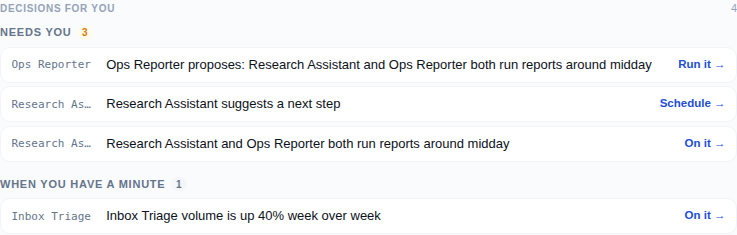
Decisions for you is the heart of the page. It pulls every signal that needs a human, ranks it by urgency, and splits it into two groups.
- Needs you holds urgent and watch-level items: approvals waiting, failed runs, reconnect prompts, insights worth acting on. When you have a minute holds the lower-priority, informational cards.
- Non-urgent cards start life as a compact one-line row so the queue stays scannable; click a row to expand it. Urgent cards open expanded with a red edge so they demand attention immediately.
- An expanded card shows the agent and its role, a task-type badge, the title, and supporting facts. A
Walli's takestrip gives the recommended call, and when a card has aged it adds a nudge with a Do recommended shortcut. - Act with the buttons on the card. Depending on the source you will see Approve / Reject, Retry / Acknowledge for failures, On it / Snooze / Dismiss for insights, or Schedule / Dismiss for follow-ups. Reject opens an optional reason field; Snooze offers 3, 7, or 30 days. A workflow-tuning card adds a Tune button that loads a proposed prompt rewrite inline.
- Every card carries a Why this? disclosure that names the agent and the signal it came from, so no card is a mystery. Cards resolve in place and disappear from the queue; when the last one clears you get a calm "You're all clear" line.
For the card types that come from proactive analysis, see Insights and Follow-ups. Failed-run cards are covered in Recovering from a failed run.
Catch up on results and what was handled
Below the queue, two sections tell you what already happened.
- Today's results lists each completed run that produced a headline or summary, one ledger row per run with the agent name and the completion time. Click a row to expand the summary and the run's suggested next step, then use View full run to open it or Library -> to see the full history. This section only shows runs that actually produced consumable output, so an empty day shows nothing rather than noise.
- Handled overnight / Handled today is the proof-of-work ledger: every routine action an agent took on its own, titled by time of day. Each row has an Undo control (undo failures surface, they are never silent), and delegations link to their trace. This section only appears when there is something to show, so on the demo tenant with no automatic actions it stays hidden.

Under those, a Recommended for you strip surfaces suggested integrations and ready-to-run workflows tailored to your fleet; dismiss any card you are not interested in.
The right rail: your day, inbox, and team
The rail on the right is a set of live launch pads, capped at a few focused modules so it never becomes a wall.
- Pinned from your dashboards appears only when you have pinned widgets; each tile links to its dashboard.
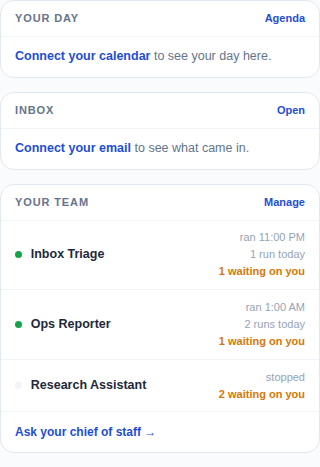
- Your day shows today's calendar events with a link to the full Agenda; until a calendar is connected it shows a connect prompt.
- Inbox shows the top overnight email threads and a count, linking to the full Inbox; until a mailbox is connected it prompts you to connect one.
- Your team lists each agent with its live status, when it last ran, and how many items are waiting on you, plus a Manage link and an Ask your chief of staff shortcut into chat.
Tips
- Press
/from anywhere on the page to focus the command bar; it is the fastest way to ask a question or issue an instruction without hunting for a menu. - Clear the Needs you group first, then skim When you have a minute when you have the time; the queue is ranked so the top item is always the most pressing.
- Use Why this? on any card you do not recognize before acting; it tells you which agent proposed it and why.
- Check the Handled ledger periodically so you always know what your agents did without you, and undo anything that was not what you wanted.