Entities: the people, companies, deals and projects your fleet tracks
As your agents work, the platform pulls the named people, companies, deals and projects out of every run and chat and keeps a running record. Browse them on the Entities page, open any one to see every recent mention, and star the ones you want to be alerted about.
The entity graph is your fleet's memory of the named things it keeps talking about: the people, companies, deals and projects that show up across workflow runs and chat. Agents think in events by default, one run or one message at a time, so answering "what is happening with Acme?" would normally mean digging back through history. The Entities page (/entities) fixes that. A background extractor mines named entities out of every run and channel turn, keeps a running mention count and the latest context for each, and lets you browse the whole set, open any one to see where it came up, and star the ones you want to be told about. The same records feed each agent's memory, so your fleet recalls people and deals across conversations instead of starting cold every time.
What you can do
- Browse every person, company, deal and project the fleet has surfaced, in one place.
- Filter to a single type and sort by importance, mention count, or recency.
- Open an entity to see every mention from the last 30 days, each linked back to its run or chat.
- Watch an entity so you get an email the next time any agent mentions it.
- Let the graph fill itself in: entities appear automatically as agents run and chat.
Browse the entity graph
- Open Entities from the navigation. The page lists everything the fleet has been discussing, newest and most-mentioned first.
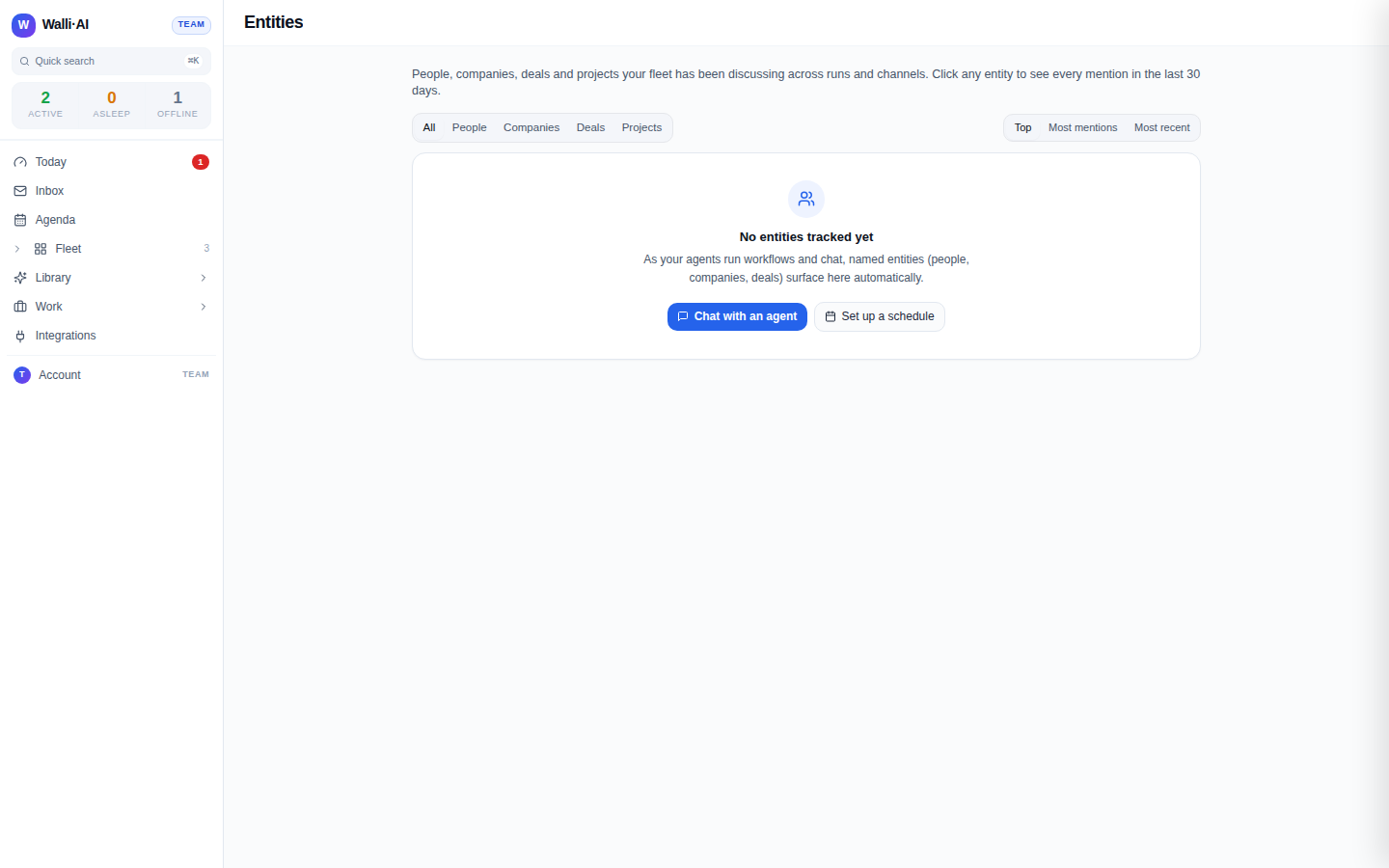
- Use the type tabs, All, People, Companies, Deals and Projects, to narrow to one kind of entity. Each type has its own icon so the list stays scannable: a person, a building, a briefcase for deals, and stacked layers for projects.
- Use the sort toggle on the right to reorder: Top ranks by importance (mention count weighted by how recently the entity came up), Most mentions ranks purely by count, and Most recent puts the freshest activity first.
Each row shows the entity's display name, its type, a ×N badge with the running mention count, how long ago it was last seen, and a one-line snippet of the most recent context it appeared in. Clicking a row opens that entity's timeline.

The Entities page fills itself in. There is no "add entity" button, and there does not need to be: every row above arrived as a side effect of agents doing work, not from anyone typing it. A new workspace shows No entities tracked yet, which is the honest state for a fleet that has not run a workflow or held a conversation yet, and it offers two shortcuts, Chat with an agent and Set up a schedule. Filter to a type with nothing in it and you get a plainer "No people tracked yet" line.
Open an entity's timeline
Click any entity row to open its detail page at /entities/{name}. The header carries the display name, the type, the total mention count, and two dates: First seen and Last seen. Below that, Most recent context quotes the latest line the entity appeared in.
The Recent mentions section is the timeline. It reverse-searches the last 30 days of succeeded and approved runs plus channel turns for anything that names this entity, then lists them newest first, capped at 30. The counter reads "N of M in last 30 days" so you know whether you are seeing everything. Each mention shows which agent it came from, whether it was a workflow run or a chat turn (and on which channel), how long ago it happened, and a snippet. When a mention came from a run, an Open in Library link takes you straight to that run's record.
If the timeline reads No mentions in the last 30 days even though the list showed a mention count, the entity is simply older than the 30-day reverse-search window. The running count on the list is cumulative; the timeline is a rolling window.
Watch an entity for alerts
Every entity, both in the list and on its detail page, has a star. Click it to Watch the entity. From then on, the next time any agent in your fleet mentions that entity, the platform emails you the specific new context along with a one-click link to pick it back up in chat. Click the star again to stop watching, and the email alerts stop.
Watching is per person, so your star does not change what a teammate sees. Alerts are de-duplicated to at most one per entity per day, so a busy conversation cannot flood your inbox.
How entities get created
You never populate the graph by hand. A background extractor reads the output of every completed workflow run and, on a short cron, sweeps recent chat turns. It uses a small model to pull out named people, companies, deals and projects, then folds each one into a single canonical record. Canonicalisation lowercases the name and strips company suffixes and punctuation, so "Acme Corp", "Acme Corp." and "Acme" all merge into one entity rather than three. A blocklist keeps filler like weekdays, quarters, and generic words such as "platform" or "team" from becoming entities. Each new mention bumps the count and refreshes the latest context, and records that go quiet eventually roll off on their own.
The same top entities are injected into each agent's working memory, relevance-gated so an agent recalls what matters to the current task and skips the rest. That is why your fleet can answer "where did we land with Acme?" without you re-explaining who Acme is.
Tips
- Sort by Top to triage. It blends volume and freshness, so the entities that are both busy and current rise to the top, which is usually where your attention belongs.
- Watch the handful that matter. Stars are cheapest when they are rare. Watch the deals and people you genuinely want interrupted about and let the rest sit in the graph for reference.
- Use Open in Library to verify. When a mention looks surprising, jump to the run behind it instead of trusting the snippet alone.
- A sparse page is not a broken one. Entities are downstream of work. If the graph is thin, run more workflows and chat more; the records follow.
Related: Insights and follow-ups covers the other proactive surfaces, Follow-ups closes the loop after a run, and Today is where the day's decisions land.