Getting files out of Walli-AI / exporting a deliverable
Find, preview, download, and delete the files an agent produced or you uploaded, organize them in shared folders, and get exports (HTML, CSV, and more) out of the platform.
When an agent renders a document, writes a spreadsheet, saves an image, or hands a file to another agent, that file is stored and shows up under Files. The same screen holds anything you upload for your agents to use. This article covers finding a file, previewing it, downloading it out of the platform, uploading and organizing files, and the recurring-export pattern for things like HTML or CSV deliverables.
Open Files
Go to Library -> Files (/files). The left rail lists two kinds of location: the Shared Library (folders you and your agents can both read) and one entry per agent for that agent's own files. A storage meter at the top of the rail shows how much of your plan's storage you have used; when it runs low it turns amber and then red and prompts you to upgrade. Storage limits are set by your plan, so see Plans and billing for the exact allowance rather than assuming a number.
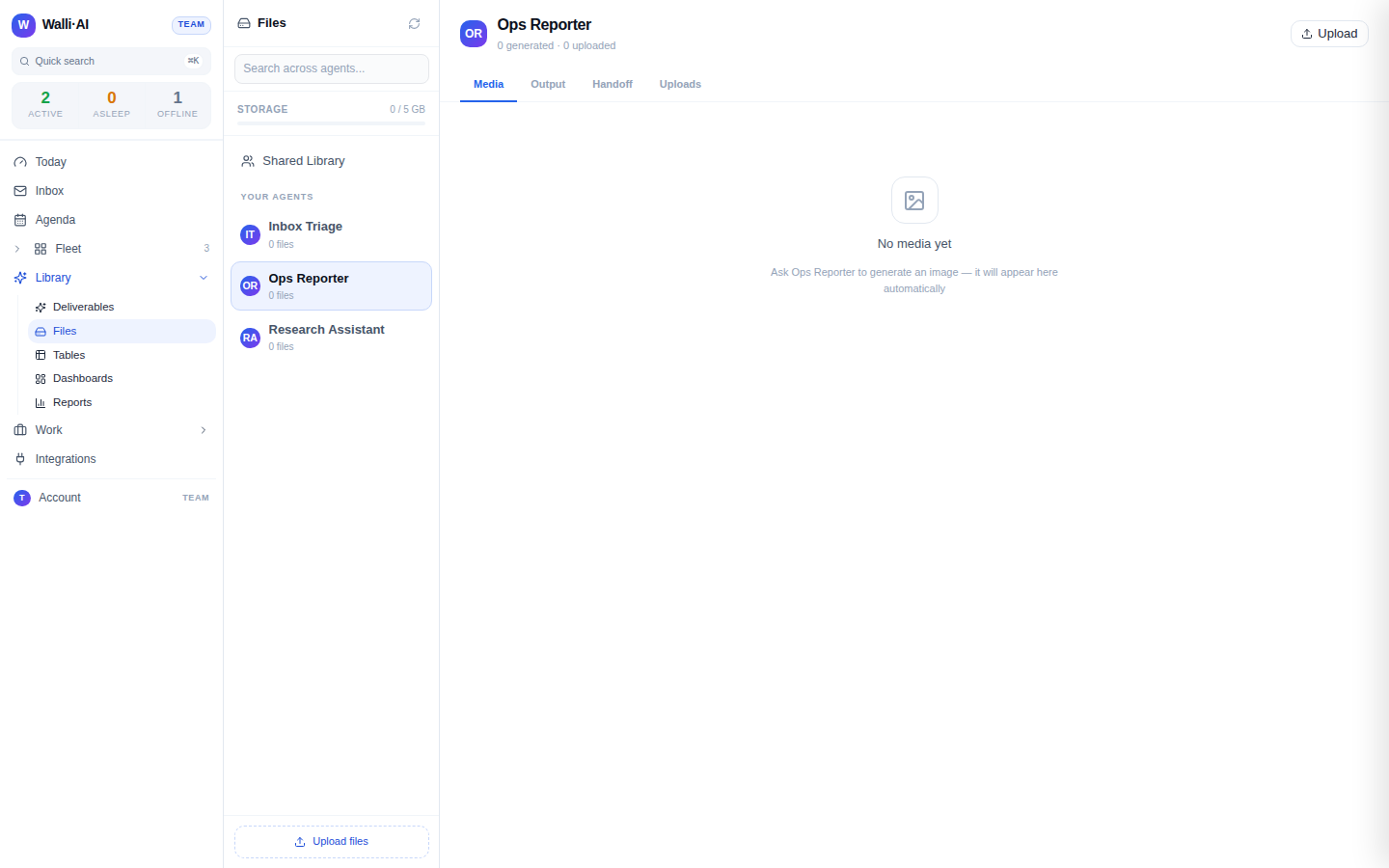
The screenshot above is from a fresh demo workspace, so the selected agent has no files yet and each tab shows its empty state. In a working account, generated files fill the Media and Output tabs as your agents produce them.
An agent's files, by kind
Select an agent in the rail and its files split into four tabs, each with a live count:
- Media holds images and other media the agent generated.
- Output holds documents the agent produced as deliverables: rendered HTML, CSV exports, generated reports, and the like. This is where an export you asked for lands.
- Handoff groups files one agent passed to another, organized by the project they were exchanged under.
- Uploads holds files you uploaded into that agent's workspace for it to work from.
The header above the tabs shows a quick tally of how many files the agent generated versus how many you uploaded, so you can tell its own output from your inputs at a glance.
Preview, download, delete, and summarize
Every file row carries the same set of actions:
- Preview. Click a row to open the file in a side pane. The preview dispatches on file type: images render inline, HTML and PDF-like documents render in a framed viewer, and text or code files (txt, md, json, csv, and common source types) render as text. A type that cannot be shown inline says so instead of failing silently.
- Download. The download control fetches a short-lived signed URL and opens the file in a new tab, which is how you get a copy out of Walli-AI and onto your machine. This works for any file, previewable or not.
- Delete. Removes the file after a confirmation. Deleting is permanent, so it asks first.
- Summarize with agent. For an agent's own files, a control asks that agent to read the file and return a short summary in place, which is useful for a long document you do not want to open in full.
Upload files for an agent
You can put files into the platform two ways. Drag files onto the main area of an agent's tab or the Shared Library, or use the upload control. Each file is sent straight to storage with a signed upload and then registered so it appears in the list. If an upload would push you past your plan's storage allowance, the upload is refused with a prompt to upgrade rather than partially saving; adjust your plan on billing to raise the limit. Uploaded files land under that agent's Uploads (or in the shared folder you dropped them on) and become readable by the agent immediately.
Organize with shared folders
The Shared Library is for files that more than one agent should see. Create a folder, give it a name and an optional description, and choose which agents can access it. Files in a shared folder are visible to every agent you grant access, which is how you hand the same reference document or dataset to a whole set of agents without uploading it repeatedly. You can search across files with the search box, which returns matches by name so you can jump to a file without remembering which agent or folder it lives under.
Getting an export out (HTML, CSV, and more)
There are two clean ways to get a file in a specific format:
- Ask the agent for it in that format. Tell the agent to produce the result as HTML, CSV, or another format. It saves the file, which then appears under that agent's Output tab, where you preview and Download it. This is the fastest path for a one-off export.
- Make it recurring with a workflow. If you need the same export on a cadence, set a workflow's deliverable type to the format you want (for example HTML or CSV). Every run then files a fresh export under Output, and you can also have it delivered off-platform. See Workflows and Scheduling.
For structured data specifically, the Reports engine is the better tool: a report over a table exports to CSV, XLSX, PDF, DOCX, HTML, Markdown, or plain text with deterministic, engine-computed figures, and it can be scheduled to deliver on its own. Reach for a report when the export is numbers from a table; reach for an agent-produced file when it is prose, media, or a rendered document.
How Files relates to the rest of the Library
Files and Deliverables are two views of the same work. When a run attaches an output file, that file shows on the deliverable in the Library and is also filed here under the producing agent's Output. Opening the deliverable is the way to see the file in the context of the run that made it; opening Files is the way to browse every file an agent has ever produced, independent of any single run. Both point at the same stored object, so downloading from either place gives you the same copy.
Tips
- Keep reference material an agent needs to reason over in a Shared Library folder with access granted, not pasted into a prompt: the agent can read the file each run without you re-sending it.
- Use Summarize with agent to triage a long output file before deciding whether to download it.
- If a download does not start, it is almost always a popup blocker eating the new tab; allow popups for the portal and try again.
- Watch the storage meter: when it goes amber, delete stale media and old exports, or raise your allowance on billing, before a large upload gets refused.