Gmail and Google Calendar for agents
Connect Google per agent so an agent can read and triage email, draft replies for your review, and read or create calendar events.
Connecting Google gives an agent the two workhorse tools of everyday operations: your inbox and your calendar. Once connected, an agent can read and triage incoming email, draft replies for you to review and send, list your calendars, check availability, and create or reschedule events. The Google grant is scoped per agent, so each agent carries its own Google account. That means a client-facing assistant and an internal ops reporter never share an inbox, and you can give one agent read-only calendar sight while another drafts email against a different mailbox. This article covers connecting Google, what the Gmail and Calendar tools actually do, and how inbound email triage keeps an agent from over-reacting to every message.
What you can do
- Connect a Google account to a specific agent, granting Gmail, Calendar, and Drive.
- Have an agent search, read, and summarize email, including the text of PDF and image attachments.
- Let an agent draft replies that land in your Gmail drafts for you to review and send.
- Let an agent triage the inbox: label, prioritize, and short-circuit noise automatically.
- Have an agent read your calendars, check availability, and create or reschedule events.
Connect Google to an agent
Google is an OAuth integration, and OAuth integrations connect per agent.
- Go to Integrations (
/channels) and find the Email & calendar group. The Gmail and Calendar tiles both connect through the same Google grant. - Click either tile to open its detail panel. Because Google is per-agent, the panel lists every configured agent with a Connect link (or Manage if already connected).
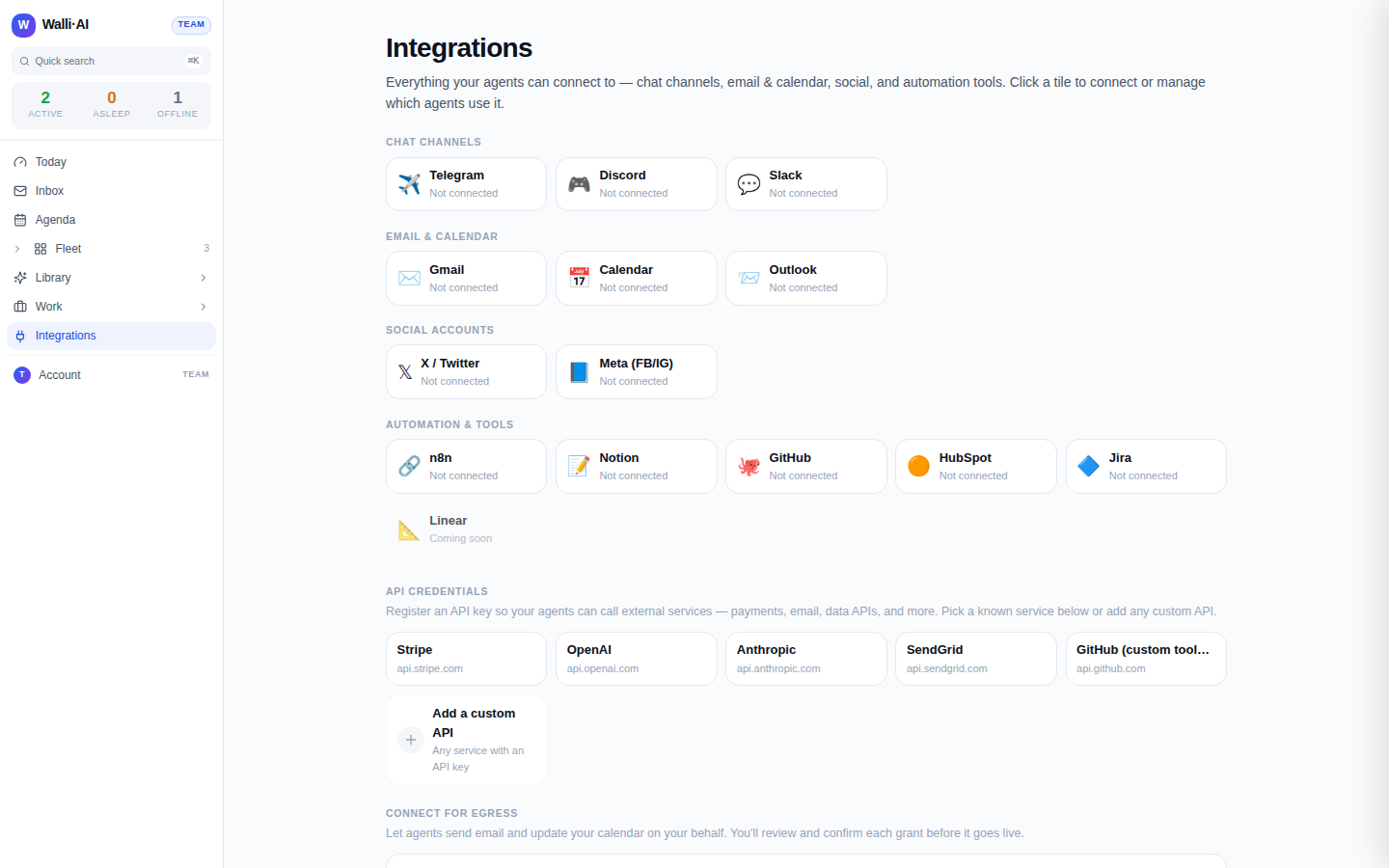
- Click Connect next to the agent you want. That takes you to the agent's integration settings (
/agents/{id}/configure/integrations), where the Google card (labeledGmail · Calendar · Drive) sits under the Email + calendar heading. - On the Google card, click Connect and complete the Google consent screen. The grant requests Gmail, Calendar, and Drive scopes. When you return, the card shows the connected account and a scope summary such as
gmail.modifyandcalendar.events.
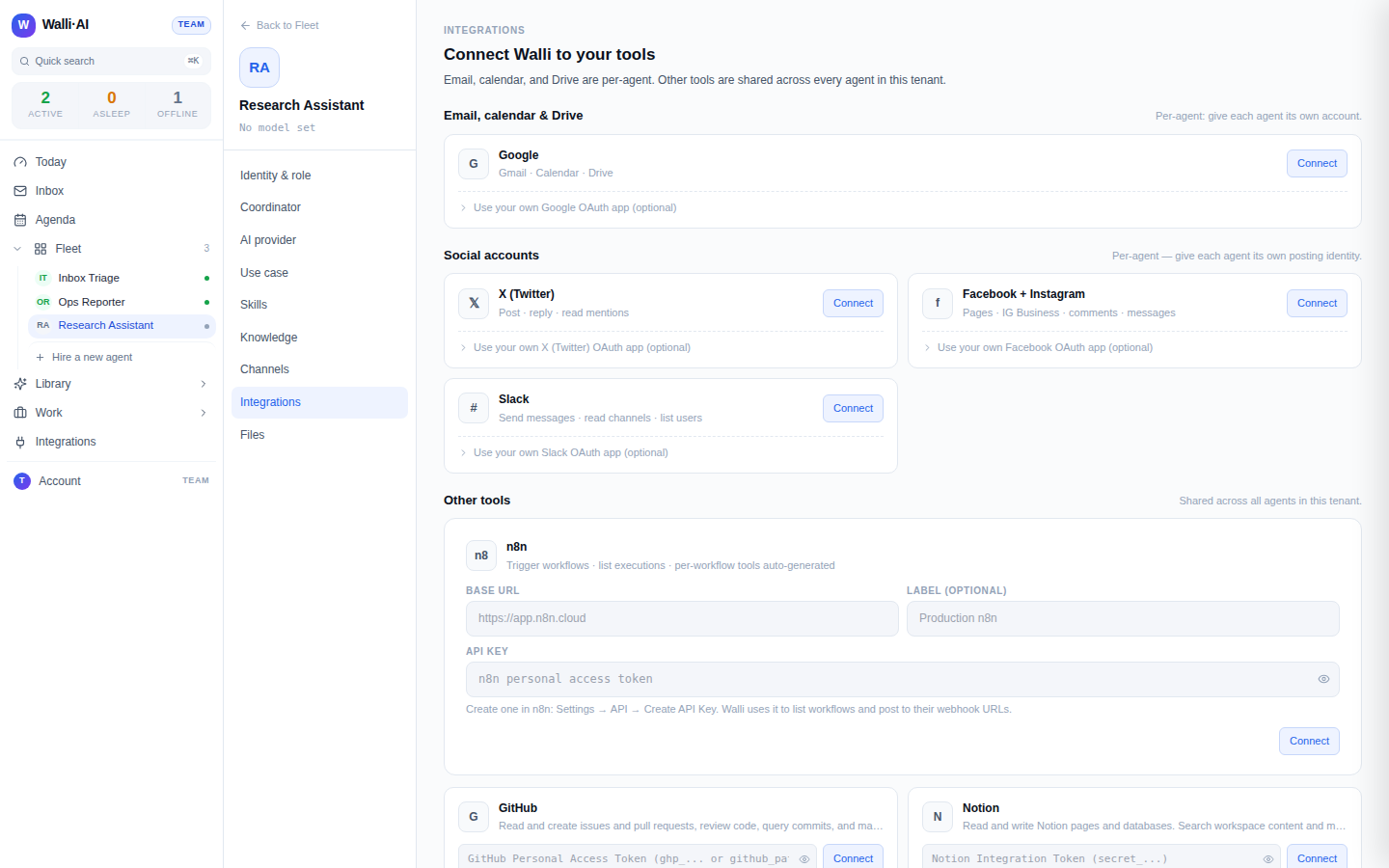
On the demo workspace shown here, no Google account is connected, so the card and tiles read as the connect prompt. On a live workspace the card shows the connected email address, its granted scopes, and Reconnect, Rewire, and Disconnect controls.
Email, calendar, and Drive are per-agent by design: the card sits in the Per-agent section of the agent's integration settings, and each agent you connect gets its own account. If an agent later needs its wiring re-applied without a full reconnect, the Rewire control re-installs the MCP tools for that agent.
What the Gmail tools do
Once Google is connected, the agent gains a Gmail toolset built for triage and drafting, not bulk sending.
- List and read. The agent lists messages by Gmail search query (for example
is:unread label:inbox) and gets back the subject, sender, date, and a 1500-character body preview per message, which is usually enough to summarize or triage without opening each one. It can pull the full body of a specific message when it needs the complete text. - Read attachments. The agent can download an attachment and extract its text, reading PDF, DOCX, and CSV files and running OCR on scanned PDFs and images.
- Label and organize. The agent can list labels, create a new label such as
Walli/urgent, and add or remove labels on a message to triage it in place. - Draft replies. The agent creates Gmail drafts, including replies within a thread. Crucially, drafts are saved, not sent: they appear in your Gmail drafts folder for you to review, edit, and send yourself.
The sending decision stays with you. This is a deliberate safety boundary: an agent can do all the reading, thinking, and writing, but the act of putting a message in front of a real person is always your click, not the agent's.
Inbound email triage
When email flows into an agent as an inbound trigger (for example, a scheduled inbox sweep or a channel-connected mailbox), the agent does not blindly run a full turn on every message. A lightweight triage pass categorizes each message first and decides whether it deserves a full reply.
- Messages judged urgent or actionable get a full agent turn.
- Messages that are informational (a heads-up that needs no reply), social (pleasantries like "thanks!"), or spam are acknowledged silently and short-circuited, so the agent does not burn a turn or clutter your inbox with needless responses.
- Every triage decision is recorded, so you can see why a message was handled the way it was.
The bias is deliberately toward replying when in doubt: a missed reply is treated as worse than a cheap one, and a message is only ever marked spam when it truly is, so real customers are never silently dropped.
What the Calendar tools do
The Google grant also gives the agent a calendar toolset.
- List calendars to discover which calendars the account can see (primary, secondary, and shared).
- List events within a time range to see what is coming up, and get event for the full detail of one.
- Create event with attendees, start and end times, and a summary, or quick add an event from natural language like "Lunch with Bob tomorrow at noon".
- Update event to reschedule, change attendees, or edit the description.
Together these let an agent answer "am I free Thursday afternoon?", book a meeting, or move one, all against the account you connected to that agent.
Tips
- Give each agent its own Google account rather than reusing one: the per-agent grant is what keeps a client agent's drafts out of your personal mailbox.
- If Gmail or Calendar tools stop working after a Google password or permission change, use Reconnect on the agent's Google card rather than disconnecting and starting over.
- To let an agent actually send mail on your behalf (beyond drafts), that is a separate egress grant covered in Credentials and secure egress.
- See Connecting integrations and channels for the hub overview and Chat channels for wiring the same agent to Slack, Discord, or Telegram.