Chat channels: Slack, Discord, and Telegram
Wire an agent into Slack, Discord, or Telegram so people can reach it by direct message or by @mentioning it in a server, with noise filtered out automatically.
Chat channels put an agent where your team already talks. Connect one and people can reach the agent two ways, both first-class: a direct message (a private 1:1 conversation) or an @mention in a shared server channel. Telegram and Discord connect by pasting a bot token; Slack connects through OAuth. All three are wired per agent, so you decide exactly which agent answers in which workspace. This article covers connecting each channel, how DMs and server mentions differ, and how inbound triage keeps a busy channel from turning into agent noise.
What you can do
- Connect Telegram or Discord to an agent by pasting a bot token.
- Connect Slack to an agent through OAuth, granting message and channel access.
- Let people reach the agent by direct message or by @mentioning it in a server channel.
- Have the agent read channels and threads, then reply in the right place (Slack).
- Rely on automatic triage to skip spam, pleasantries, and no-reply notes.
Connect Telegram or Discord (bot token)
Telegram and Discord are channel integrations: you create a bot on their side and paste its token into a setup modal.
- Go to Integrations (
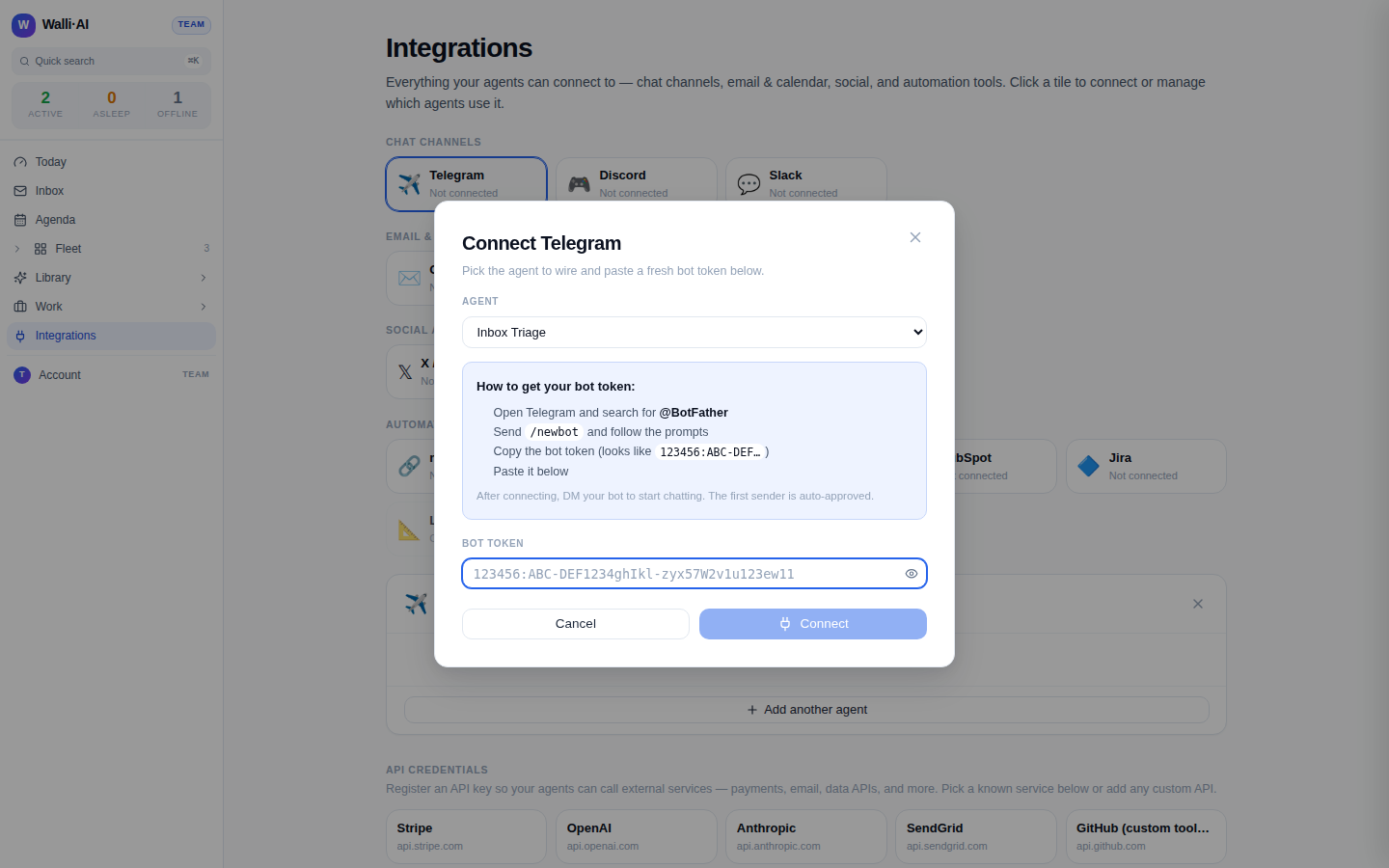
/channels) and click the Telegram or Discord tile under Chat channels. - In the detail panel, click Add another agent. The setup modal opens with the channel pre-selected and an Agent picker listing agents not yet wired to this channel.
- Follow the in-modal instructions to create the bot and get its token. For Telegram, message
@BotFather, send/newbot, and copy the token. For Discord, create an application in the Discord Developer Portal, add a Bot, enable the Message Content Intent, and invite it with the bot scope plus Send Messages. - Paste the token into Bot Token. For Discord you can optionally add a Server ID: when set, the bot requires an @mention in that server (DMs still work without it).
- Click Connect. After the first message, the first sender is auto-approved so you can start chatting immediately.
The demo workspace shown here has no channels connected, so each tile reads Not connected and the detail panel invites you to add an agent. On a live workspace, wired agents are listed with their bot handle and a Disconnect control.
Connect Slack (OAuth)
Slack is an OAuth integration, so it connects per agent from that agent's settings.
- On the Integrations hub, click the Slack tile and then Connect next to the agent you want.
- You land on the agent's integration settings (
/agents/{id}/configure/integrations), where the Slack card lives under Social accounts. Click Connect and complete the Slack "Add to Slack" consent. - Once connected, the agent can send messages, read channels and threads, reply in a thread, and list channels and users in that workspace.
Direct messages and server mentions
Both ways of reaching an agent are supported, and they behave a little differently on purpose.
- Direct messages are always accepted. A private 1:1 conversation with the bot is treated as an intentional request, so every non-bot message you send in a DM reaches the agent.
- Server channel mentions require an @mention. In a shared channel the bot only responds when it is explicitly @mentioned, and the mention is stripped from the text before the agent reads it. This keeps the agent from reacting to every message in a busy channel where most traffic is not meant for it.
That split means you can drop an agent into a team channel without it interrupting normal conversation, while still getting a private, always-on assistant over DM.
Inbound triage keeps channels quiet
An agent wired to a channel does not run a full turn on every inbound message. A fast triage pass reads each message and decides whether it warrants a reply.
- Genuinely urgent or actionable messages get a full agent response.
- Informational heads-ups that need no reply, social pleasantries ("thanks!", "great work"), and spam are acknowledged silently and skipped, so the agent stays quiet when a reply would just be noise.
The triage is tuned to protect real conversations: it errs toward replying when a message is ambiguous, and it only marks something spam when it clearly is, so a real person is never silently ignored. Every decision is logged, so if an agent stayed quiet you can see the category and reason.
Disconnecting
From a channel tile's detail panel, Disconnect on an agent's row stops that agent from receiving inbound messages and tears down the bot or webhook configuration on the channel side. Reconnecting later means re-running the setup, but messages already delivered to the agent's history are left untouched.
Tips
- Give a channel a dedicated agent rather than reusing a busy one: the channel's inbound triage and the agent's persona work best when the agent is purpose-built for that audience.
- For Discord, the Message Content Intent must be enabled or the bot cannot read message text; the setup modal calls this out because it is the most common missed step.
- Use the optional Discord Server ID to scope a bot to one server; leave it blank and DMs still work, which is handy for a personal assistant bot.
- See Connecting integrations and channels for the hub overview, and Gmail and Google Calendar to give the same agent inbox and calendar tools.