Agent skills (adding capabilities and shaping behavior)
Skills are capability and behavior modules you attach to an agent to change what it does and how it works.
Skills are the modular capabilities you attach to an agent to change what it can do and how it behaves. Some skills add a functional ability (a way to perform a task); others are behavioral and shape how the agent approaches its work. An agent's occupation comes with a recommended set, and you can add, remove, or customise skills at any time. This page covers the Skills screen end to end.
What you can do
- See which skills are currently active on an agent.
- Add recommended skills for the agent's occupation in one click.
- Stage several skills and apply them all at once.
- Remove a skill you no longer want.
- Edit a skill's instructions to create a private, customised copy.
Open the Skills screen
- Open the agent and select Skills in the configure left rail (
/agents/{id}/configure/skills). The header reads "Capabilities attached to this agent." - The screen has three parts: the skills currently active, a recommended set for the agent's occupation, and the full list of available skills to add.
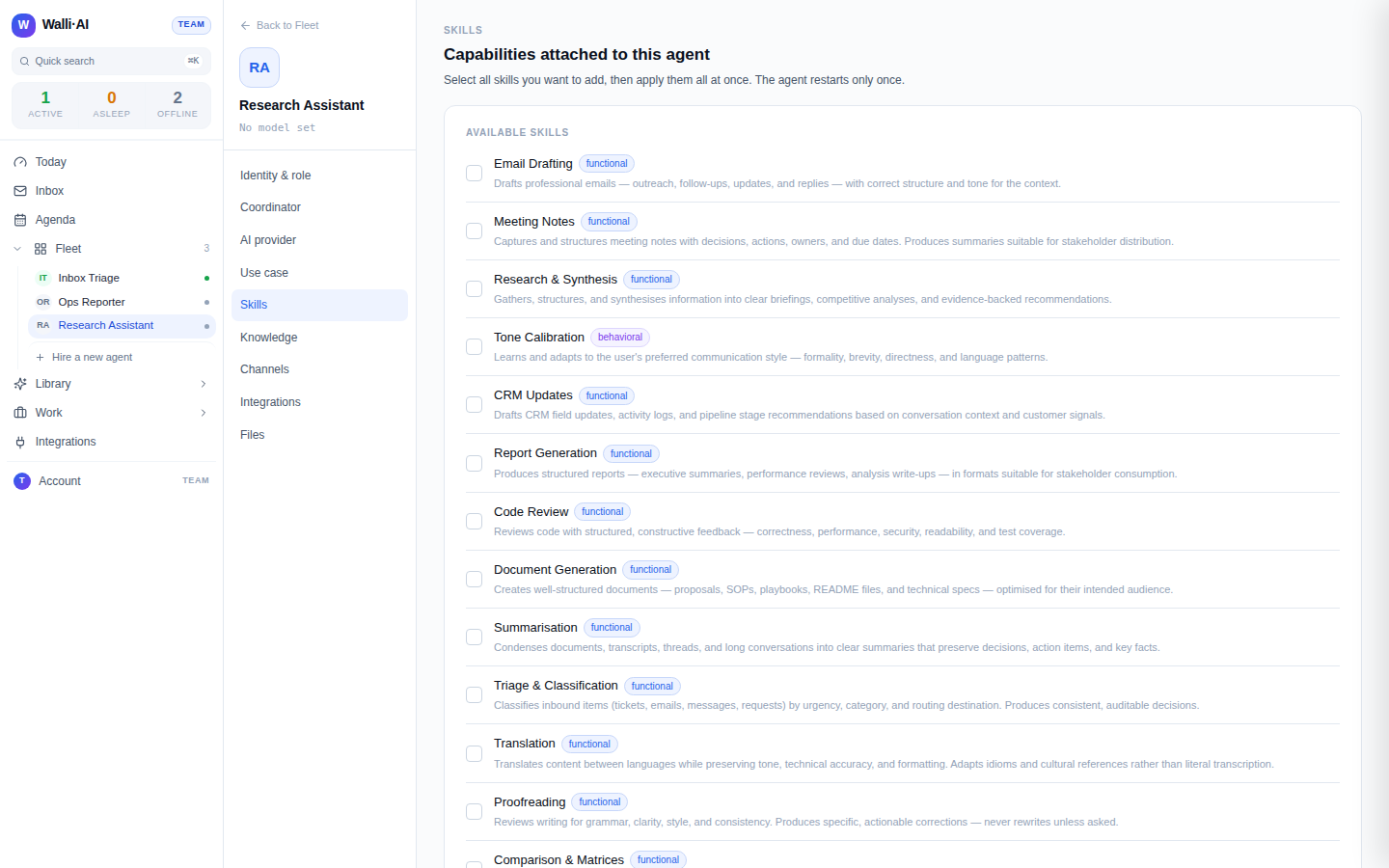
Skill types
Each skill carries a type badge:
- Functional skills give the agent a concrete capability for getting a task done.
- Behavioral skills shape how the agent works: its approach, tone, and priorities.
Active skills also show a small learning indicator once the agent has used them: a session count and a confidence percentage. A freshly added skill reads "Learning starts with next conversation" until the agent exercises it; as it is used across sessions the confidence climbs, so the indicator is a quick way to see which capabilities are actually earning their place and which are dormant.
Add skills
Skills are staged and applied in a batch, so the agent picks them all up at once rather than reacting to each change.
- If the agent has an occupation, a Recommended for [occupation] card lists a curated set that fits the role. Click Add all, or tick individual skills.
- In the Available skills list, tick any others you want. Each shows its type and a short description.
- Your selections collect in a staged bar at the bottom ("N skills staged"). Review them there.
- Click Apply all. The staged skills become active.
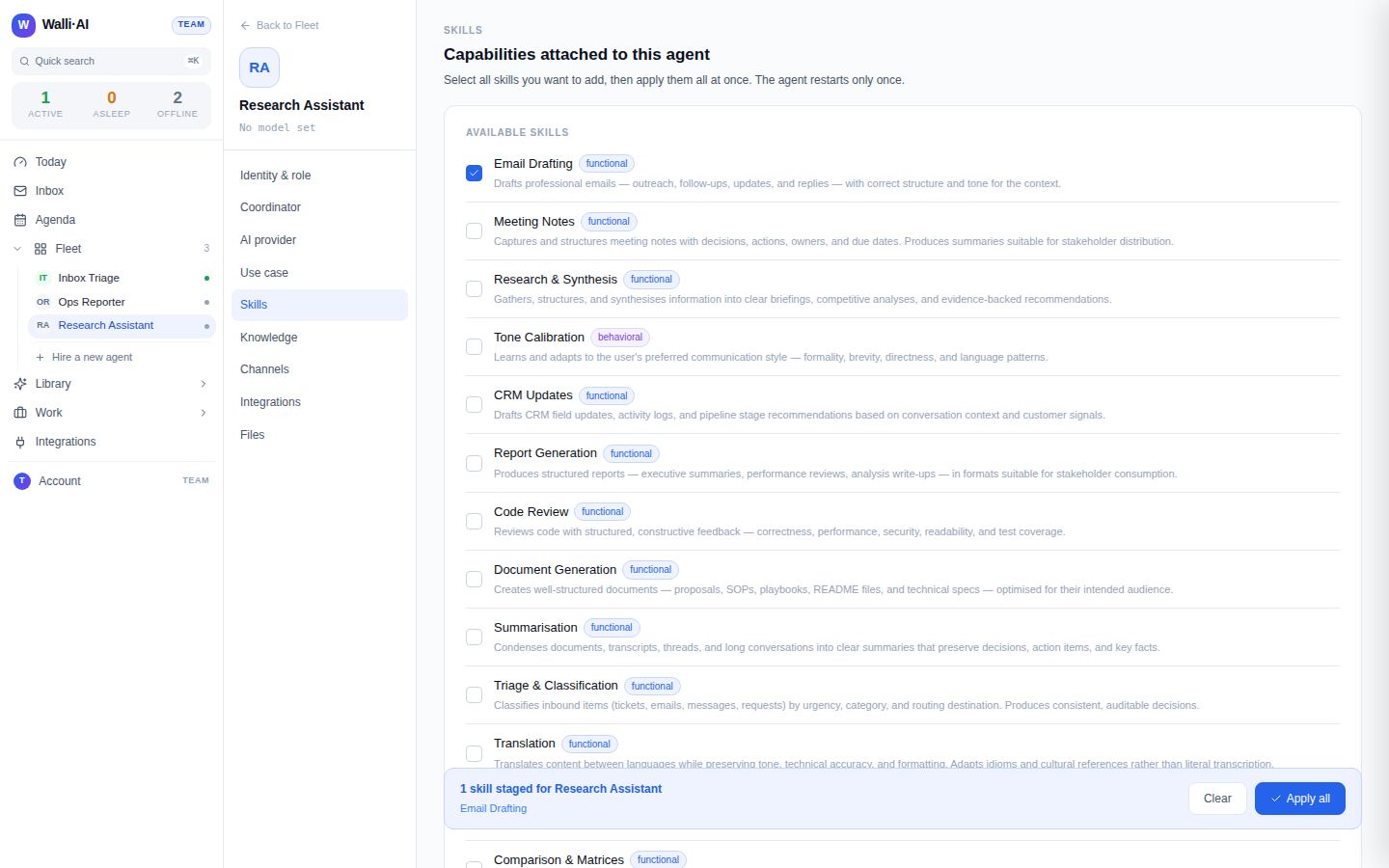
Stage everything you want in one pass before clicking Apply all. Applying as a batch means the agent updates once instead of repeatedly.
Remove a skill
In the Currently active list, click Remove on any skill. It is detached from the agent immediately. Removing a skill does not delete it from the catalog; you can add it back later.
Trimming matters as much as adding. A focused agent with a handful of well-chosen skills is easier to reason about than one carrying every capability in the catalog, and its behavior is more predictable. If an agent is drifting or trying to do too much, look here first and remove anything it does not actually need for its job.
Customise a skill's instructions
You can tailor what a skill tells the agent to do:
- In Currently active, click Edit on a skill to open its instructions.
- Change the text and click Save as custom. This creates a private, customised copy of the skill and swaps it in for this agent; the original catalog skill is left untouched.
Customised skills are marked with a Custom badge so you can tell them apart from the stock ones. Use this when a stock skill is 90 percent right but you want to add a house rule, a preferred format, or a guardrail specific to your workflow, rather than starting from scratch.
Editing a skill never changes the shared catalog version. It always produces a private copy scoped to your tenant, so other agents keep the original behavior unless you customise them too.
How skills reach the agent
Skills are not run as separate programs. Their instructions are assembled into the agent's system prompt at the start of each session, alongside its personality, knowledge, and channel context. That is why adding or removing a skill takes effect on the agent's next conversation rather than mid-thread, and it is the practical reason to stage a batch and click Apply all once rather than toggling skills individually: the agent rebuilds its instruction set a single time instead of repeatedly. It also explains the learning indicator. Because a skill only truly comes into play when the agent next assembles a session that includes it, a freshly added skill reads "Learning starts with next conversation" until that first run happens, then its session count and confidence begin to build.
Tips
- Start from the recommended set for the occupation, then add or trim from there once you see how the agent works.
- Prefer behavioral skills to shape how an agent works and functional skills to expand what it can do; a good agent usually has a few of each.
- Skills, knowledge, and integrations are complementary: skills define capability, knowledge supplies reference material, and integrations connect the tools the agent acts on.