Securing your account: passkeys, MFA, and sessions
Add passkeys, turn on multi-factor authentication, change your password, sign out of every device, and find SSO for your team.
Your account is the key to a workspace full of agents that can act on your behalf, so it is worth locking down. The Security section of Settings (/settings) is where you add passkeys, change your password, and reach the related security surfaces; multi-factor authentication is set up in the sign-in flow; and signing out everywhere is one click from the sidebar. This article covers each of those: passkeys first (the strongest and easiest option), then multi-factor authentication, passwords, sessions and global sign-out, and where single sign-on lives for teams.
What you can do
- Enroll one or more passkeys for phishing-resistant, password-free sign-in.
- Turn on multi-factor authentication with an authenticator app or email code.
- Change your password and sign out of every device at once.
- Find single sign-on and domain claiming for your workspace.
Open Security settings
Open the avatar menu at the bottom of the sidebar and choose Settings (/settings), then select the Security tab. The tab collects the passkey manager, cross-links to single sign-on, delivery channels, egress credentials, and autonomy, and the change-password form.
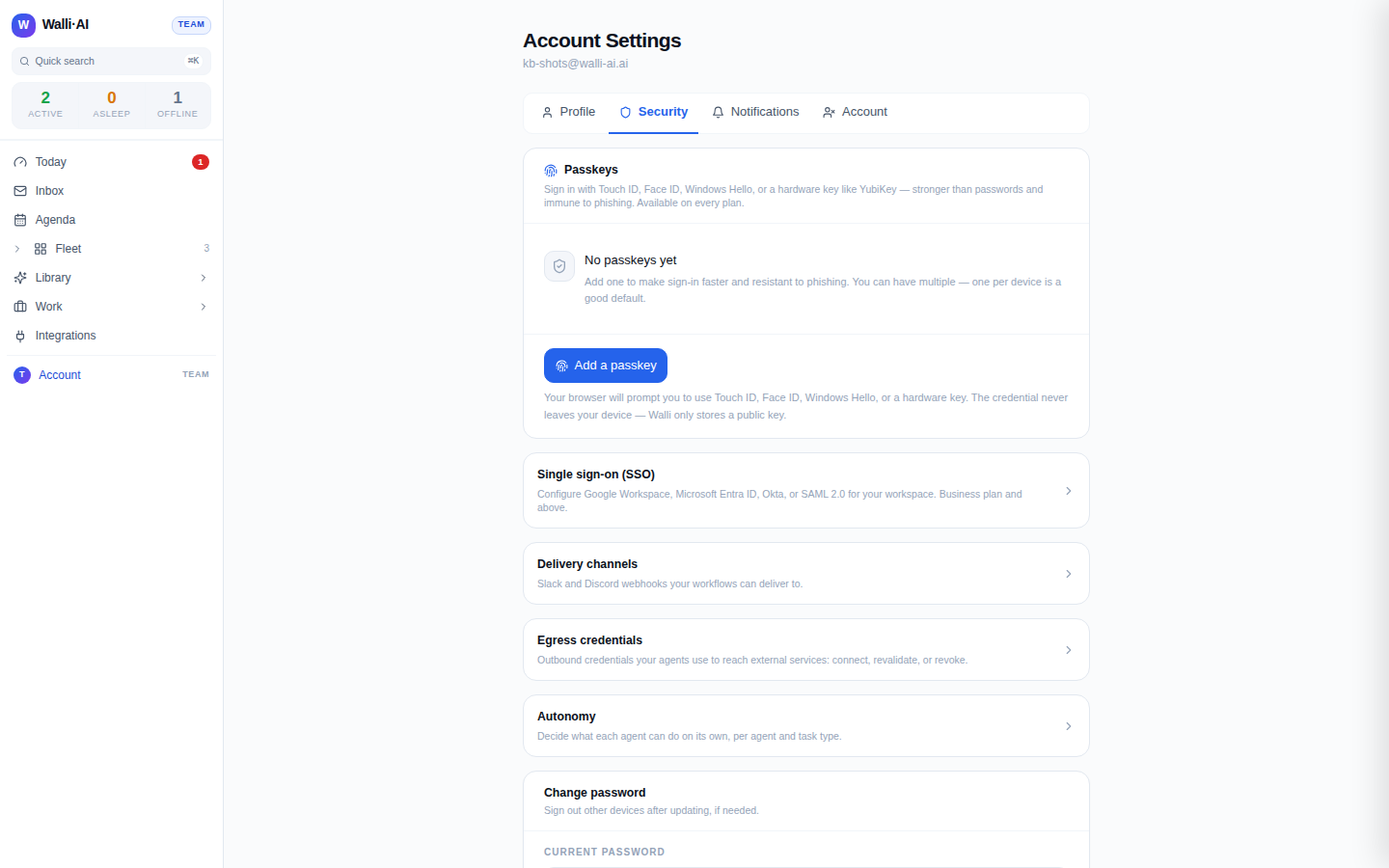
Passkeys (recommended)
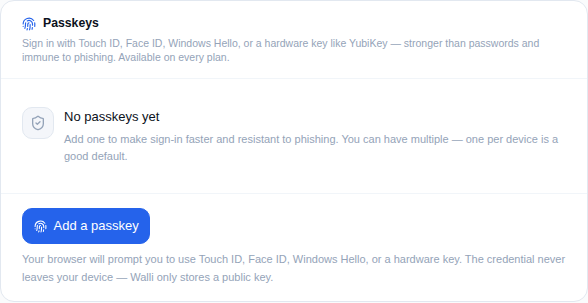
A passkey lets you sign in with Touch ID, Face ID, Windows Hello, or a hardware key like a YubiKey instead of typing a password. It is stronger than a password and immune to phishing, because the secret never leaves your device: Walli-AI only ever stores a public key. Passkeys are available on every plan.
- In the Passkeys panel, click Add a passkey.
- Your browser prompts you to use your device's biometric or security key. Approve it.
- The new passkey appears in the list with a friendly name derived from your device, plus when it was added and last used.
You can enroll more than one, and one per device is a good default so you are never locked out if you lose a single device. To remove a passkey, click Remove on its row. If it is your only passkey, the confirmation warns you and asks you to type REMOVE, because after removal you will need your password or another method to sign in. If your browser does not support WebAuthn, the panel says so and suggests a current browser or a device with a biometric sensor.
Multi-factor authentication (MFA)
MFA adds a second factor on top of your password. Walli-AI supports two methods, and you choose during setup:
- Authenticator app (TOTP). During MFA setup you are shown a QR code to scan with an app like Google Authenticator, 1Password, or Authy. From then on, sign-in asks for the rotating six-digit code the app generates. This is the more secure of the two methods because it does not depend on your inbox.
- Email one-time code (OTP). A six-digit code is emailed to you at sign-in. This is the easier method to start with if you do not use an authenticator app.
MFA is arranged as part of the authentication flow rather than a toggle on this page: when it is required or when you opt in, you are guided through choosing a method, enrolling it, and verifying a first code. At every later sign-in, after your password (or in place of it, if you use a passkey), you either enter your authenticator code or the emailed code. If your workspace offers more than one method, you pick which to use at sign-in.
A passkey and MFA solve overlapping problems. A passkey already gives you a strong, phishing-resistant second factor built into the sign-in, so enrolling a passkey is the single highest-value step you can take. Keeping a TOTP or email method enrolled as well is a sensible backup for devices without a passkey.
Change your password
The Change password card sits below the cross-links in the Security tab.
- Enter your current password.
- Enter and confirm a new password (at least 12 characters, including an uppercase letter, a lowercase letter, a number, and a symbol). The form flags a mismatch as you type.
- Click Update password. Consider signing out of other devices afterward, covered next, if you are rotating a password you think was exposed.
Sessions and signing out everywhere
Signed-in sessions are time-limited and refresh as you keep working. When you want to end them deliberately, or you signed in somewhere you no longer control, sign out globally:
- Open the avatar menu at the bottom of the sidebar.
- Click Sign out.
This performs a global sign-out, ending your sessions across every device rather than just the browser tab in front of you. It is the right move after changing a password you suspect was compromised, or when you have been signing in on a shared or public machine.
Single sign-on for teams
If you run a team, single sign-on lets everyone sign in through your identity provider instead of individual passwords. The Single sign-on (SSO) card in the Security tab links to the dedicated SSO page at /settings/sso, which supports Google Workspace, Microsoft Entra ID, Okta, generic OIDC, and SAML 2.0. Configuring an identity provider is a Business plan feature and above, but you can claim your email domains on that page on any plan, reserving them while you decide. Roles and permissions, and the audit log, are on every plan; see Choosing a plan and managing your subscription for what each tier includes and Governance: spend, activity, and the audit trail for the audit trail.
For related controls, the same Security tab links to your Egress credentials (the outbound keys your agents use to reach external services) and Autonomy (how much each agent can do on its own). Deleting your account entirely lives on the separate Account tab and is irreversible, requiring you to type DELETE to confirm.
Tips
- Enroll a passkey first; it is the strongest option and removes the password from everyday sign-in.
- Keep a second factor (TOTP or email) enrolled as a backup for any device that cannot use your passkey.
- Use the global Sign out after using a shared computer or rotating an exposed password; it ends every session, not just the current tab.
- If you manage a team, claim your email domains on the SSO page now even before upgrading; the reservation holds while you decide on a plan.