Where things are in the Walli-AI app
A complete tour of the sidebar, the account menu, and quick search.
Everything in Walli-AI hangs off the left sidebar and one keyboard shortcut. The sidebar groups your destinations by what you are trying to do (see what happened today, talk to your agents, find the results, configure the work, connect your tools) and keeps account housekeeping tucked into a menu at the bottom. Quick search (⌘K on Mac, Ctrl+K on Windows) jumps you to any agent, workflow, or page, and can hand off into a content search of your deliverables and files. This guide walks the whole thing top to bottom.
What you can do
- Reach any destination from the left sidebar without hunting through nested menus.
- See a live count of your agents (active, asleep, offline) and your current plan at a glance.
- Jump anywhere by name with quick search, or run an action (hire an agent, sign out) from the same palette.
- Find account settings, billing, team, and governance under the account menu.
The sidebar, top to bottom
The sidebar header shows the Walli-AI wordmark, a badge for your current plan, and a Quick search button. Below the header, a three-cell strip counts your agents by state: Active, Asleep, and Offline. Under that is the primary navigation.
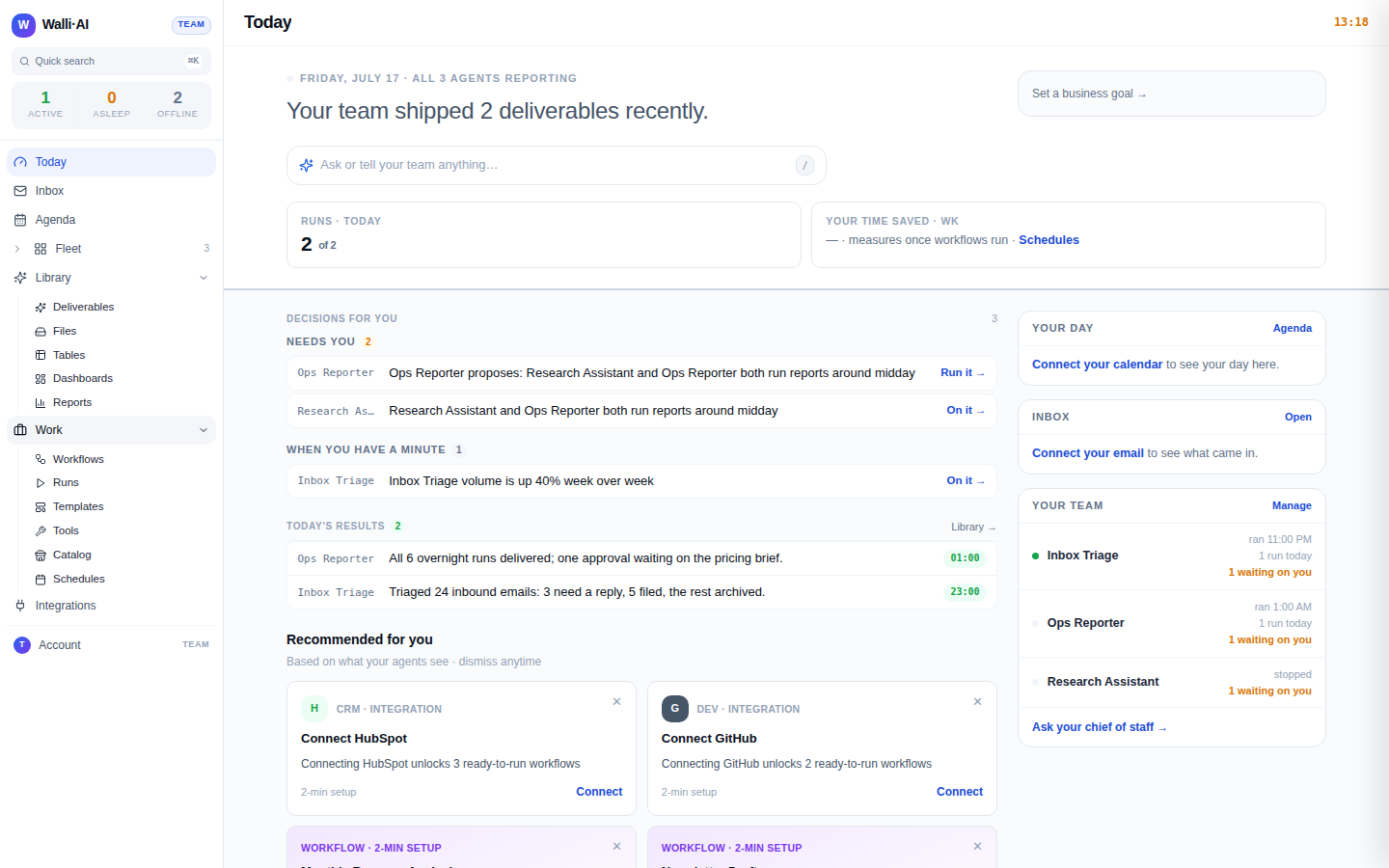
The primary destinations are:
- Today (
/today): your daily brief, the decision queue, and the deliverables handled while you were away. A red badge appears here when an urgent item needs attention. See Your Today command center. - Inbox (
/inbox): inbound messages and items routed to you. - Agenda (
/agenda): your day and upcoming scheduled work. - Fleet (
/agents): an expandable section, not just a link. Click the label to open the full Fleet page; click the chevron to expand an inline list of your agents for quick switching. Each row shows a status dot, and agents that still need setup show an amber Setup chip. A Hire a new agent row sits at the bottom of the list.
Library group
Click Library to expand the surfaces that hold what your agents produce and the data they work with:
- Deliverables (
/library): every finished workflow output, browsable, with an approval trail. See Finding and using deliverables. - Files (
/files): files agents store, generate, or upload. See Files and exports. - Tables (
/tables): your linked databases. See Tables. - Dashboards (
/dashboards): live widgets composed from your tables. - Reports (
/reports): no-SQL reports built from table data. See Reports.
Work group
Click Work to expand where the automation lives:
- Workflows (
/workflows): the repeatable jobs agents run. See Workflows. - Runs (
/runs): the run explorer, with status, cost, output, and errors for every run. - Templates (
/workflows/templates): starting-point workflow templates. - Tools (
/tools): custom API tools you can give agents. - Catalog (
/catalog): occupation and skill templates for staffing agents. - Schedules (
/schedules): when workflows run. See Scheduling an agent or workflow.
Integrations
- Integrations (
/channels): the single hub for every connectable service, chat channels (Telegram, Discord, Slack), email and calendar (Gmail, Google Calendar), and automation tools. See Connecting integrations.
The account menu
Housekeeping does not clutter the primary nav. Open the Account button at the bottom of the sidebar (it shows your plan) to reach:
- Team (
/team): members and invites. See Team management. - Billing (
/billing): your plan, usage, and invoices. - Governance (
/audit): the audit trail of every tool call an agent made with your data. - Help (
/help): this knowledge base. - Settings (
/settings): your profile and preferences. - Sign out ends your session.
Quick search (⌘K)
Quick search is the fastest way to move around. Press ⌘K (or Ctrl+K), or click the Quick search button in the sidebar header.
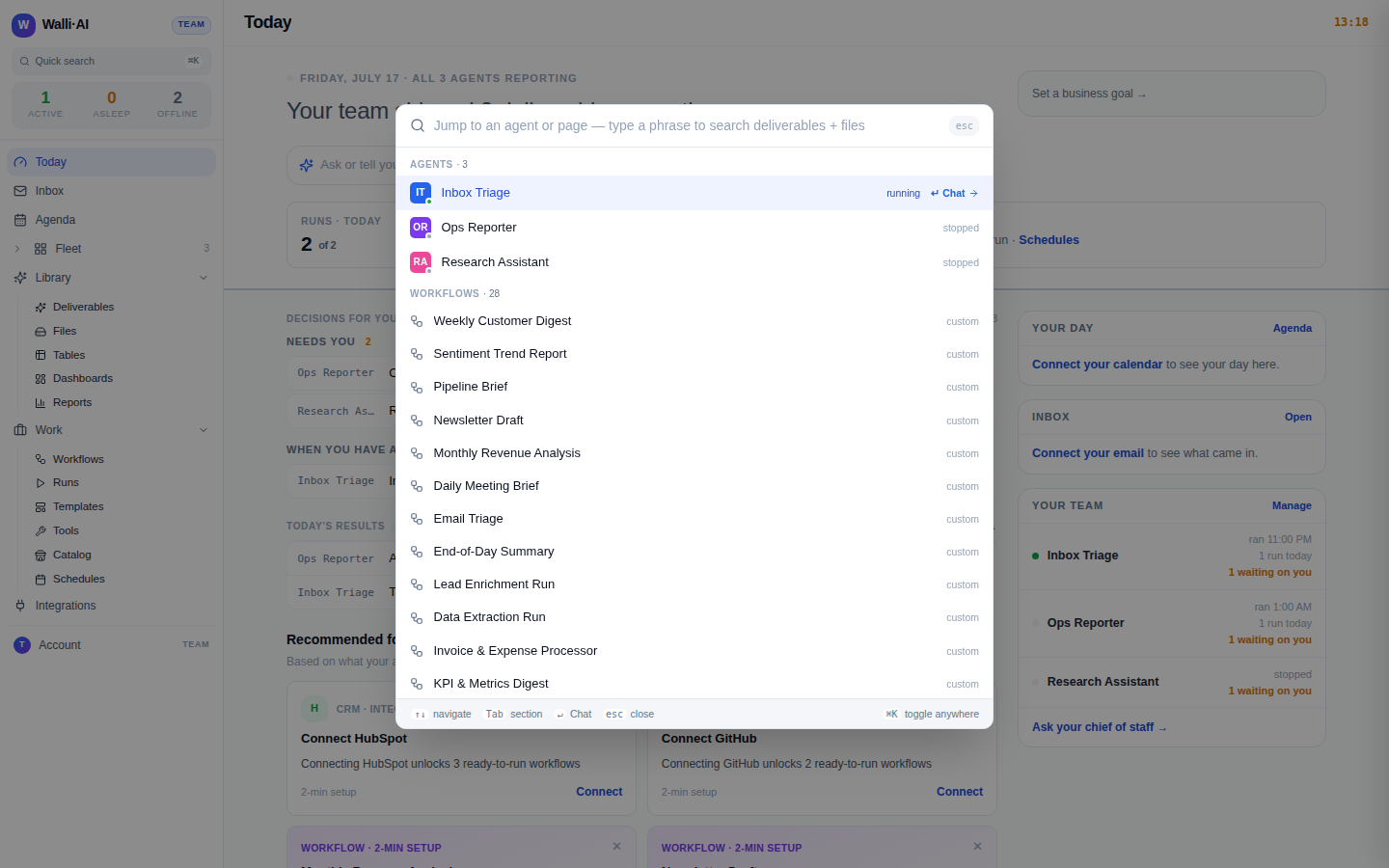
- With nothing typed, the palette shows your Recent items plus grouped Agents, Workflows, Actions, and Pages.
- Start typing to filter across all of them at once. Agent and action matches float to the top.
- Use
↑↓to move the cursor,Tabto jump between sections, and↵to open or run the highlighted item. The footer always shows what↵will do. - Some entries are actions, not destinations: Hire a new agent, Schedule a workflow, Browse the workflow catalog, Run "
" now , and Sign out execute instead of navigating. - Type at least two characters and you also get Search content rows that hand off into the Library (run output and headlines) or Files (file contents) with your query prefilled.
- Press
esconce to clear your query, again to close the palette.
Tips
- The
⌘Kshortcut works from anywhere in the app, including inside a chat or a workflow editor. - Quick search finds things by name. To look inside actual content (emails an agent collected, a file's text, a run's output), use the Search content handoff at the bottom of the results.
- Fleet, Library, and Work remember whether you left them expanded or collapsed, so the sidebar stays the way you set it.
The Fleet, Work, and Library groups expand inline. If you do not see a destination, click the group label or its chevron to reveal the items nested under it.