Finding past results, reviewing & approving
Browse everything your agents have produced, open any result to read the full output, approve or reject what needs sign-off, and rate quality so agents learn.
Every time an agent finishes a run it produces a deliverable: the headline, the next action, and the body of what it did. The Library is where all of those land so a result never turns into vapor. This article covers browsing that history, narrowing it with filters, opening a result to read the whole thing, and approving, rejecting, or rating an output when it needs your sign-off.
Open the Library
Go to Library (/library). The page loads your most recent deliverables grouped into chronological sections (Today, Yesterday, then by day and date), newest first. Each row shows the agent, the deliverable headline, when it completed, the run's status, and small artifact pills for anything the run attached, so you can see at a glance what a run produced without opening it.
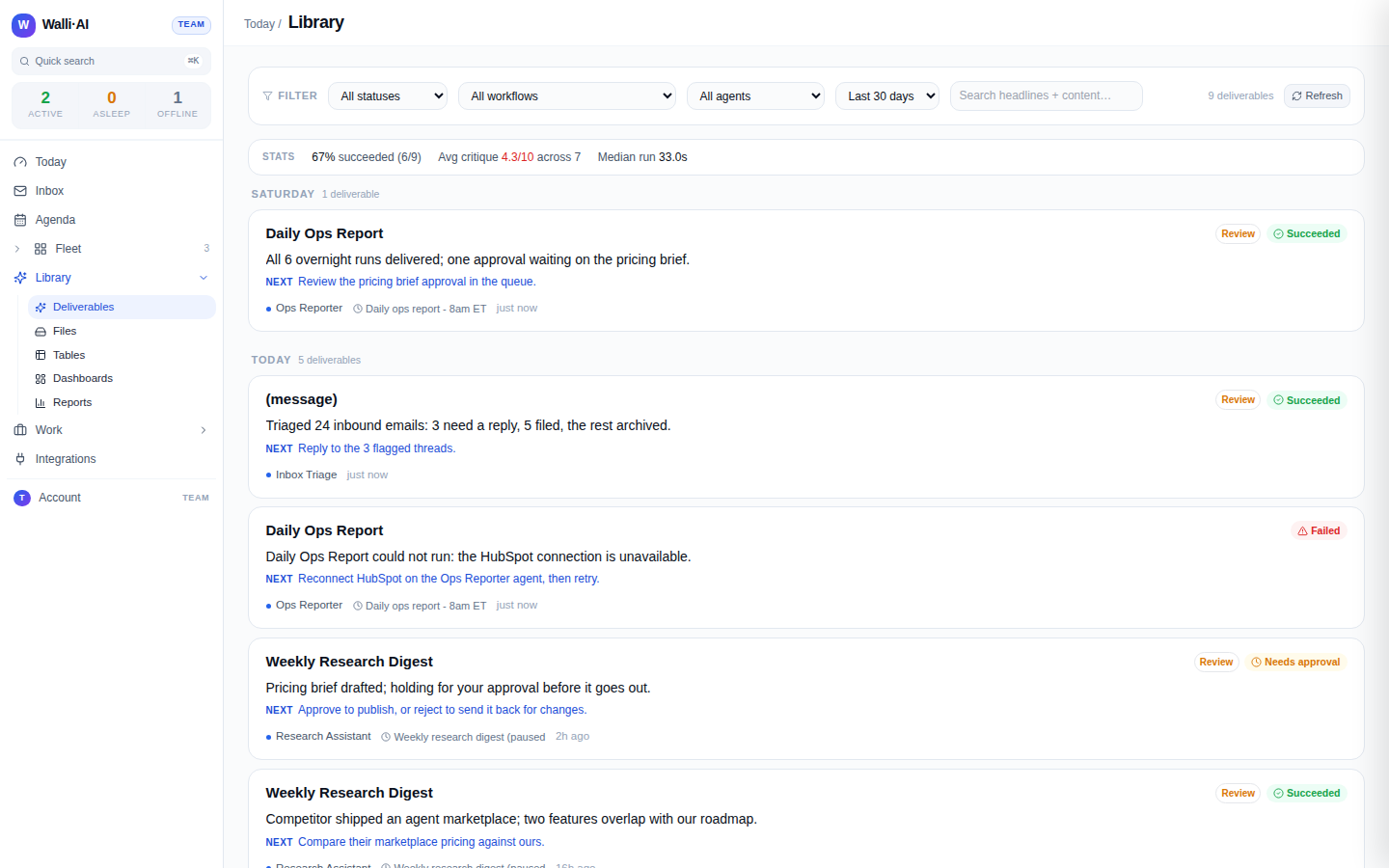
The artifact pills are derived from the deliverable payload, not guessed: a run that saved an HTML report shows a Report pill, one that returned a search-results link shows Results, and an inline HTML document shows HTML. A pill means the content is really there to open.
Narrow the list
The filter bar across the top lets you cut the history down to what you are looking for:
- Search matches text across deliverable headlines and content as you type.
- Status filters to one of All statuses, Succeeded, Needs approval, Approved, Rejected, or Failed.
- Workflow filters to a single workflow, and Agent filters to a single agent, so you can read just one agent's output stream.
- Time range defaults to the Last 30 days and can be widened to 24 hours, 7 days, 90 days, a year, or All time.
- A dedicated toggle shows failed runs only, which is the fastest way to find what needs recovery.
The list pages in blocks, so when there is more history than the first page a Load more control appears at the bottom and fetches the next batch without losing your filters or scroll position.
Read a result
Click any row to open the deliverable in a slide-over panel on the right. The panel renders the full payload: the headline, the recommended next action, and the body, formatted for the deliverable's type. A run that produced structured output (for example an SEO tuning pass) gets a purpose-built view rather than a raw dump, and an outcome trail shows the run's steps so you can see how the result was reached, not just the final text.
If the run failed, the panel explains the failure in plain language rather than showing a stack trace, and points you toward Recovering from a failed run. If the run's quality was auto-critiqued and flagged as low-confidence, a badge on the row and in the panel tells you so, with a tooltip explaining why, so a weak answer never slips by unmarked.
Approve, reject, and request changes
Some workflows are configured to hold their output for human sign-off. Those runs land with a Needs approval status, and their detail panel carries the review actions:
- Approve. Marks the deliverable approved and releases it. If the workflow's next step or downstream automation was waiting on approval, approving is what lets it proceed.
- Reject. Asks you to confirm, then marks the deliverable rejected so it is not acted on. Rejection is the right lever when the output is wrong or off-brief and you do not want it used.
- Request changes / feedback. The panel also carries a quick quality signal: mark a result useful or wrong. That rating is recorded against the run and feeds the agent's learning, so repeated thumbs-down on a pattern nudges the agent away from it.
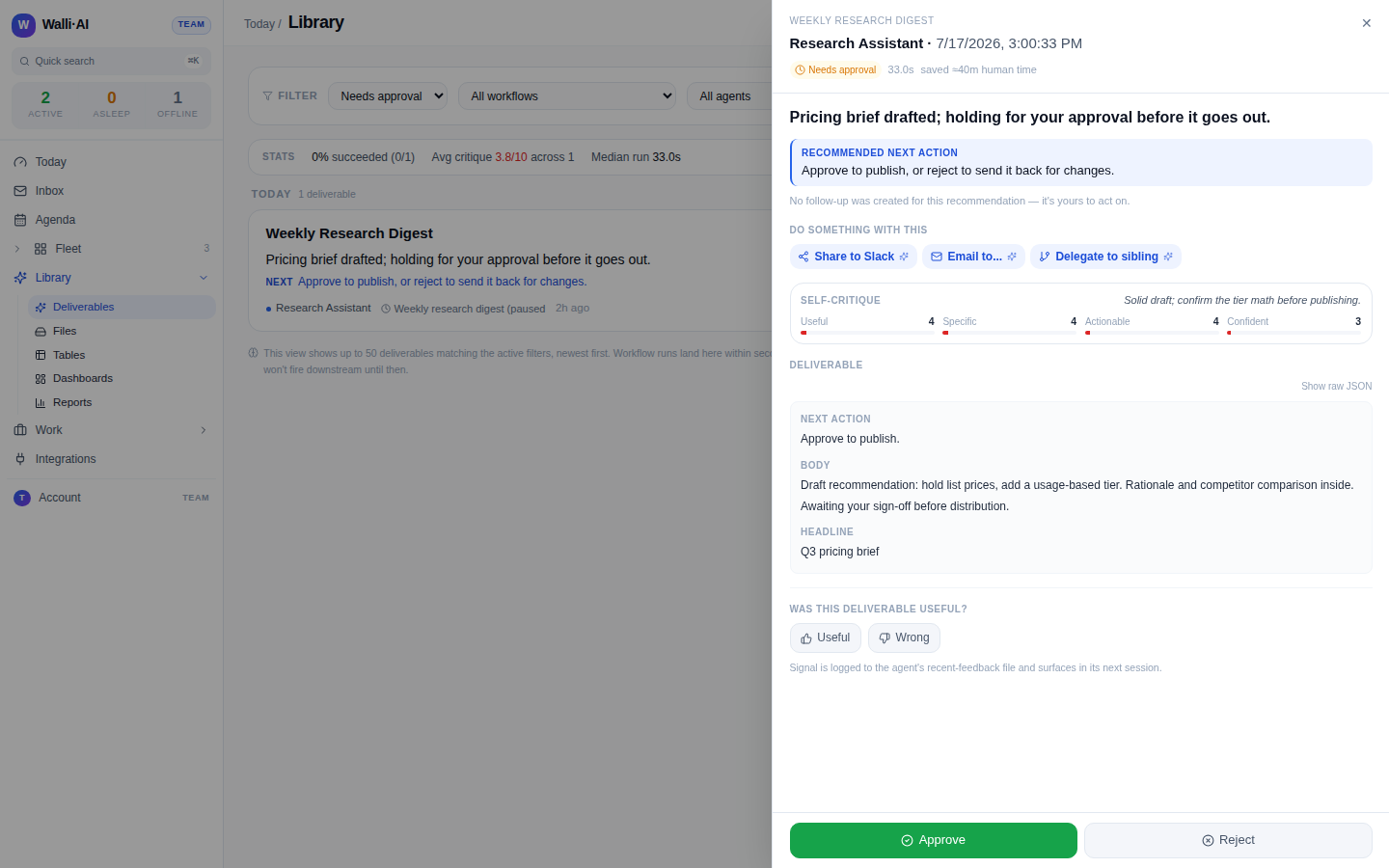
Approving or rejecting updates the row's status in place, so after you act the list reflects the new state and the item moves out of your Needs approval filter. Nothing is deleted by a review action: an approved or rejected deliverable stays in the Library as a permanent record you can reopen later.
Where deliverables come from
A deliverable is created whenever a scheduled workflow, a manual Run now, or a channel-triggered run completes. That means the Library is the single browsable history behind several surfaces: the Schedules calendar shows what is queued, the run detail shows one execution, and the Library shows the accumulated output of all of them. Files an agent generated as part of a run (an HTML export, a CSV, a rendered document) are attached to the deliverable and also filed under Files, where you can preview and download them directly.
Rating drives quality
The thumbs signal is not cosmetic. Walli-AI runs an automatic critique on many deliverables and surfaces the score here; your manual rating is the human ground truth layered on top. Together they are how the platform learns which outputs a given agent tends to get right and which need closer review, which in turn tunes how aggressively future runs of that workflow ask for your approval. Rating a few results honestly, especially the ones that were wrong, pays off in fewer bad deliverables reaching you later.
Tips
- Use the Needs approval status filter as a to-do list: clear it and you have signed off on everything outstanding.
- When an agent goes quiet or noisy, filter the Library to just that agent and read its recent output stream end to end before changing its schedule or prompt.
- Rejecting a deliverable does not retry it. To produce a fresh result, open the workflow or schedule and run it again; see Recovering from a failed run.
- The artifact pills are the quickest way to find a specific export in a busy week: scan for the Report or HTML pill instead of opening every row.